What should you check first?
Start with the output mode you want from each device; screen technology and desk fit become easier to judge once that connection is clear.
| Priority | What to check | Your needs |
|---|
| Resolution and refresh |
Compare the game’s output, the device’s video settings and the mode supported by the selected monitor input. Xbox Support specifies an Xbox Series X, an Ultra High Speed HDMI cable and an HDMI 2.1-capable display for 4K at 120 Hz; supported setups can use 120 Hz at a lower resolution. |
I want the screen’s refresh-rate specification to be usable with my games and device, rather than paying attention only to its maximum figure. |
| Motion and variable refresh |
Check the refresh rate at your chosen resolution and whether the monitor and source share a compatible variable refresh rate (VRR) path. VESA describes DisplayPort Adaptive-Sync as matching display updates to content; confirm support on the exact monitor model. |
Fast games matter to me, but I also need to know whether my PC can deliver high frame rates and whether adaptive refresh works with my graphics hardware. |
| Panel and lighting |
Compare the exact model’s panel and screen finish in your room. For an OLED model, check its image-care guidance if you leave static desktop elements or game interfaces visible for long periods. |
Reflections at my desk and my on-screen habits could matter as much as whether I choose an OLED or an IPS display. |
| Inputs and cable |
Count the HDMI and DisplayPort connections, then confirm the desired mode on each input. For the Xbox Series X 4K/120 route, Xbox Support requires an Ultra High Speed HDMI cable; HDMI Licensing Administrator describes the certification label used for these cables. |
My PC and console need convenient connections, and I want the cable and selected input to support the mode I intend to use. |
| Screen and desk fit |
Measure available width and depth, including the stand. Check whether your games and connected devices support an ultrawide format before choosing one instead of a standard 16:9 screen. |
A larger or ultrawide display appeals to me only if it fits my desk and the games I play. |
Relevant brand references
These examples describe reviewed models, not features shared by every monitor from each brand.
ASUS ROG
TFTCentral reviewed both the 1440p, 240 Hz WOLED XG27AQDMGR and the 1440p, 360 Hz IPS XG27AQNGV.
- The reviewed models offer distinct panel and refresh-rate routes, with HDMI 2.1 inputs documented for each.
- Check the exact model’s panel, ports and supported device modes; they are not interchangeable across the range.
Gigabyte
TFTCentral reviewed the GO27Q24G as a 1440p, 240 Hz monitor with NVIDIA G-SYNC Compatible and AMD FreeSync Premium certifications.
- Its named adaptive-sync certifications give PC players specific compatibility features to check against their graphics hardware.
- Confirm the connections and output modes needed by each device on the exact model before choosing it for a shared desk.
MSI
TFTCentral identifies the MPG 322UR X24 as a 32-inch 4K, 240 Hz QD-OLED monitor.
- The reviewed model provides a larger-screen 4K high-refresh route to consider alongside 27-inch 1440p displays.
- Allow for its size and check PC performance and the exact input modes required by your devices.
Gaming monitors on Joybuy
These gaming monitors cover compact 4K, standard QHD and ultrawide desktop setups. Compare each model’s input-specific modes with your PC or console before choosing.
 No image available
LG UltraGear G8 27G850A 27-inch 4K dual-mode monitor
Consider this for a 27-inch desktop if you want separate detail-focused and high-refresh modes. The listed modes are 4K at 240 Hz and 1080p at 480 Hz; the product name also specifies Nano IPS, HDMI 2.1 and DisplayPort 2.1. Check which resolution, refresh, HDR and VRR combinations your intended input and device can use.
View on Joybuy
 No image available
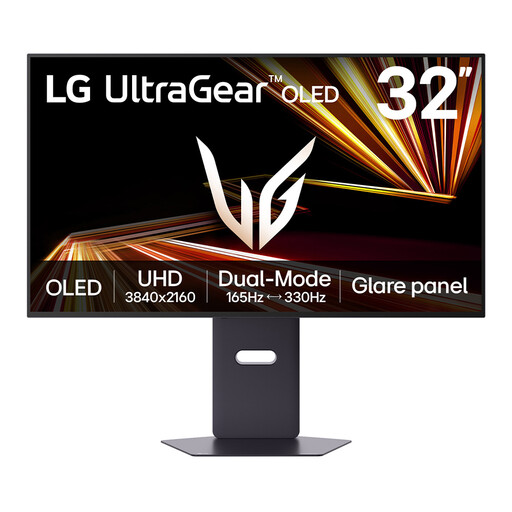
LG UltraGear 32GX850A-B 32-inch 4K OLED monitor
This larger OLED option is for a desk with room for a 32-inch screen. It is described as dual-mode, with a maximum of 330 Hz; check the refresh rate available at 4K and on your chosen input rather than treating that maximum as a 4K figure. Follow the model’s guidance on prolonged static images.
View on Joybuy
 No image available
Samsung Odyssey G6 S27DG612 27-inch QHD OLED monitor
This 27-inch QHD, 240 Hz OLED model fits a standard-format desktop setup. Its product name states a 0.03 ms response figure; check the measurement conditions before comparing response figures across monitors. Confirm the HDMI refresh and VRR modes for any console you plan to connect.
View on Joybuy
 No image available
LG UltraGear 34GX900A-B 34-inch WQHD OLED monitor
Consider this 240 Hz ultrawide if you have the desk width and play games that suit a 21:9 screen. Check whether each connected device supports the resolution and refresh rate you want on its selected input; a standard 16:9 display may fit some games or setups better.
View on Joybuy
 No image available
Dahua 34-inch curved 3440 × 1440 VA gaming monitor
This 200 Hz ultrawide is worth checking for a roomy PC gaming desk, particularly if a curved 21:9 screen suits your games. The stated native-resolution 200 Hz mode uses DisplayPort; the listed HDMI mode at that resolution is 100 Hz. Check VRR support and your console’s HDMI output mode separately.
View on Joybuy
Common questions
Can a PS5 use a 1440p monitor at 120 Hz with VRR?
It can use those 1440p modes when the connected display supports them. PlayStation’s PS5 1440p output test checks SDR and HDR at 60 Hz and 120 Hz, as well as VRR; inspect the connected HDMI device information for the modes reported by your monitor.
What does Xbox Series X need for 4K gaming at 120 Hz?
Xbox Support specifies an Xbox Series X, an Ultra High Speed HDMI cable and an HDMI 2.1-capable display for 4K at 120 Hz. A supported setup may still offer 120 Hz at a lower resolution when that 4K connection is unavailable.
Must I buy another HDMI cable for Xbox Series X 4K/120?
Not if you already have a suitable Ultra High Speed HDMI cable: Xbox Support says the Series X comes with one. If you need a replacement, HDMI Licensing Administrator describes a certification label you can check when selecting an Ultra High Speed cable.
Does an HDMI 2.1 port guarantee VRR and 4K/120 on a console?
No. Check the exact monitor input’s supported resolution, refresh-rate, HDR and VRR combinations, along with the console and cable requirements. After connecting, use the console’s display settings to check the mode it reports.


