For most households, a multi-copy setup is the safer route: use an automated local backup for quick restores and keep another copy off-site, rather than relying on one connected drive or cloud account alone. Choose a simple external drive for routine backups from one computer, a portable SSD for transport and faster compatible transfers, a NAS for shared local storage, and cloud storage for off-site access.
Who this suits
Single-computer households protecting irreplaceable files
For people whose photos and documents mainly live on one Windows PC or Mac and who want a simple automated local backup with a practical way to restore an earlier version. Microsoft and Apple describe backup options for their respective platforms.
Families with growing photo libraries across devices
For households that need an off-site copy and access from signed-in devices, while managing shared cloud capacity, account security and an ongoing subscription. Google explains that storage can be shared across several services.
Multi-device households wanting shared local storage
For households prepared to manage a NAS so several devices can share, access and back up files locally, while maintaining a separate off-site destination. The National Cyber Security Centre advises keeping one backup copy off-site.
What to check before choosing backup storage
Start with the files you need to protect, then check how the backup will be restored, where each copy will be kept and whether your computer or account can support the chosen route.
| Priority |
What to check |
Your needs |
| Separate copies |
Keep more than one copy; place at least one copy away from home; avoid leaving every backup destination continuously connected. |
I want important photos and documents to survive a computer failure, local loss or an incident affecting connected storage. The National Cyber Security Centre describes the 3-2-1 approach as three copies on two devices, with one off-site. |
| Restore options |
Check whether the backup tool keeps earlier versions; identify how to restore a file or folder; run a test restore. |
I need a way to retrieve an earlier or accidentally deleted file, not simply another copy of the latest version. Microsoft File History and Synology Hyper Backup describe version-restoration features. |
| Capacity and compatibility |
Measure the folders to be protected; allow for growth and retained versions; check ports, cables and operating-system backup support. |
I want enough space for today's library and future photos without discovering partway through that the drive, backup software or cloud quota cannot accommodate it. |
| Cloud account access |
Check what the subscription is for; review shared storage limits, renewal arrangements and account-security settings; plan how important files could be copied elsewhere. |
I need off-site access without losing track of the account that holds my files. GOV.UK advises consumers to consider backup, access and sharing needs separately when choosing cloud storage. |
Backup mistakes to avoid
-
Treating sync or one copied drive as a guaranteed backup
A single connected destination can be affected alongside the computer, and a copy kept only at home is not physically separate from local loss events.
Keep at least one additional copy in another location and avoid leaving every backup destination continuously exposed to the computer. Test that the separate copy can restore the files you need.
-
Buying capacity before measuring the backup set
Required space depends on the current library, future growth and the number of older versions retained. Cloud capacity may also be shared with email and other files.
Measure the folders or libraries to protect, decide whether version history is needed and check every service using the relevant cloud quota before choosing capacity.
-
Assuming a fast SSD reaches its advertised speed on every computer
Maximum transfer figures can depend on a particular USB standard, cable and UASP support. A slower connection may still back up files, but initial transfers can take longer.
Check the computer port, cable and operating-system compatibility. Treat stated speeds as conditional performance figures rather than proof of backup reliability.
-
Ignoring cloud account, renewal and exit arrangements
A full, suspended, cancelled or inaccessible account can interrupt new backups or delay access to files. Moving a large library later can also require time and another destination.
Use account-security protections, monitor storage and billing notices, and keep time and local storage available to duplicate important files before changing provider or cancelling.
Relevant backup platforms and brands
Microsoft
A Windows backup route for households using Windows PCs, especially where File History can back up selected libraries to an external drive or network location.
- Microsoft states that File History can make regular backups and restore earlier file and folder versions.
- A connected local drive is not off-site and is not automatically protected from ransomware.
Apple
A Mac backup route using Time Machine with a directly connected external device, a shared Mac destination or a compatible NAS.
- Apple identifies directly connected external storage as a common Time Machine setup and supports compatible NAS devices over SMB.
- Check the Mac port, macOS version and NAS compatibility before purchase.
Synology
A NAS route for households needing shared local storage, centralised access and configurable backup or version features across several devices.
- Synology describes multi-version restore tools in Hyper Backup and local sharing, backup and version rollback capabilities for the DS224+.
- A NAS remains at the same location unless its contents are copied elsewhere.
Samsung
A portable external SSD route for households prioritising a compact drive for transport or quicker large-file copies on compatible hardware.
- Samsung's UK T7 Shield page states read/write speeds up to 1,050/1,000 MB/s when a compatible host, cable and UASP are used.
- A portable SSD is still one local copy unless another backup is kept separately.
Google
A cloud route for households using Google Photos, Drive and Gmail that want off-site photo or video backup and access from signed-in devices.
- Google states that eligible photos and videos can be saved to a Google Account and accessed from signed-in devices.
- Storage is shared across services, and Google says new uploads and photo or video backups stop when the storage limit is reached.
Joybuy backup storage options
These Joybuy options cover external hard-drive and portable-SSD routes for a household adding a local copy of photos and documents. Keep a separate off-site copy for files that would be difficult to replace.
 No image available
Western Digital My Passport Portable External Hard Drive 2TB
A local option for one-computer household backups where scheduled copies are useful. The listing states 2TB capacity, USB 3.2 Gen 1 connectivity, Windows 10+ support and conditional macOS 11+ use; macOS read/write use requires the stated compatibility driver. Measure your backup set and keep another copy off-site.
Joybuy
 No image available
Samsung MU-PE1T0S 1TB USB Type-C Portable SSD
A portable local-copy option for households moving files between compatible devices. The listing identifies 1TB capacity and USB 3.2 Gen 2; Samsung states maximum read/write speeds of up to 1,050/1,000 MB/s require a compatible host, cable and UASP. Check that 1TB suits your library and maintain an off-site copy.
Joybuy
 No image available
Lexar ES4 Portable SSD with Magnetic Set 1TB
A portable SSD for moving a local copy between compatible computers and devices. The listing states 1TB capacity, USB 3.2 Gen 2, USB-C-to-C and USB-A-to-C cables, and up to 1,050/1,000 MB/s read/write figures. Verify port support, operating-system compatibility and capacity before relying on it for backup.
Joybuy
 No image available
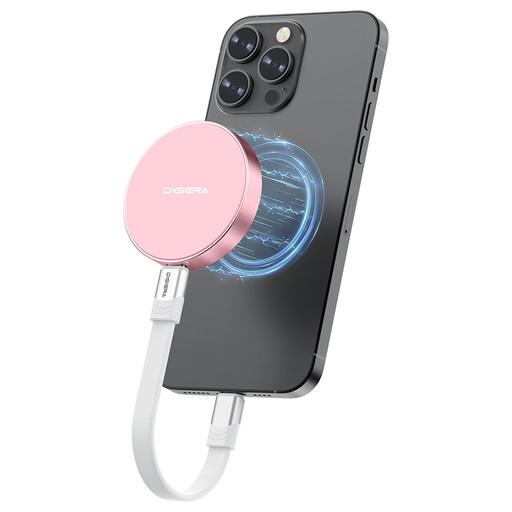
DigiEra LPS2000M-3 1TB Magnetic Portable SSD
A USB-C portable-storage option for households that carry a local copy between compatible devices. The listing states 1TB capacity, USB 3.2 Gen 2x2 Type-C and up to 2,000/1,800 MB/s read/write figures; compatible hardware is needed to approach those speeds. The magnetic phone use is limited to the stated newer iPhone models.
Joybuy
 No image available
SanDisk Portable SSD 2TB
A compact local-copy option for a larger photo and document collection. The listing states 2TB capacity, read speeds up to 800 MB/s and up-to-2-metre drop protection. Check the connector, cable and operating-system fit for your computer, and use another destination for an off-site copy.
Joybuy
Frequently asked questions
Is one external drive a complete home backup solution?
No. One drive can be useful for local backups, but it should not be the only copy or remain continuously connected to the computer. The National Cyber Security Centre describes a 3-2-1 approach with at least three copies on two devices and one copy off-site.
Can I restore older versions of a file from a local backup?
Often, if the backup method retains versions. Microsoft says File History lets Windows users browse and restore saved versions, while Synology says Hyper Backup can retain multiple versions. Check retention settings and test a restore before relying on the setup.
Can a Mac use an external drive or NAS for Time Machine?
Yes, subject to compatibility. Apple states that Time Machine can use a directly connected external storage device and a third-party NAS that supports Time Machine over SMB. Check the NAS documentation, Mac port and macOS version before purchase.
What happens when a cloud-storage account reaches its capacity limit?
It can interrupt backups. Google states that when its storage limit is reached, users cannot upload or create Drive files and cannot back up photos or videos to Google Photos; capacity is shared across several Google services. Check the provider's quota, renewal terms and alerts before using cloud storage as an off-site copy.


