What to check before buying
Check connections first, then choose the screen arrangement and position that fit your work. Treat audio and peripheral ports as model-specific choices.
| Concern |
What to check |
Who this matters to |
| Connections and charging |
Match the computer’s video output to the monitor input. For a one-cable laptop setup, confirm USB-C video support and compare power delivery with the laptop’s charging requirement. |
If I want to connect my work laptop with one cable, I need to know that it will send a picture and receive suitable power. Around 36% of consumers put connection and charging compatibility first. |
| Screen workspace |
Measure desk width and depth; compare screen size and resolution with the documents you use. Confirm multi-display support before choosing two screens. |
When I work across a spreadsheet and reference material, I want enough visible space without crowding the desk. Around 29% of consumers make workspace their primary concern. |
| Positioning |
Check the stand’s stated adjustments and the desk space available for placement. If you plan to use an arm, check mounting compatibility. |
For long desk sessions, I need to place the screen comfortably rather than work around a fixed position. Roughly 21% of consumers prioritise monitor positioning. |
| Audio and peripherals |
Check the exact model for speakers, microphone, webcam and the number and type of USB ports you need. |
If calls and desk devices are part of my routine, I want to know which can connect through the monitor and which need separate equipment. Around 14% of consumers put audio and peripheral convenience first. |
Joybuy monitor choices
These monitors cover straightforward PC connections, a USB-C option and larger single-screen workspaces. Match the connection and physical setup of each model to your computer and desk.
 Image unavailable
Samsung 22-inch S40GD LS22D400GAUXXU Full HD monitor
Consider this for routine document work where a 22-inch screen fits your desk.
The product name specifies Full HD resolution. Check your computer’s video output and the adjustment range you need before choosing it.
View on Joybuy
 Image unavailable
ASUS ZenScreen MB249C IPS USB-C monitor
Consider this if a USB-C connection and flexible placement are important to your desk setup.
The product name specifies an IPS display and USB-C. Confirm that your computer sends video through USB-C, and check the included mounting accessories and the model’s charging capability against your needs.
View on Joybuy
 Image unavailable
KOORUI E2412F 24-inch FHD business monitor
Consider this for an office-screen replacement when you want a 24-inch display rather than a larger single-screen layout.
The product name specifies FHD resolution. Check its inputs against your PC and confirm whether its positioning options suit your workstation.
View on Joybuy
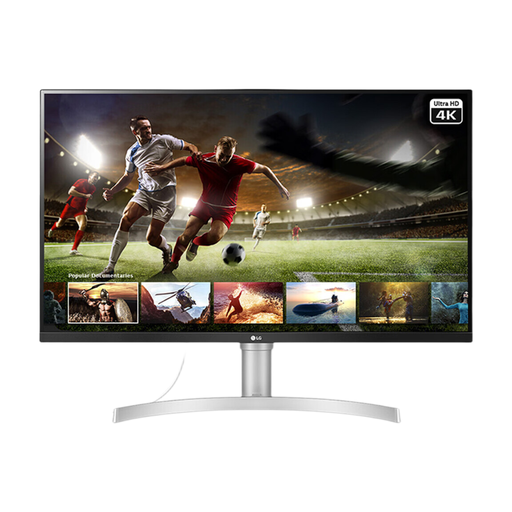 Image unavailable
LG 32UN650K 32-inch 4K IPS monitor
Consider this if you prefer a large single display for keeping work visible, provided it fits your desk.
The product name specifies 4K IPS, 60Hz, built-in speakers, HDMI and DisplayPort. Check that your computer can provide the intended 4K output and that the screen can be positioned comfortably.
View on Joybuy
 Image unavailable
AOC Q32V4 31.5-inch 2K IPS monitor with speakers
Consider this for a larger single-screen desk arrangement if you also want integrated speakers.
The product name specifies a 31.5-inch 2K IPS display and built-in speakers. Check desk fit, computer connections and whether the audio suits your use.
View on Joybuy
Common questions
Will any USB-C monitor give my laptop a one-cable setup?
No: the laptop must support video output through the port, and the monitor must provide the functions you want to use. Check the laptop manufacturer’s specifications for DisplayPort Alt Mode, Thunderbolt or another supported video method, then check the monitor’s data and charging capabilities.
How do I choose a monitor’s USB-C charging capability?
Compare its stated power-delivery rating with your laptop’s charging requirement and intended workload. Dell lists up to 90W for the P2425E, while HP lists 100W for the 527pm; those model-specific figures do not establish what another monitor can supply.
Are built-in speakers enough for home-office work?
They may suit your needs if you want simple audio, but their presence does not establish call or media sound quality. Check the exact monitor’s hardware and consider a headset or separate speakers if audio or private listening matters to you.
Should I use two monitors or one larger screen?
Choose two if you regularly need separate work windows visible and your computer and desk can support both displays comfortably. A larger single screen avoids planning a second display connection, but its dimensions and position still need to suit your workstation.
Do UK home workers automatically have a right to a monitor?
No, a home-working arrangement alone does not establish a right to a particular monitor. The UK Health and Safety Executive says display screen equipment rules can apply to permanent, long-term or routine hybrid home workers who use it daily for continuous periods of an hour or more; where they apply, the employer’s workstation assessment informs what action is needed.


