Choose a desktop HDD for a large photo archive that stays beside the workstation, a portable HDD if the backup needs to travel, or a portable SSD if frequent transfers and restores matter more and the computer can support the connection. Check capacity, ports and backup formatting before buying, and keep an additional copy offline or offsite rather than relying on one connected drive.
Who needs which kind of drive?
Large-library home archivists
If your photo library is substantial and growing, you may want a local backup destination that stays at one workstation for scheduled backups. Check the space needed for the library, other backed-up files and future growth.
Frequent photo importers and restorers
If you regularly move large batches of images or restore selected files, transfer workflow may matter more to you. Check the workstation’s port and connection before choosing a drive for its stated speed.
Portable-backup users
If you take the backup away from the workstation, a portable drive may make it easier to keep a copy in another secure location. Consider how you will power, carry and protect it.
What matters when choosing?
Desktop HDD
Choose when: The drive will stay beside one workstation and needs room for a growing archive; Seagate lists Expansion Desktop capacities from 4TB to 28TB.
Trade-off: The cited Expansion Desktop needs an external power adapter, making it a stationary choice rather than a drive to carry routinely.
Portable HDD
Choose when: You want to move the backup between the workstation and another secure location; Seagate’s Expansion Portable is USB-powered and listed at up to 5TB.
Trade-off: A drive that travels needs a plan for secure storage and regular reconnection so that backups still take place.
Portable SSD
Choose when: You frequently transfer photo batches or restore files and want a compact drive to carry.
Trade-off: Stated maximum speeds do not describe every transfer: Crucial says performance for its X10 varies with the host and formatting.
| Concern |
What to check |
Who this matters to |
| Capacity and backup history |
Compare the data selected for backup and expected growth with drive capacity. For a Mac backup, Apple recommends a Time Machine device with at least twice the Mac’s storage capacity. |
If my photo library keeps growing, I need room for the files and useful backup history without replacing the drive too soon. Around 42% of consumers put capacity and backup history first. |
| Transfers and restores |
Check the workstation’s port capability and the cable required by the drive; a USB-C connector alone does not establish transfer speed. |
When I move large photo batches or retrieve files regularly, waiting for transfers disrupts my workflow. Transfer and restore needs come first for around 33% of consumers. |
| Backup separation and portability |
Decide how a copy will be disconnected or stored elsewhere, and whether a drive you carry needs password protection. |
I want to take a copy away from the workstation without leaving my only backup exposed while connected. Around 25% of consumers prioritise backup separation and portability. |
Backup mistakes to avoid
-
Leaving the only backup connected
A connected drive can make scheduled backups convenient, but it may be exposed alongside the workstation. The National Cyber Security Centre notes that connected USB and network backup storage has been compromised in ransomware incidents.
Keep an additional copy offline or offsite. Disconnect a removable backup when it is not needed and store it securely.
-
Choosing by connector shape alone
USB-C describes the connector, not the transfer mode. Seagate specifies USB 3.0 for the cited HDDs’ USB 3.0 transfer speeds, while Crucial says actual X10 performance varies with the host and formatting.
Check the workstation’s port specification, the supplied cable ends and whether an adapter is needed.
-
Erasing the only photo copy while formatting
Preparing a drive for a Mac backup can erase files already on it. Apple identifies APFS or APFS Encrypted as preferred Time Machine formats and warns that reformatting removes existing data.
Copy needed photos to another location before erasing the drive, then follow the format instructions for your intended backup method.
-
Treating drive protection as another backup
Password protection addresses access to a carried drive, while a physical-resistance rating describes particular handling conditions. Neither creates an independent copy of the photos.
Choose those features for the way you handle the drive, maintain another backup copy and check that important photos can be restored.
Relevant brands for reference
Seagate
Its Expansion and One Touch lines illustrate stationary, portable and password-protected HDD choices for a local photo backup.
- Seagate lists Expansion Desktop capacities from 4TB to 28TB and Expansion Portable capacities up to 5TB.
- Expansion Desktop needs an external power adapter. Check the exact One Touch model for its security features, and check formatting and cable requirements for the intended computer.
Crucial
The X10 portable SSD line is relevant when frequent transfers and carrying the backup are priorities.
- Crucial lists X10 capacities up to 8TB and a maximum sequential-read specification of 2,100MB/s; it also states IP65 dust and water resistance and drop resistance up to 3m under its test conditions.
- Crucial says actual performance and compatibility can vary with the host and formatting. The stated resistance does not replace another backup copy.
LaCie
The Mobile Drive Secure is a portable HDD option to consider for a Mac-oriented backup workflow.
- Apple’s UK listing for the LaCie Mobile Drive Secure 5TB states Mac and USB-C iPad compatibility, USB bus power and password protection.
- Apple lists transfers up to 130MB/s for that product; confirm the exact model, formatting and backup software workflow for your computer.
Joybuy drives for portable photo backups
These portable SSDs and a portable HDD are choices to consider if your photo backup needs to move away from the home workstation. Compare the capacity with your library and check your computer’s connection and backup format before selecting one.
 No image available
Samsung Portable SSD T7 2 TB, Grey
Consider this portable SSD if you move a photo backup between locations or regularly transfer files.
The product name specifies 2 TB and USB Type-C 3.2 Gen 2. Check that the capacity fits your library and that the drive can be formatted for your backup method.
View on Joybuy
 No image available
Samsung T7 Shield Portable SSD 1 TB, Blue
Consider this portable SSD if the backup will be carried regularly; assess its handling features against how you will transport it.
The product name specifies 1 TB and USB 3.2 Gen 2. Check whether 1 TB leaves enough room for the files you plan to back up and which format your backup tool requires.
View on Joybuy
 No image available
Lexar ES4 Portable SSD with Magnetic Set 1TB
Consider this portable SSD for a backup that travels between computers, after checking the connection and backup workflow on each one.
The product name specifies USB 3.2 Gen 2 and reads up to 1050MB/s and writes up to 1000MB/s. Check whether 1TB accommodates your library; maximum transfer figures do not guarantee the speed of a particular backup.
View on Joybuy
 No image available
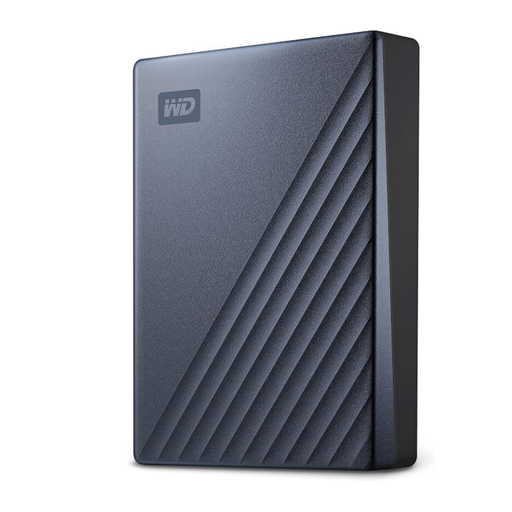
Western Digital My Passport Ultra Portable Hard Drive 5TB, Blue
Consider this portable HDD if you want to move a larger local photo backup between the workstation and a secure storage location.
The product name specifies 5TB. Before using it for a Mac backup, check the required format and preserve any files already on the drive before reformatting.
View on Joybuy
 No image available
SanDisk Portable SSD 2TB
Consider this portable SSD if you need a local photo copy that can be moved away from the workstation.
The product name specifies 2TB. Check the connector, supplied cable and required backup format against your computer before choosing it.
View on Joybuy
Frequently asked questions
Is one external drive beside my workstation enough for a photo backup?
It provides a local backup destination, but should not be your only protection. The National Cyber Security Centre advises keeping a backup offline and notes that connected storage can be affected during ransomware incidents; keep another copy separate from the workstation.
Can Time Machine use a drive formatted for Windows?
Not without preparing the drive for Time Machine. Apple says Time Machine cannot back up to a Windows-formatted disk and identifies APFS or APFS Encrypted as preferred formats. Copy any files you need elsewhere before reformatting, which erases the drive.
How much capacity does a Time Machine drive need?
Apple recommends a backup device with at least twice the Mac’s storage capacity. That recommendation concerns a Time Machine backup of the Mac; for a different photo-copy workflow, check the size of the files you will copy and allow for growth.
Can my Mac Photos library share a drive with Time Machine?
Apple says a Photos library cannot be stored on a storage device used for Time Machine backups. Use a separate storage device for the Photos library and check Apple’s instructions before moving it.
How can I schedule photo backups on Windows?
Microsoft says File History can make regular backups to an external drive or network location. Select the destination drive and check that the folders containing your photos are included in what File History backs up.


