Choose an external drive if you want a local copy you can restore without an internet connection; consider cloud backup if a copy outside the home matters more. For irreplaceable household files, using both addresses different loss risks. Whichever route you choose, check that it covers the right folders and devices, runs often enough and lets you restore the files you need.
Who needs which approach?
The right backup arrangement depends on which files you cannot replace and how many devices hold them.
Households protecting irreplaceable files
If family photos or important records would be difficult to recreate, keep a recoverable copy separate from the computer. A copy outside the home also addresses incidents affecting everything kept there, a distinction reflected in guidance from the National Cyber Security Centre and Which?.
Single-computer households wanting a routine
For files on one Windows PC or Mac, an automatic local backup can reduce reliance on remembering to copy folders manually. Microsoft File History and Apple Time Machine provide routes worth checking against the folders you use and the files you may need to restore.
Households with files on several devices
If documents and photos sit across multiple computers or mobile devices, decide whether you need access from another device, a shared backup destination, or both. Apple documents network destinations for compatible Mac backups, while Synology describes ways to back up data held on its NAS devices separately.
What matters when choosing?
For household photos and documents, decide how a copy would survive the incidents you are concerned about, then check whether the backup routine fits your devices and how you would retrieve a file.
| Concern |
What to check |
Who this matters to |
| Recovery after theft, home damage or malware |
Keep a copy outside the home and check whether a local backup can be disconnected between runs. Test that you can restore needed files. |
If my computer and nearby drive are both affected, I still need a way to recover family files. For around 36% of consumers, recovery across those incidents is the primary concern. |
| Automatic backup and restoration |
Confirm which folders the backup includes, when it runs and how to restore an earlier file. Apple recommends a Time Machine disk with at least twice the Mac’s storage capacity. |
When I use one computer, I want regular copies without remembering a manual task, and I need to retrieve a changed file. Around 29% of consumers put that straightforward routine first. |
| Off-site and other-device access |
Check the cloud service’s storage allowance, included folders, version retention and account-recovery options. The Information Commissioner’s Office advises assessing its security and availability for your files. |
If I replace a computer or need a document on another device, I want to reach a copy without my original drive. This is the leading need for around 21% of consumers. |
| One destination for several computers |
Check each computer’s backup compatibility and plan a separate backup of the shared destination. Apple requires Time Machine-over-SMB support for a third-party NAS used with Time Machine. |
With files spread across household computers, I would rather manage a shared destination than move one drive between them. Around 14% of consumers chiefly prioritise that central arrangement. |
Backup mistakes to avoid
-
Relying on one drive that stays connected
A drive beside the computer can be lost in the same theft or home incident; a permanently connected backup device can also be exposed during a ransomware attack.
The National Cyber Security Centre advises against leaving a backup device permanently connected. Keep a separate copy for irreplaceable files and practise restoring from it.
-
Moving files onto a drive before checking compatibility
Time Machine may require a Windows-formatted disk to be erased and reformatted. A third-party NAS also needs Time Machine-over-SMB support before a Mac can use it as a Time Machine destination, according to Apple.
Check the intended computers, ports and backup software before transferring files. Copy existing data elsewhere before formatting a disk, which can permanently erase its contents.
-
Assuming cloud folder sync includes everything
Microsoft says Windows Backup sends selected folders to OneDrive; files outside that selection need separate attention. Cloud services can also differ in version retention and the devices or external drives they cover.
List the files and devices you need to protect, then check the service’s coverage, storage allowance and restoration steps before relying on it.
-
Choosing an SSD by its maximum speed alone
Samsung states that the T7’s maximum read and write speeds depend on a USB 3.2 Gen 2 connection and UASP support. That T7 specification should not be assumed to apply to another SSD or a different computer connection.
Check the exact SSD variant, computer port and cable, as well as whether your backup software can use the drive as intended.
Relevant brands and backup tools
These brands illustrate different backup routes; their features depend on the particular product, software version or service plan.
Seagate
Portable and desktop external drives for local backups.
- Seagate specifies Backup Plus Portable models up to 5TB and lists Windows, macOS and ChromeOS compatibility for that line.
- Time Machine use may require reformatting. A desktop drive kept at home does not, by itself, create an off-site copy.
Samsung
Portable SSDs for local storage and transfers between compatible devices.
- Samsung lists USB-C-to-C and USB-C-to-A cables for the T7, offering connection options to check against your devices.
- Samsung’s stated T7 maximum transfer speeds require the specified host and connection support; check the exact model rather than applying those figures to the whole range.
Synology
NAS backup tools and a separate consumer cloud-backup service.
- Synology documents Hyper Backup destinations including external storage, another NAS and cloud services, subject to the NAS model and DSM version.
- A NAS at home still needs its own separate backup. For C2 Backup, check the current plan’s capacity and coverage for your devices.
Microsoft
Built-in Windows options for local file history and selected-folder cloud storage.
- Microsoft File History can make regular backups to an external drive or network location; Windows Backup can send selected folders to OneDrive with a personal Microsoft account.
- Check which folders are selected and whether the OneDrive allowance fits them. Microsoft lists 5GB with a free account.
Apple
Time Machine for automatic Mac backups to suitable external or network storage.
- Apple recommends a Time Machine disk with at least twice the Mac’s storage capacity and permits compatible third-party NAS destinations that support Time Machine over SMB.
- A Windows-formatted disk may need erasing and reformatting before Time Machine can use it; protect any existing files first.
External storage options on Joybuy
These portable hard drives and SSDs offer ways to keep a local copy of household files. Choose one alongside a backup routine that covers your folders, and arrange a separate copy if loss of the drive or the home would leave you without your files.
 No image available
Western Digital My Passport Ultra for Mac 5TB, Silver
Consider this portable drive for a local copy of files from a Mac. Its stated capacity is 5TB; confirm the file-system setup before using it with another operating system.
If you need scheduled backups or earlier file versions, check how your chosen backup software will create and restore them.
View on Joybuy
 No image available
Western Digital My Passport 2TB, Black
This 2TB portable hard drive is an option for keeping a local copy from one computer. Check the setup required by your operating system before making it part of an automatic routine.
Confirm which folders a scheduled backup would cover and how you would restore an individual file.
View on Joybuy
 No image available
Samsung T7 Shield 1TB, Blue
For a portable local copy that you move between compatible devices, this SSD lists 1TB capacity and a USB 3.2 Gen 2 connection.
Check the ports on the devices you intend to use and establish a backup and restoration routine rather than relying on manual transfers alone.
View on Joybuy
 No image available
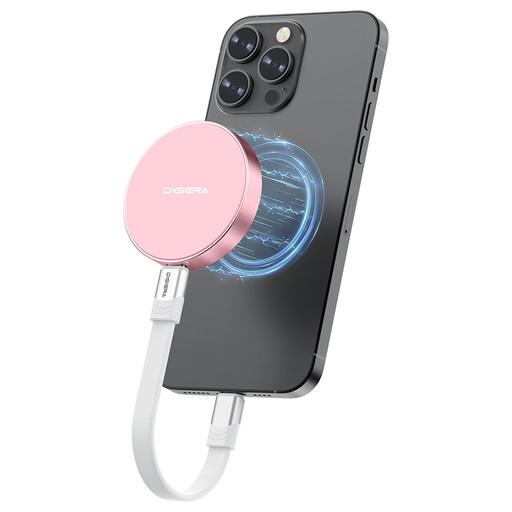
DigiEra LPS2000M-3 1TB Magnetic SSD, Pink
This 1TB portable SSD is a local-storage option for compatible USB-C devices; its stated interface is USB 3.2 Gen 2x2.
Check the exact iPhone model and setup before relying on its magnetic attachment or direct-recording features. Confirm separately how household files would be backed up and restored.
View on Joybuy
 No image available
Lexar ES4 1TB Portable SSD with Magnetic Set
For carrying a local copy between compatible devices, this SSD lists 1TB capacity and USB 3.2 Gen 2. Check whether its magnetic set suits the exact phone and case you use.
Confirm the file system required by your devices before formatting the drive, and check how your backup software will restore saved files.
View on Joybuy
Common questions
Can I back up a Windows PC to an external drive without separate software?
Yes. Microsoft says File History can make regular backups of libraries to an external drive or network location and restore previous file versions. Check whether files outside the standard libraries are included, then try restoring one before relying on the routine.
How much space should a Mac Time Machine drive have?
Apple recommends a backup disk with at least twice the Mac’s storage capacity. Apple also advises using that disk for Time Machine backups rather than other file storage.
Can one NAS be the only backup for a household?
A NAS can be a shared backup destination, but keeping the only copies on a NAS at home leaves them exposed if that device or location is lost. For Macs, Apple requires a third-party NAS to support Time Machine over SMB; Synology documents separate NAS backup destinations including external devices and cloud services.
What should I check before storing personal files in the cloud?
Check who can access the files, how you would recover the account and whether you can restore the versions you need. The Information Commissioner’s Office advises choosing a service whose security and availability suit the files you upload.


