What should you check before buying?
Confirm the laptop’s external-display limit first, then match the intended screen layout and peripheral connections to a supported output route.
| Concern | What to check | Who this matters to |
|---|
| Usable screen space |
Check the laptop’s supported external-display count and the resolution and refresh rate available through the chosen connection. |
If I need several applications visible at once, I want either independent screens or one wide display that remains readable at its intended setting. Around 42% of consumers put usable screen space first. |
| One-cable connections |
Match the dock to the laptop’s video-capable port, required peripheral ports and charging needs. |
When I reconnect at my desk, I want my displays and everyday peripherals ready without swapping several cables. For around 33% of consumers, connection convenience is the primary need. |
| Limited laptop outputs |
For a USB graphics adapter, check the exact product’s display limits, operating-system support and software requirements. |
If my laptop has older ports or cannot drive another screen natively, I need an expansion route that works with that computer. Adding displays despite limited outputs comes first for around 25% of consumers. |
Joybuy products for displays and docking
These monitors and USB-C connection products address different parts of a home-working desk setup. Choose the display layout you need, then check the exact laptop and connection requirements before selecting a monitor or dock.
 No image available
Targus USB-C Universal Dual HDMI 4K Docking Station, 100W Power Delivery Pass-Thru
A dock to consider when you want to connect two HDMI displays through a USB-C desk setup.
The name specifies dual HDMI 4K connections and 100W Power Delivery pass-through. Check your laptop’s USB-C video capability and the simultaneous display modes you need.
Check whether a suitable external power adapter is included and whether the charging arrangement meets your laptop’s requirements.
Joybuy
 No image available
Dahua 34-inch Curved Ultrawide Monitor, 3440 × 1440, 200Hz
Consider one ultrawide display if you prefer a continuous space for arranging work windows.
The title specifies a 34-inch screen, 3440 × 1440 resolution and 200Hz refresh rate. Check which resolution and refresh-rate combination your laptop, cable and selected monitor input can deliver; the screen’s stated maximum is not a laptop-output guarantee.
Joybuy
 No image available
AOC Q32V4 31.5-inch 2K IPS Monitor
A single external screen to consider if you want more room for documents and work windows without choosing an ultrawide format.
The title specifies a 31.5-inch IPS display and built-in speakers. Confirm the intended resolution and refresh rate against your laptop output and cable before buying.
Joybuy
 No image available
Baseus Metal Gleam Series II 10-in-1 USB-C Hub, Cosmic Black
A hub to consider when you want HDMI displays and desk peripherals connected through one USB-C host connection.
The title lists two HDMI outputs, USB-A and USB-C connections, RJ45, SD/TF readers and a USB-C Power Delivery input. Its individual HDMI descriptions state up to 4K at 120Hz and up to 4K at 60Hz; check the simultaneous modes available with your laptop.
Confirm that the laptop’s USB-C port supports DisplayPort Alt Mode before relying on the hub for video.
Joybuy
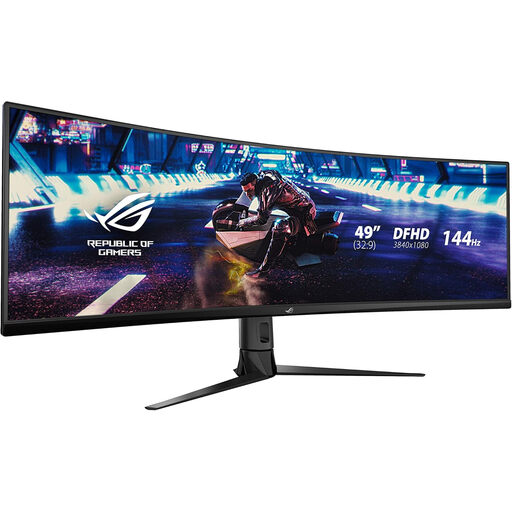 No image available
ASUS ROG Strix XG49VQ DFHD 144Hz Curved Monitor
A curved, wide-screen option to consider if you prefer arranging applications on one display rather than across separate panels.
The title specifies the XG49VQ model, DFHD format and 144Hz refresh rate. Check that your laptop, cable and chosen monitor input support the resolution and refresh rate you intend to use, and allow suitable desk space and support for the display.
Joybuy
Frequently asked questions
What should I check before buying a dock for two monitors?
Check your exact laptop model’s supported number of external displays, the functions of its ports and the resolution and refresh rate you want on each screen. Then compare that configuration with the dock’s host-specific display information; Microsoft Support notes that a laptop’s display adapter may limit how many monitors it can use.
Will an HDMI splitter give me two independent extended screens?
No: Microsoft Support explains that a splitter duplicates the same signal rather than creating two independent displays. For an extended desktop, look for separate supported video outputs, a compatible multi-display dock or an appropriate USB graphics adapter.
Can a laptop with only USB-A connect to two external monitors?
It may be possible with a compatible USB graphics dock or adapter, such as a DisplayLink-enabled product. Check the exact device’s supported display count and modes, your operating system and any required software; a USB-A connection alone does not establish display support.
Does every USB-C port work with a monitor dock?
No. USB-C describes the connector, not whether that particular laptop port provides video. Check the laptop documentation for the DisplayPort Alt Mode, USB4 or Thunderbolt capability required by your chosen dock.
What should Mac users check before choosing a DisplayLink dock?
Check the exact Mac model’s native external-display support and the dock’s compatibility with your macOS version. DisplayLink Support says its macOS setup uses DisplayLink Manager and requires Screen Recording permission for DisplayLink displays to function properly.


