Who this setup suits

Regular home-office laptop users

People using a laptop at one home desk for daily work who need more space for documents, video calls and multitasking should consider screen adjustment and workstation layout alongside panel size. Which? and the Health and Safety Executive provide relevant UK guidance.

Students with a compact study desk

Laptop users working in bedrooms, shared homes or temporary study spaces may need to balance screen area against desk depth, available ports and whether the setup needs to be packed away. Which? frames monitor buying around home offices, study spaces and temporary work areas.

Hybrid workers carrying a second screen

People who use an additional display in more than one location may prefer a lightweight portable monitor, provided their laptop meets that monitor’s stated USB-C video and power requirements. Lenovo specifies these conditions for the ThinkVision M14.

Buying priorities

Fixed desktop monitor

Choose it when: your laptop normally stays at one desk and you want a larger, separately positioned work screen.

Consider: stand depth, screen adjustment and whether you will still need a separate charger or USB hub.

USB-C hub monitor

Choose it when: one cable for display, charging and desk peripherals would simplify a permanent workspace.

Consider: a USB-C socket alone does not confirm video output or sufficient laptop charging.

Portable USB-C monitor

Choose it when: the second screen needs to travel between home, study spaces or other work locations.

Consider: portable panels usually offer less screen area and can have stricter USB-C compatibility requirements.

Priority What to check Your needs
Workspace and desk fit Compare screen size and resolution with usable desk width and depth. Check stand footprint, height adjustment and VESA mounting where an arm may be needed. I want enough room for documents, tabs and reference material without making a compact desk difficult to use.
Laptop connection Match the laptop’s HDMI, DisplayPort or USB-C video output to the monitor input. For USB-C video, confirm DisplayPort Alt Mode, Thunderbolt or USB4 display support in the laptop documentation. I want the display connection to work with my exact laptop and cable, without paying for a dock function I cannot use.
Charging and peripherals When planning a one-cable setup, compare the monitor or dock’s USB Power Delivery rating with the laptop’s charging requirement. Check whether Ethernet, USB devices or additional displays are also needed. A single cable would keep my desk simpler, but only if it can provide the video, charging and accessories I rely on.
Portability and positioning Check panel weight, carrying practicality and the supplied stand or mounting options. For a fixed desk, review height, tilt, swivel and pivot adjustment rather than relying on screen size alone. I need to decide whether this is mainly a desk display or a screen that travels with me.

Common buying pitfalls

  • Assuming every USB-C port carries video and charging

    USB-C describes the connector shape, while video output and power delivery depend on the laptop, monitor and cable. DisplayPort explains that video over USB-C uses Alternate Mode, and Lenovo specifies DP 1.2 Alt Mode and PD 2.0 for the ThinkVision M14.

    Find your exact laptop model’s external-display and charging specifications, then match them with the monitor or dock before ordering.

    You may need a compatible cable, adapter, dock or the original laptop charger if the selected connection cannot provide video or charging.

  • Buying by screen size alone

    A larger screen may not fit a shallow desk or allow a suitable viewing position. Stand adjustment and VESA compatibility differ by model, as the Philips and BenQ examples show.

    Measure usable desk width and depth, check the stand footprint, and prioritise height adjustment or confirmed VESA compatibility when the supplied stand will not suit the workspace.

    A VESA arm, desk clamp, cable-management accessory or replacement stand may be required for the intended layout.

  • Treating a monitor as the whole workstation solution

    Screen comfort also depends on desk height, chair position, lighting and work routine. The Health and Safety Executive treats display screen equipment as a workstation issue, not solely a display choice.

    Adjust the chair, desk, screen position and lighting together, and vary activity or take breaks. Employees working at home regularly can raise workstation concerns through their employer’s display screen equipment process.

Relevant brand references

Dell

Dell’s UK range includes USB-C hub monitors for desk-based laptop work, including the P2425HE with up to 90 W power delivery and the 27-inch 4K P2725QE. Dell UK provides these manufacturer specifications.

  • Selected models combine extensive connectivity with laptop charging capability.
  • USB-C hub features must still match the laptop’s own video-output and charging support.

Philips

Philips offers 27-inch QHD USB-C monitors for a fixed work desk. The 27E1N1600AE/00 model is specified with QHD resolution, USB Type-C, height adjustment and wall-mounting support.

  • This route combines a larger QHD work area with USB-C connectivity and an adjustable stand.
  • Laptop charging through the monitor depends on compatible USB Power Delivery support from the laptop.

BenQ

BenQ’s GW home-office range includes compact Full HD monitors with ergonomic adjustment. BenQ UK specifies tilt, pivot, swivel and height adjustment for the GW2490T.

  • A compact adjustable display can suit shallow desks and users who need flexible screen positioning.
  • Check the model suffix carefully: the GW2490T and GW2490TC have different connection and charging specifications.

Lenovo

Lenovo’s ThinkVision M14 is a 14-inch portable USB-C display for temporary second-screen use. Lenovo UK specifies a 598 g weight, an adjustable foot and USB-C video and power requirements.

  • Its small format can suit mobile productivity and temporary workspaces.
  • It requires a notebook USB-C connection supporting DP 1.2 Alt Mode and PD 2.0.

Joybuy product options

These Joybuy options cover fixed home-desk monitors and a moveable USB-C display for laptop work or study.

iiyama ProLite XUB2792UHSU-B6 27-inch 4K monitor

iiyama ProLite XUB2792UHSU-B6 27-inch 4K Monitor

A fixed-desk option for detailed documents and multitasking. It has a 27-inch 4K IPS panel, USB-C, HDMI, DisplayPort, a USB hub, 150 mm height adjustment, pivot, swivel and tilt; its stated stand depth is 209 mm. Check USB-C charging capability against the laptop before relying on one cable.

Joybuy

Lenovo L32p-30 31.5-inch 4K monitor

Lenovo L32p-30 31.5-inch 4K IPS Monitor

A large fixed-screen choice for a spacious home workstation. The 31.5-inch 4K IPS monitor lists USB-C connectivity, HDMI, height adjustment and cable management; its stated footprint is 714.2 × 206.7 mm. Confirm USB-C video, charging requirements and VESA compatibility if those features matter to your setup.

Joybuy

ASUS ZenScreen MB249C IPS USB-C monitor

ASUS ZenScreen MB249C 23.8-inch IPS USB-C Monitor

A moveable option for work split between rooms, study spaces or hot desks. It lists USB-C with 60 W power delivery, HDMI, a carrying handle, kickstand, C-clamp arm and partition hook kit. One-cable use requires DisplayPort Alt Mode, and the laptop must be able to charge adequately at 60 W.

Joybuy

Dell P2425H 24-inch Full HD monitor

Dell P2425H 24-inch Full HD IPS Monitor

A compact fixed-desk monitor for regular laptop work. It has a 24-inch Full HD IPS panel, HDMI, DisplayPort, VGA and a stand with height, tilt and swivel adjustment. Check the exact USB-C port function before planning a one-cable setup, and confirm VESA details if using an arm.

Joybuy
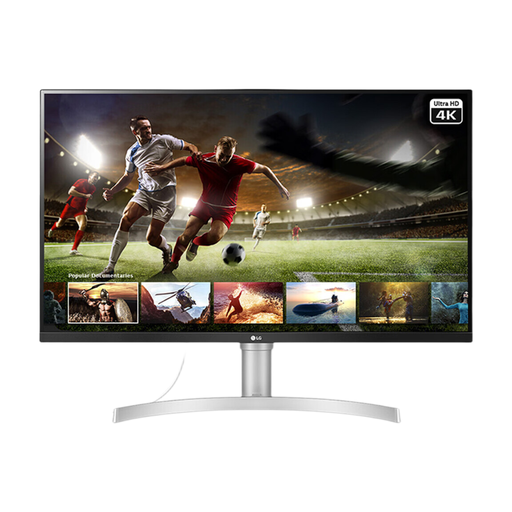
LG 32UN650K 32-inch 4K IPS monitor

LG 32UN650K 32-inch 4K IPS Monitor

A large 4K option for a permanent desk with room for a 32-inch panel. It lists two HDMI inputs, one DisplayPort, VESA 100 × 100 mm compatibility, built-in speakers and a tilt-adjustable stand; its stated with-stand depth is approximately 226 mm. Use HDMI or DisplayPort with a compatible laptop output or adapter.

Joybuy

Frequently asked questions

How can I tell whether my laptop can use a USB-C monitor or dock?

Check the exact laptop manual or manufacturer specification for USB-C video output, commonly described as DisplayPort Alt Mode, Thunderbolt or USB4 display support. Do not assume a USB-C-shaped port carries video: Lenovo specifies DP 1.2 Alt Mode and PD 2.0 for the ThinkVision M14, while DisplayPort explains that USB-C video uses Alternate Mode.

Will a USB-C monitor charge every laptop with one cable?

No. Confirm that the monitor supplies USB Power Delivery and that the laptop accepts charging through that port at an adequate wattage. Philips lists USB-C power delivery for the 27E1N1600AE, and Dell lists up to 90 W for the P2425HE, but those specifications do not establish compatibility with every laptop.

Do I need a monitor arm for laptop work at home?

Not necessarily. Start with a monitor that offers enough stand adjustment for your desk and seating position. An arm can help recover desk depth or position a VESA-compatible monitor more freely, but check the monitor’s VESA pattern and the arm’s supported screen size and weight first.

Do UK display-screen rules apply when an employee works from home?

They can apply to people working at home permanently or long-term, or routinely splitting their time between home and the workplace. The Health and Safety Executive states that employers have the same health and safety duties for home workers as office-based staff, including relevant display screen equipment assessment responsibilities.

What should I check about warranty and support before buying a monitor?

Check the stated warranty term, retailer return conditions, dead-pixel policy where available, included cables and who handles faults. These details can vary by retailer and model, so review them alongside the monitor’s connection and desk-fit requirements before ordering.