For a laptop desk used for documents, spreadsheets and messages, consider one external monitor before planning a second; if you raise the laptop screen for sustained work, pair it with a separate keyboard and mouse, as the Health and Safety Executive advises. Add a dock or another external display only after checking the exact laptop model’s display limit, video-capable ports and charging needs. A USB-C connector alone does not establish that the whole arrangement will work.
Who is this setup for?
Document and spreadsheet workers
If you move between documents, spreadsheet columns, messages and reference material, one external display can give you another work area. Check whether that solves the task switching before planning two external monitors; Microsoft Support notes that a laptop able to run one external monitor may not support more than one.
People who want one desk cable
A monitor or dock with USB-C charging may simplify connecting a laptop at a regular desk. Match its video connection and stated power output to the particular laptop and port rather than relying on the connector shape.
People working with a raised laptop
If the laptop screen will sit on a stand beside an external display, plan the input devices at the same time. The Health and Safety Executive advises using a separate keyboard and mouse so the laptop screen can be elevated.
What should you check before buying?
Decide how much screen space your work calls for, then check the laptop’s connections and display limits before choosing the monitor, dock and input devices.
| Priority | What to check | Your needs |
|---|
| Visible workspace |
List the windows you need open together. Check the external-display count supported by your exact laptop; Microsoft Support notes that an adapter able to run one external monitor may not run more than one. |
I want a document or spreadsheet visible while keeping messages or reference material nearby, without adding screens I will not use. |
| Video and charging |
Confirm that the chosen laptop port supports the intended video connection. Compare the monitor or dock’s Power Delivery output with the laptop’s charging requirement; for Macs, Apple Support says display count also depends on the model and each display’s resolution and refresh rate. |
A single cable would make my desk simpler, but I need to know whether it can both drive the screen and charge my laptop. |
| Screen position |
Check how the screen can be positioned and whether a separate keyboard and mouse will fit the arrangement. The Health and Safety Executive advises separate input devices when elevating a laptop screen. |
For long sessions at the desk, I want to raise or reposition the screen without having to use the keyboard and trackpad on the raised laptop. |
| Desk peripherals |
Count the devices you actually connect, then compare their required ports with the dock or monitor’s connections. Check device compatibility if you want one keyboard or mouse to switch between computers. |
I switch between work applications and desk devices; fewer cable changes matter more to me than expansion ports I would leave unused. |
Which setup mistakes should you avoid?
-
Assuming a USB-C port does everything
A USB-C connection does not, by itself, establish the laptop’s video output, charging compatibility or support for a dock’s full feature set. CalDigit says its TS4 provides reduced functionality with USB-C hosts.
Identify the exact laptop model and port, then compare its display and charging specifications with those of the monitor or dock.
-
Buying a laptop stand without separate input devices
Raising the laptop screen also raises its built-in keyboard and trackpad. The Health and Safety Executive advises a separate keyboard and mouse when the screen is elevated on a riser or similar support.
Plan the stand, keyboard and mouse together if the raised laptop will be part of a sustained desk setup.
-
Choosing a two-monitor dock from its port count
The laptop can limit the number of external displays even when a dock has connections for them. Apple Support says supported display count varies with Mac model, resolution and refresh rate; CalDigit says TS4 functionality depends on the host.
Confirm the laptop’s documented display limit and the dock’s requirements for that host before committing to two external screens.
If the laptop supports only one external display through the intended connection, a dock’s additional display connections will not provide the planned workspace.
Relevant brand examples
These manufacturer examples illustrate specifications worth checking for a laptop desk; they are not the same models as the Joybuy monitors below.
LG
LG UK lists the 27U730A-B as a 27-inch 3840 × 2160 IPS monitor with USB-C Power Delivery rated at 90W.
- Its stated display and charging specifications give a starting point for a one-cable desk using a compatible laptop.
- Check that the laptop’s chosen port supports video and that its charging requirement fits the monitor’s stated output.
BenQ
BenQ UK presents the 27-inch GW2786TC as a USB-C home-office monitor with 65W Power Delivery.
- The stated USB-C connection is relevant when connecting and charging a compatible laptop through one cable.
- Compare 65W with the laptop’s charging requirement and check the laptop’s video output before relying on that arrangement.
CalDigit
CalDigit’s TS4 is a Thunderbolt dock for connecting desk peripherals to a host computer.
- Its range of connections may be useful when several regularly used peripherals need a desk connection.
- CalDigit says full TS4 functionality depends on the host and that USB-C computers or tablets receive reduced functionality; check the planned display arrangement against the laptop model.
Logitech
Logitech’s MX Keys S is an external keyboard option for a raised-laptop desk.
- Logitech says the keyboard can switch across up to three compatible devices, which may matter when using more than one computer.
- Check device compatibility and choose a separate mouse for a raised laptop; device switching does not determine whether the input devices suit your desk arrangement.
External monitors on Joybuy
These are external-display options for adding workspace to a laptop desk. Before choosing one, check the laptop’s video connection and supported display resolution; assess charging separately if you want a one-cable setup.
 No image available
ASUS ProArt PA27DCE-K OLED 4K UHD
Consider this OLED 4K UHD display if you want a separate work area for documents or applications. Confirm that your laptop can drive it at the resolution you intend to use, and check the connection and charging requirements for your planned cabling.
View on Joybuy
No image available
iiyama ProLite XUB2792UHSU-B6 27-inch 4K UHD monitor
The stated 27-inch 4K UHD screen is an option when you want more room for documents or spreadsheets beside a laptop. Check that the laptop supports the intended display connection and resolution; confirm video and charging capabilities separately if you plan to use USB-C.
View on Joybuy
 No image available
Lenovo L32p-30 31.5-inch 4K UHD monitor (IPS, USB-C)
Its stated 31.5-inch 4K UHD display is worth considering if you want a larger area for concurrent work windows. Check the laptop’s USB-C video capability and display limit, and compare the monitor’s charging output with the laptop’s needs before planning a one-cable connection.
View on Joybuy
 No image available
ASUS ZenScreen MB249C IPS USB-C
Consider this IPS USB-C display if you want an external screen that can be repositioned between work locations. Check that the laptop’s port supports the required video connection and charging arrangement, and confirm the monitor’s weight and included mounting accessories if you intend to carry it.
View on Joybuy
 No image available
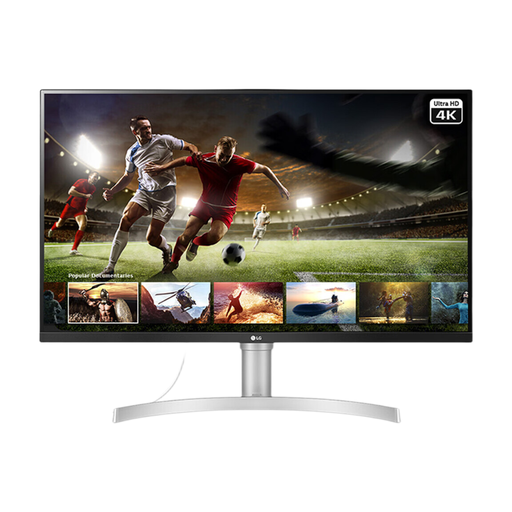
LG 32UN650K 32-inch 4K IPS monitor
The stated 32-inch 4K IPS screen offers a larger external work area for a laptop desk. Its title lists HDMI and DisplayPort: check whether your laptop can use either connection directly or through a compatible adapter. The title also specifies a 60Hz refresh rate.
View on Joybuy
Common questions
What should I check before buying a dock for two external monitors?
Check the exact laptop model’s supported external-display count and the resolutions and refresh rates you plan to use, then confirm that its port meets the dock’s host requirements. Apple Support says the number of connected displays depends on the Mac model and each display’s resolution and refresh rate; Microsoft Support notes that an adapter able to run one external monitor may not support more than one.
When does a laptop stand make sense instead of another monitor?
Consider a stand when you want to keep using the laptop screen but need to raise or reposition it, rather than add another work area. For sustained desk use, pair the raised laptop with a separate keyboard and mouse, as the Health and Safety Executive advises.


