For a compact student-room desk used mainly for documents, slides and web pages, start with a 23.8–24-inch Full HD monitor whose stand lets you position the screen comfortably. If you regularly need several lesson resources visible together, consider a 27-inch QHD display; a 34-inch ultrawide needs more desk space and is more relevant to frequent multi-window work. Choose USB-C connectivity only after checking your laptop’s video output, charging requirements and the cable needed.
Who needs which setup?
The useful screen size depends on what you keep open while preparing lessons and how much room remains for writing and keyboard use.
Students with compact desks
If lesson resources are mainly documents, slides and browser pages, screen placement may matter more than a wider display. The Health and Safety Executive advises positioning the top of a screen around eye level and the screen about an arm’s length away; check whether the stand and desk allow that arrangement.
Multi-document organisers
Students who compare lesson plans, PDFs, slides and online learning materials side by side have reason to consider resolution as well as physical size. LG UK lists its 27U631A-B as a 27-inch, 2560 × 1440 QHD IPS monitor; measure the desk before moving to a larger format.
Laptop users seeking fewer cables
A USB-C display connection is worth considering if the laptop can send video through its intended port. Charging capability is a separate check: LG UK states up to 15 W power delivery for the 27U631A-B and up to 65 W for the 34WR55QK-B, neither of which establishes what a particular laptop requires.
What should you check?
Decide how the monitor will fit and sit on the desk, then how many resources need to remain visible. Check connection and charging requirements before treating USB-C as a way to replace other cables.
| Concern |
What to check |
Who this matters to |
| Placement on a small desk |
Measure desk depth and writing space; check stand height and screen-position options against the Health and Safety Executive’s eye-level and arm’s-length guidance. |
I need room for my notes and keyboard without placing the screen awkwardly. Around 42% of consumers put comfortable placement on a compact desk first. |
| Space for lesson files |
Compare native resolution and available desk width before choosing between a compact Full HD screen, 2560 × 1440 QHD and a wider format. |
When I compare a lesson plan with slides or reading material, I want more content visible at once. Roughly 33% of consumers make workspace for multiple resources their primary concern. |
| Laptop connection |
Confirm USB-C video support, the monitor’s power-delivery rating and the required cable; check other inputs if needed. |
I want a simpler laptop connection, but cannot assume the display will also meet my charging needs. About 25% of consumers prioritise reducing connection clutter. |
Buying pitfalls
-
Assuming USB-C will charge any laptop
USB-C display connectivity does not establish adequate charging. LG UK states up to 15 W power delivery for the 27U631A-B and up to 65 W for the 34WR55QK-B.
Check the laptop’s charging requirement and whether its intended USB-C port supports video output before relying on one connection.
You may still need to use the laptop’s original charger.
-
Choosing a wide screen before measuring
A 34-inch display may suit frequent multi-window work but can leave too little room for a keyboard and writing materials, or make the intended viewing position difficult to achieve.
Measure the desk’s width and depth, then plan where the screen, keyboard, mouse and lesson materials will sit. The Health and Safety Executive advises placing the screen about an arm’s length away.
-
Treating eye-care features as a substitute for screen placement
BenQ describes low-blue-light and flicker-free features on the GW2490T, but those feature claims do not establish that the monitor prevents eye strain. Screen position still needs attention.
Check whether the stand or a suitable mount lets you position the display for your seated setup, rather than choosing on an eye-care label alone.
-
Overlooking the cable and laptop input
LG UK states that a USB-C cable is required for the 27U631A-B’s USB-C connection and is not included. The laptop must also support the intended display connection.
Identify the laptop’s ports and confirm which cable is needed before checkout.
A suitable cable or adapter may be an additional item to obtain.
Brands to consider for these monitor setups
These model examples illustrate different study-desk choices; the specifications of one model should not be assumed to apply across its brand.
BenQ
BenQ UK describes the 23.8-inch GW2490T as a Full HD home-office monitor with height, tilt, pivot and swivel adjustment, making it relevant when screen placement is the main concern.
- Its stated stand adjustments offer several ways to position the GW2490T on a desk.
- Its Full HD resolution provides fewer pixels than the 2560 × 1440 QHD route; BenQ’s eye-care feature descriptions are not evidence of a health outcome.
Dell
Dell UK lists the 23.8-inch UltraSharp U2424H as a Full HD IPS monitor with a USB hub and an adjustable stand.
- Dell lists height, pivot, swivel and tilt adjustments for the U2424H, including up to 150 mm of height adjustment.
- The U2424H is a compact Full HD option rather than a QHD choice for additional pixel workspace.
LG
LG UK lists the 27U631A-B as a 27-inch QHD IPS USB-C monitor and the 34WR55QK-B as a 34-inch ultrawide with picture-by-picture capability.
- The two models illustrate different ways to keep lesson resources visible: a 2560 × 1440 QHD screen or a wider 3440 × 1440 display.
- The 27U631A-B’s USB-C power delivery is stated as up to 15 W, and its USB-C cable is not included. The larger 34WR55QK-B requires a desk-space check.
Joybuy monitor choices for lesson resources
These monitors offer compact, higher-resolution and ultrawide options for viewing lesson materials. Match the screen’s dimensions and stated connections to your desk and laptop rather than choosing by resolution alone.
 No image available
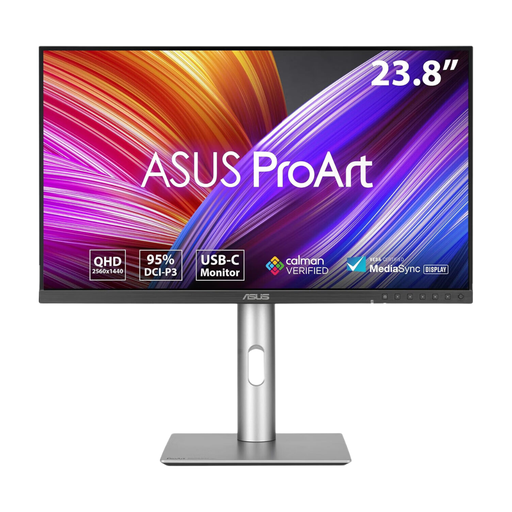
ASUS ProArt PA24ACRV IPS QHD
For organising lesson files on a QHD screen, consider this IPS model if its physical dimensions suit your desk.
Check the listed stand adjustments, laptop inputs and supplied cables before planning the setup.
View on Joybuy
 No image available
ASUS ProArt PA278CV IPS WQHD
If you often compare lesson plans with slides or PDFs, this WQHD IPS model is an option to assess against your available desk space.
Before expecting a one-cable laptop setup, confirm USB-C video compatibility, the power-delivery rating and which cable is supplied.
View on Joybuy
 No image available
LG 27UP650K 27-inch 4K IPS
For detailed lesson documents, this 27-inch 4K IPS monitor is worth considering if the desk accommodates its size.
The product name lists a 60 Hz refresh rate, HDMI and DisplayPort. Check which connection your laptop can use.
View on Joybuy
 No image available
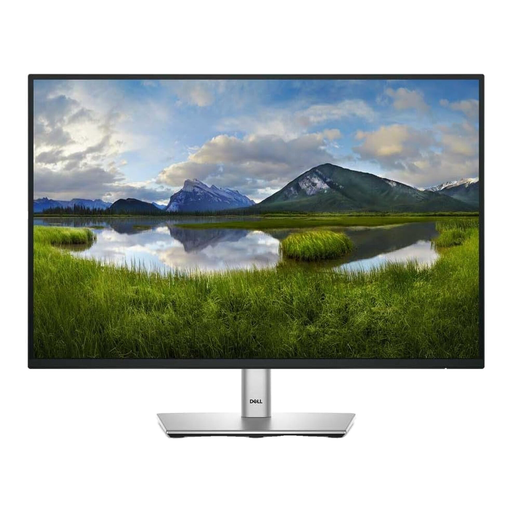
Dell P2425 24-inch monitor
For a document-focused desk with limited space, assess this 24-inch model alongside the room you need for writing and a keyboard.
Confirm the exact refresh rate and physical ports before buying, particularly if USB-C is essential to your laptop setup.
View on Joybuy
 No image available
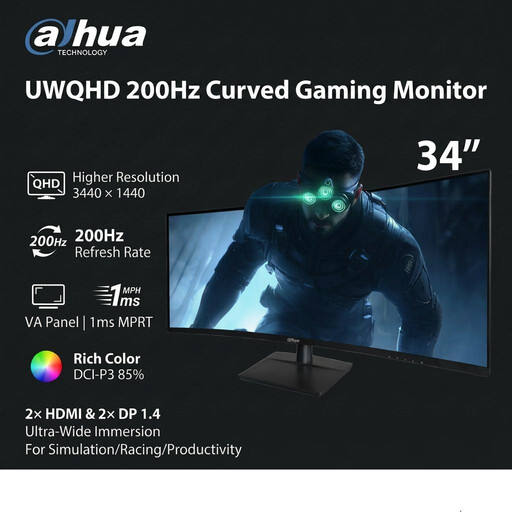
Dahua 34-inch UWQHD 200 Hz curved gaming monitor
For frequent multi-window lesson planning, consider this 34-inch ultrawide only after measuring the desk and intended viewing position.
The product name specifies a 3440 × 1440 VA panel, two HDMI inputs and two DisplayPort 1.4 inputs. Confirm the connection your laptop will use.
View on Joybuy
Frequently asked questions
Is a bigger monitor or a higher resolution more useful for lesson planning?
Choose according to how many resources you need visible and how much desk space you can give the screen. LG UK lists its 27U631A-B at 2560 × 1440 QHD and its 34WR55QK-B at 3440 × 1440 in a wider format; a smaller Full HD screen remains an option when positioning and desk space take priority.
Will a USB-C monitor replace my laptop charger?
Only if its stated power delivery meets your laptop’s charging requirement and the connection is compatible. LG UK states up to 15 W for the 27U631A-B and up to 65 W for the 34WR55QK-B; also check USB-C video support and the cable required.
Where should the monitor sit on a study desk?
The Health and Safety Executive advises placing the top of the screen around eye level and the display about an arm’s length away, directly in front of you. Check that the stand and desk leave space for a usable keyboard and mouse position; for prolonged laptop use, its guidance also advises a separate keyboard and mouse.
Do workplace display-screen rules apply to every student?
The Health and Safety Executive describes the Display Screen Equipment Regulations as applying to workers who use display-screen equipment daily for continuous periods of an hour or more, not to every student simply because they study at a screen. Its screen-position guidance can still help when arranging a student-room desk.
How can I dispose of an old monitor?
GOV.UK says waste electrical products can be taken to a local household waste recycling centre. Check the local arrangements for accepting and separating electrical waste before taking the monitor there.


