What to check before buying
Start with screen position at both desk heights, then decide how much room your editing workflow needs. Check laptop connections and colour specifications against the work you actually do.
| Concern |
What to check |
Who this matters to |
| Screen position |
Compare seated and standing desk heights with the stand’s adjustment range. For an arm, check desk-edge or grommet compatibility and screen reach. |
If I change desk height during editing, I need the screen to stay at a comfortable height and distance; around 36% of consumers put positioning first. |
| Editing workspace |
Measure usable desk width and depth, then decide whether editor, preview and references need to remain visible together. |
Keeping a draft beside its rendered preview matters more to me than opening each window in turn. Around 29% of consumers prioritise workspace. |
| Laptop connection |
Check compatible video output, the monitor’s power-delivery rating and the ports needed for peripherals. |
If I publish from a laptop, I want a connection that handles my display and charging needs; around 21% of consumers make connectivity their primary concern. |
| Graphics review |
Match stated colour-space coverage to your output workflow and check the finished newsletter in relevant viewing environments. |
When I review branded images, I need to assess the graphics as well as the copy. Around 14% of consumers put colour-oriented checking first. |
Monitor choices on Joybuy
These monitors offer different ways to approach newsletter editing at a standing desk, from a compact 27-inch 4K screen to larger 4K and ultrawide formats. Compare each monitor’s physical adjustment and connections with your desk and computer before choosing.
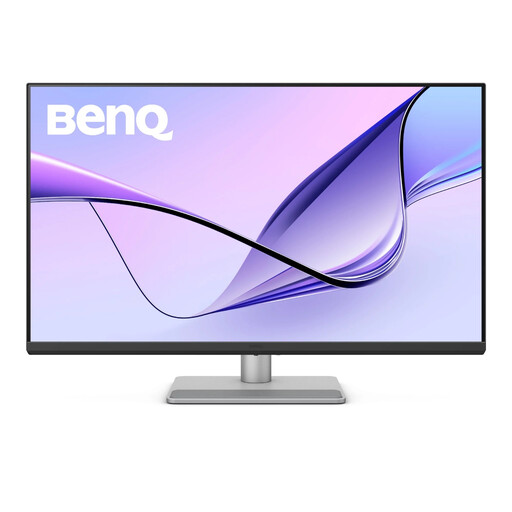 Image unavailable
BenQ MA320UP 32-inch 4K USB-C monitor
Consider this model if you want a larger screen for editing beside a preview. Its title specifies a height-adjustable stand; check its travel against both your working heights and confirm the USB-C connection suits your computer.
View on Joybuy
 Image unavailable
Dahua 32-inch 4K 165 Hz curved OLED monitor
The 3840 × 2160 screen is an option if you want a larger area for layout review. Check the stand’s movement at seated and standing heights, allow room for the curved panel and compare the laptop’s charging needs with the monitor connection.
View on Joybuy
 Image unavailable
ASUS ProArt Display PA32UCG-K 32-inch 4K monitor
Its 4K format is worth considering when newsletter work includes close inspection of layouts or graphics. The title lists an IPS Mini LED panel and Thunderbolt 3; check the stand’s vertical range and your laptop’s charging requirements before planning the desk setup.
View on Joybuy
 Image unavailable
iiyama ProLite XUB2792UHSU-B6 27-inch 4K monitor
The 27-inch format may suit a desk where a larger panel would crowd the work area, while 4K is relevant to detailed layout checks. Confirm the stand position works at both desk heights and that the screen gives you enough room for the windows you keep open.
View on Joybuy
 Image unavailable
Dahua 34-inch 3440 × 1440 curved ultrawide monitor
Consider the wide format if your editor, preview and reference windows need to stay open together. Allow enough desk width and depth, check its height adjustment for both working positions, and plan around the HDMI and DisplayPort inputs named in its title.
View on Joybuy
Common questions
Do I need a separate monitor arm for a standing desk?
No: a height-adjustable stand can be sufficient if it positions the screen at both your seated and standing working heights. If you need more height or distance adjustment, check that a suitable arm and your desk edge or grommet can accommodate the monitor. The Health and Safety Executive advises placing the screen top at eye level and the display about an arm’s length away.
Is 4K necessary for editing a newsletter?
No: a 27-inch QHD monitor can suit copy-focused editing. Consider 4K when closer layout or graphics inspection matters to your workflow; check screen dimensions as well if you need the editor and preview visible together.
Will a USB-C monitor charge my laptop?
Only if the laptop supports the relevant connection and the monitor’s power delivery meets its charging requirements. LG lists up to 60 W for the 32UN880K-B, while Dell lists 90 W for the U3824DW; compare the exact specifications of your own laptop and chosen monitor.
Does a UK employer need to assess a standing-desk workstation?
The Health and Safety Executive says employers must assess workstations for workers who use display screen equipment daily as a significant part of their normal work, continuously for an hour or more. The assessment covers the workstation as a whole, including equipment, furniture, work conditions and individual requirements; buying a monitor does not replace it.
When should I revisit the monitor setup?
Recheck it when the desk, monitor, user or way of working changes, or if discomfort develops. Make sure cables have enough slack for the desk’s height travel and follow the manufacturer’s mounting instructions. The Health and Safety Executive also calls for workstation reassessment when its use changes or users report pain or discomfort.


