Households reusing a desk monitor
If you already have a monitor, check its free HDMI input, speaker or audio-output provision, and volume controls before choosing a streaming player. An HDMI picture alone does not settle how you will hear it.


Reuse a computer monitor for occasional streaming if it has an available HDMI input, a confirmed route for sound and volume controls you can use comfortably. If you want built-in apps, remote-controlled volume or an HDMI soundbar, compare a smart monitor or television instead, checking the exact model’s connections. Bluetooth can serve private listening, but pairing support and lip-sync need checking on the streaming device you intend to use.
The useful starting point is whether you want to keep your current screen or make streaming and sound part of the display itself.
If you already have a monitor, check its free HDMI input, speaker or audio-output provision, and volume controls before choosing a streaming player. An HDMI picture alone does not settle how you will hear it.
Headphones or a Bluetooth speaker may suit a room where speaker sound would disturb others. Check audio pairing on the exact streaming device and try the apps you watch for noticeable lip-sync delay.
If a remote, built-in streaming apps and speakers are central to the setup, consider a smart monitor or television rather than adapting a conventional monitor. Check soundbar connections and volume behaviour on the particular model.
Decide where the picture enters, where the sound leaves and how you will change its volume. Those three answers narrow the display and audio choices more usefully than picture resolution alone.
| Priority | What to check | Your needs |
|---|---|---|
| Display connection | Find a free HDMI input for the intended player. If you want 4K or HDR, check format compatibility on both player and display; Roku Support UK notes that those formats require compatible hardware. | I want to plug a streaming device into my existing screen without assuming its advertised picture formats will appear on that screen. |
| Speaker route | Check for built-in speakers or a documented headphone or line output that carries audio received over HDMI. If using that output, check the connection required by your powered speakers. | For occasional viewing, built-in sound may be enough for my needs; if I prefer separate speakers, I need to know where their audio will come from. |
| Volume control | Identify whether volume changes on the monitor, speakers, streaming remote or an app. Google Streaming Help says its remote’s volume control will not work with some device models. | I do not want to reach through monitor menus every time the volume changes, so the control method matters as much as the sound connection. |
| Wireless listening | Confirm Bluetooth-audio pairing for the exact player, including device limits, then test lip-sync in your usual apps. Sony UK Support notes that wireless playback can lag behind video. | When others are asleep, I would rather use headphones, provided the player can connect to them and dialogue stays in sync. |
| TV-style setup | For integrated apps and a remote, check the smart monitor or TV model. If a soundbar relies on HDMI Audio Return Channel (ARC) or eARC, confirm the display has the required return-audio connection. | In a spare room, I may value one display with streaming controls and speakers more than continuing to adapt a desk monitor. |
A monitor can accept the player’s HDMI picture without having built-in speakers or a suitable output for separate ones. LG notes that some monitors have no built-in speakers.
Check the exact monitor specification for speakers and its manual for whether a headphone or line socket outputs sound received over HDMI.
If neither route works, using the monitor may require a separate audio device or a different display.
The HDMI Licensing Administrator describes ARC as a way for a TV to send audio back to a compatible sound system. A monitor’s HDMI input is not, by itself, an ARC or eARC output.
Check the display and soundbar connections together. If the monitor has a verified analogue audio output, powered speakers are another wired route; otherwise consider supported Bluetooth audio or a suitable TV-style display.
Remote buttons do not control every monitor or speaker arrangement. Google Streaming Help says volume control on its remote will not work with some device models.
Work out whether you will use monitor buttons, a speaker control, a compatible remote or an app, and test that method with the intended equipment.
Direct headphone pairing varies by model. Roku Support limits Bluetooth Headphone Mode to specified devices, while Sony UK Support notes that wireless sound may lag behind the picture.
Check the exact player’s pairing instructions and test dialogue-heavy video before making Bluetooth your main sound route. Roku’s mobile-app Headphone Mode is a separate option for supported streaming content when the phone and Roku are on the same network.
These brands illustrate different device and display routes; a brand name alone does not confirm the ports or audio controls on a particular model.
Chromecast with Google TV and Google TV Streamer provide HDMI streaming-device routes, with device-side settings for selected remote controls and Bluetooth accessories.
Roku players are an HDMI-based option for a display with a suitable input, but headphone features depend on the player model.
Samsung describes its Smart Monitor range as combining streaming apps, speakers and a remote for viewing without a separate stick.
LG has monitor models with integrated speakers, including the 27BA850-B described on its UK product page.
These options cover monitors with built-in speakers, smart monitors with streaming features and a television alternative. Match the display to your intended player and sound route; check the exact volume-control and soundbar connections before choosing.
 No image available
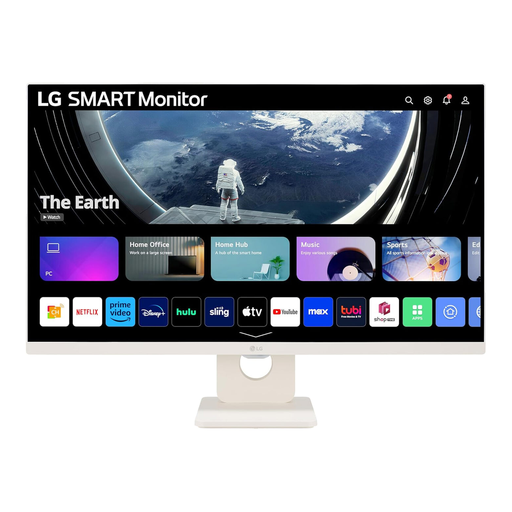
For a streaming screen with built-in sound and apps, this model lists speakers, webOS apps, Wi-Fi, Bluetooth and a remote. It has a Full HD IPS display with a stated 100Hz refresh rate. Confirm how the remote adjusts speaker volume and check the required connection if you plan to add an HDMI soundbar.
 No image available
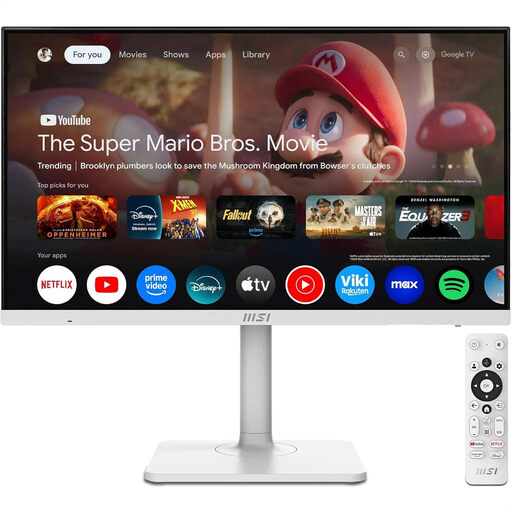
Google TV and built-in Dolby Audio speakers make this a display route to consider when you do not want a separate streaming stick. The named configuration has a 4K UHD IPS display and USB-C 65W. Check the speaker-volume controls and the exact HDMI audio connections if a soundbar is part of your setup.
 No image available
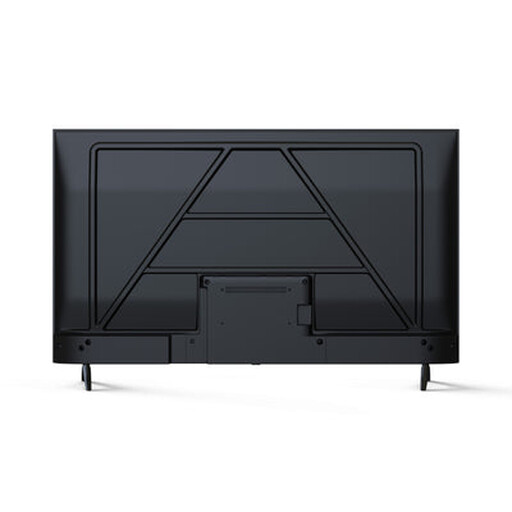
This is a television alternative if you would rather use a TV-style display than adapt a desk monitor. Its name specifies a 43-inch 4K Ultra HD LED screen and Wi-Fi. Check its speaker and remote-volume operation, plus ARC/eARC support if your soundbar needs it.
 No image available
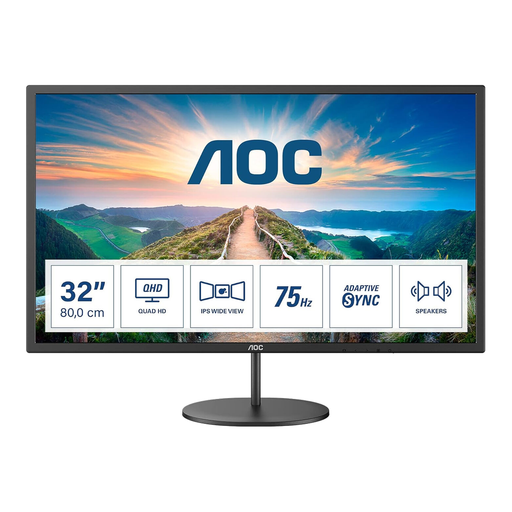
This conventional monitor lists built-in speakers, making it a possible display-and-sound route for an external streaming player. Its name also specifies an IPS panel, 4ms response time and Adaptive Sync. Confirm the available HDMI connection, how speaker volume is adjusted and whether any intended external-audio connection carries the player’s sound.
 No image available
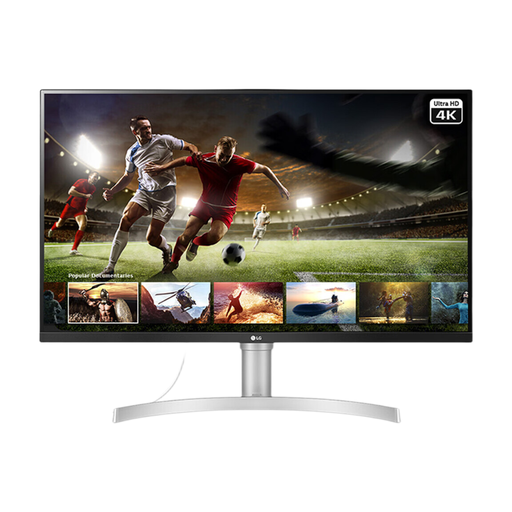
For streaming through an external player, this monitor’s named configuration includes built-in speakers and HDMI connectivity. It specifies a 32-inch 4K IPS display, 60Hz refresh rate, HDR10 and DisplayPort. Check volume operation and whether its intended audio output carries HDMI sound before planning powered speakers; confirm ARC/eARC separately for an HDMI soundbar.
Start with a free HDMI input for a Roku or Chromecast/Google TV-type player. Roku Support UK says 4K and HDR require compatible hardware, so check both the player and display if you want those formats; then establish a separate plan for sound and volume.
Yes, if the exact monitor has a suitable headphone or line output that carries the streaming player’s HDMI audio. Check that behaviour in the monitor documentation and match the socket to your powered speakers; an HDMI input alone does not confirm an analogue audio output.
Not necessarily. Google Streaming Help says its remote can be configured for selected TVs, receivers and soundbars, but volume control does not work on some models. Check the intended monitor or speaker controls so you have a usable alternative.
Only use that route if the exact display provides the required ARC or eARC connection and the soundbar is compatible. The HDMI Licensing Administrator describes ARC as returning TV audio to a sound system; an ordinary monitor HDMI input does not establish that return path.
It can be for a compatible streaming device and headphones or speaker, particularly for private listening. Check the exact player: Google TV permits one Bluetooth audio device at a time, and Roku limits direct Bluetooth Headphone Mode to specified models. Test lip-sync in the apps you use, as Sony UK Support notes that wireless audio can lag behind video.