Choose the screen layout around what must remain visible, then choose a separate switching arrangement if several computers need to share a keyboard, mouse or display. An ultrawide gives one continuous workspace; two monitors keep work visibly separate, while an integrated or external KVM can handle shared-device switching. Before buying, check each computer’s display outputs and limits, the required resolution and refresh rate, and any USB-C video or charging requirements.
Who is this setup for?
Frequent computer switchers
If you move between a work laptop, another laptop or a desktop, decide which monitor and USB devices must follow the active computer. A monitor with a specified integrated KVM or a compatible external KVM addresses that task more directly than screen size alone.
Document-and-call multitaskers
If documents, messages and a video call need to stay visible together, compare one continuous ultrawide screen with two physically separate displays. Desk space and the way you arrange windows will affect the choice.
One-cable laptop users
If you usually connect one laptop to a desk setup at a time, a suitable dock or monitor connection may simplify display and peripheral connections. Check the laptop’s video support and charging needs before relying on one cable.
What matters when choosing?
Screen layout and computer switching are separate decisions: a dock can simplify one laptop’s desk connection, but sharing devices between computers calls for a suitable switching route. Compare the intended setup against these priorities before choosing ports or screen dimensions.
| Concern |
What to check |
Who this matters to |
| Visible workspace |
Compare desk space, native resolution and whether one continuous screen accommodates the windows you use together. |
If documents, messages and a call must fit on screen, I want usable space before adding connections. About 31% of consumers put visible workspace first. |
| Switching computers |
Check the number of computers and displays a KVM switches, its video connections and which USB devices follow the active computer. |
When I change computers during the day, I want my keyboard and mouse to move with the active system. For about 31% of consumers, switching control is the primary need. |
| One-cable docking |
Match the laptop’s video protocol and charging requirement to the monitor or dock, including the cable and supported display mode. |
If I bring a laptop to the desk, connecting its display and peripherals with fewer leads matters most. Roughly 23% of consumers prioritise that docking arrangement. |
| Separate screens |
Confirm how many displays each computer can drive and whether both screens need to switch together. |
With a call or reference document kept open beside my main work, I need a fixed boundary between screens. Keeping two displays separate is the main concern for about 15% of consumers. |
Buying pitfalls
-
Assuming every USB-C port carries video and charges a laptop
A USB-C connector alone does not establish its display protocol or power capability. The Video Electronics Standards Association describes DisplayPort Alt Mode as a supported way to carry display signals over USB-C; the computer, connected device and cable still need compatible capabilities.
Check the exact laptop port, required display mode and charging requirement against the monitor or dock documentation.
The setup may also need a compatible cable, adaptor or separate charger.
-
Choosing a single-display KVM when both screens must switch
A KVM specified for one display will not meet a plan in which two shared monitors follow the active computer. ATEN identifies its CS742H as a two-computer, dual-display HDMI model; that capability is specific to the model.
Write down which computer should appear on each screen before and after a switch, then match the KVM’s stated computer and display counts to that plan.
-
Expecting a dock to switch between computers
A dock connects a host to desk devices; its display outputs do not, by themselves, establish a way for another computer to take over the same display and USB peripherals.
If both computers must share a monitor, keyboard and mouse, check for a suitable integrated or external KVM as well as any docking connection.
Without a switching route, changing computers may still mean reconnecting devices.
-
Overlooking power-delivery conditions
Charging output varies by device and can depend on a separate power supply. ATEN states that its US3310 offers up to 85 W pass-through when an additional USB-C power adaptor is used.
Compare the laptop’s charging requirement with the selected device’s delivered output, and confirm which power adaptor is included or required.
Brands to consider
Dell
Dell’s business-monitor and dock ranges include ultrawide USB-C displays and Thunderbolt docking options.
- Dell lists DisplayPort 1.4 Alt Mode and up to 90 W USB-C power delivery for the P3425WE.
- Check the exact monitor and laptop pairing; those specifications do not establish KVM functionality across Dell’s range.
Philips
Philips offers SuperWide business-monitor models aimed at broad desktop workspaces.
- Philips specifies Smart KVM and USB-C connectivity for the 49B2U5900C; it lists a 5120 × 1440 screen for the separate 499P9H model.
- Confirm the chosen model’s upstream inputs, laptop display compatibility and charging output rather than transferring features between models.
ATEN
ATEN’s external KVM models are relevant when existing screens and USB devices need to be shared between computers.
- ATEN specifies the CS742H for two HDMI computers and two displays, while the US3310 combines USB-C docking and switching functions.
- The models have different display and power conditions; match the exact interfaces, display count and charging arrangement to the setup.
Joybuy monitor selections
These displays address the screen-workspace side of a home-office setup. If shared keyboard-and-mouse switching is essential, confirm that function on the exact monitor or plan a compatible external KVM; a video input alone is not enough.
 No image available
Acer X Predator X49X 49-inch QD-OLED monitor
Consider this wide display if you want documents and calls on one screen and are also assessing a shared-device switching arrangement. Its listed specifications include a 49-inch 32:9 panel, 240 Hz refresh rate, HDMI, DisplayPort and USB-C; check the exact KVM connections and switching behaviour before relying on them. Confirm that your computer supports the display mode you intend to use and that the desk or mount can accommodate the screen.
Joybuy
 No image available
CRUA 49-inch 5120 × 1440 curved monitor
This is a single-screen option for arranging several work windows across a 32:9 display. The title lists a 165 Hz VA panel, two HDMI 2.1 inputs and two DisplayPort 1.4 inputs. Check whether your computers support the intended display mode and how you would switch shared peripherals; also allow space and suitable support for the wide panel.
Joybuy
 No image available
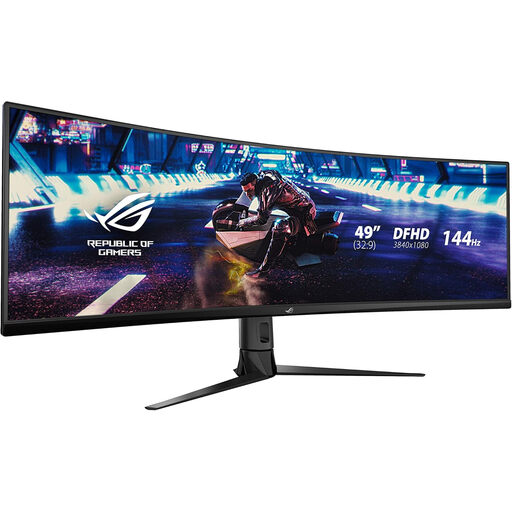
ASUS ROG STRIX XG49VQ curved monitor
Consider its single wide screen if keeping work windows side by side matters more than physically separating them. The model is listed as a 49-inch 32:9 display at 3840 × 1080 and 144 Hz. Check each computer’s output support and the monitor’s input-selection options; arrange shared keyboard-and-mouse switching separately if required.
Joybuy
 No image available
Dahua 34-inch 3440 × 1440 curved monitor
This 21:9 option provides a less wide single-screen format for placing documents alongside other work windows. Its title lists a VA panel, 200 Hz refresh rate, two HDMI inputs and two DisplayPort 1.4 inputs. Check the supported mode for the particular input and computer you will use, and plan separately for any shared-peripheral switching.
Joybuy
 No image available
Lenovo L32p-30 31.5-inch 4K UHD monitor
This single-display option is relevant if you want a 31.5-inch work screen and are considering a USB-C laptop connection. The title specifies an IPS panel and USB-C; check the monitor’s video and power-delivery details against your laptop before relying on one-cable docking. If several computers must share peripherals, confirm the intended switching arrangement separately.
Joybuy
Common questions
Does a USB-C port guarantee that my laptop can drive a monitor?
No. Confirm the laptop’s supported video output and the monitor or dock’s required connection. The Video Electronics Standards Association describes DisplayPort Alt Mode as one way to carry display signals over USB-C; for a USB4 connection, the USB Implementers Forum says the connection operates at the devices’ mutually supported capability.
Is a monitor with an integrated KVM the same as a dock?
No. A dock connects one host computer to desk devices, whereas an integrated KVM is intended to switch specified shared devices between computers. A monitor can combine these functions, but check its exact video inputs, USB upstream connections and switching behaviour rather than assuming USB-C includes a KVM.
Can an external KVM switch two monitors between two computers?
Yes, if it is specified for two computers and two displays and its connections suit the whole setup. ATEN lists its CS742H for two HDMI computers, two displays and shared keyboard-and-mouse control, with video support up to 4096 × 2160 at 60 Hz. Check your required resolution and refresh rate against the exact KVM.
Will a dock let any laptop use two external 4K monitors?
No. The host computer’s external-display limit and the dock and cable capabilities all matter. Microsoft specifies up to two 4K displays at 60 Hz for its Surface Thunderbolt 4 Dock with compatible USB4 or Thunderbolt 4-enabled devices; check your own laptop and dock combination before planning two screens.


