Studio coordinators printing timetable batches
If several copies must be ready before an event, loaded-paper capacity and automatic two-sided printing can matter more than features used only occasionally.


Choose around the studio’s busiest timetable run: look for enough loaded paper, automatic two-sided printing and a connection that everyone who needs to print can use. Refillable and cartridge inkjets offer different ways to manage consumables, while a colour laser multifunction printer is worth considering when fast, sharp text matters most; check each model’s paper handling and replacement supplies before deciding.
If several copies must be ready before an event, loaded-paper capacity and automatic two-sided printing can matter more than features used only occasionally.
Compare how each model uses and replaces ink or toner, particularly if colour pages are a routine part of the timetable run.
If the printer will copy or scan multi-page forms, check its automatic document feeder (ADF) capacity. Check double-sided scanning separately if the originals have content on both sides.
Start with the largest likely timetable run, then check how studio users will connect. Add scanning requirements only if the same machine will handle paperwork as well as printing.
| Concern | What to check | Who this matters to |
|---|---|---|
| Timetable batches | Plain-paper input capacity and automatic duplex printing for the paper size you will use. | Before an event, I need to finish a timetable run without stopping to reload or turn pages. Around 31% of consumers put uninterrupted batches first. |
| Consumable use | Ink-tank, cartridge or toner type; replacement availability and the conditions behind stated yields. | When colour timetables are a regular job, I want a replacement-supply routine that fits our print volume. For around 31% of consumers, managing consumables is the primary concern. |
| Shared access | Connections that fit the studio’s devices and network, plus the exact model’s update support. | If several people prepare schedules, I need them to print through an agreed connection without relying on one person’s device. Shared access comes first for around 23% of consumers. |
| Copying and scanning | ADF capacity and whether the exact model supports the required double-sided scan or copy workflow. | When forms and multi-page schedules also need digitising, I want to avoid placing every sheet on the scanner glass. Around 15% of consumers make that paperwork workflow their main priority. |
A timetable printer also needs suitable ink or toner and a workable replacement routine. Manufacturer page-yield figures do not predict how long supplies will last in your studio.
Estimate your usual colour and mono printing, then check the exact consumables, their stated yield conditions and local availability.
Allow someone time to monitor supplies and deal with interruptions during busy periods.
An automatic document feeder handles multi-page originals, but it does not establish double-sided scanning. Epson says duplex ADF scanning is available only on certain models.
If forms have content on both sides, check the exact model’s duplex scanning and copying specifications.
A tray that suits occasional printing may need reloading during a large timetable run. Paper capacities differ substantially between the models described by Brother, Canon and Epson.
Count the largest likely run, decide whether copies will be single- or double-sided, and allow a practical paper buffer.
A networked printer needs ongoing attention as well as an initial connection. The National Cyber Security Centre advises keeping devices up to date.
Assign an administrator, record how the studio connects and check the manufacturer’s update-support statement for the exact model.
Brother’s business cartridge-inkjet range includes models aimed at shared document workflows.
Canon’s MAXIFY MegaTank business inkjets are relevant when refillable ink and substantial paper input suit frequent document printing.
Epson’s EcoTank multifunction range includes refillable A4 models with document-feeding options.
HP’s Colour LaserJet Pro multifunction models provide a colour-laser route for business document workflows.
These multifunction printers offer starting points for shared-studio timetable printing. Compare each exact model with your batch size, connection and paperwork needs; the colour LED model is a separate option from the colour-laser route discussed above.
 No image available
For repeated colour timetable runs, compare this model’s paper handling and replacement supplies with the volume you expect to print.
If the studio also scans double-sided paperwork, confirm the exact ADF scanning functions.
 No image available
For A4 timetable printing in a shared studio, check whether its paper input and two-sided printing options fit your busiest run.
The product name identifies Wi-Fi; confirm what the +Ink offer includes and whether the scanning functions cover your paperwork.
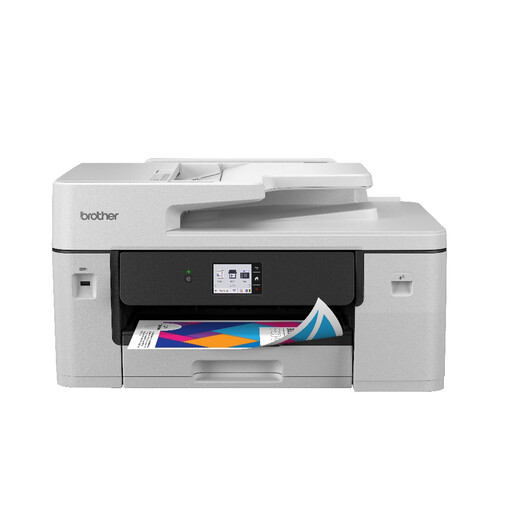 No image available
Consider this inkjet model if timetable printing and copying paperwork must share one device.
Check the required paper sizes, duplex functions and replacement cartridges for the exact configuration.
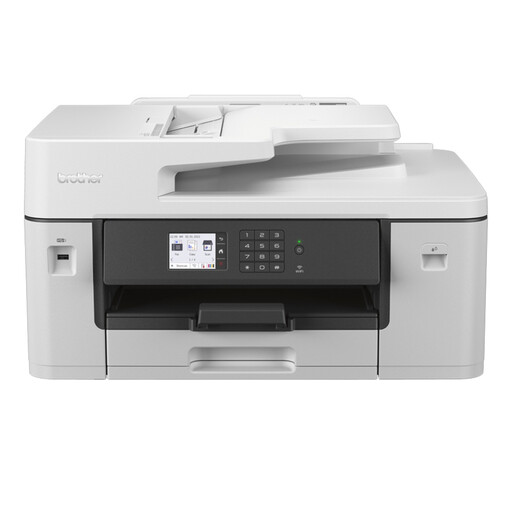 No image available
If timetable batches may extend to larger paper, check this model’s supported sizes alongside its standard paper input.
Confirm whether the optional lower tray is included if you need expanded capacity, and check the exact ink arrangement before selecting supplies.
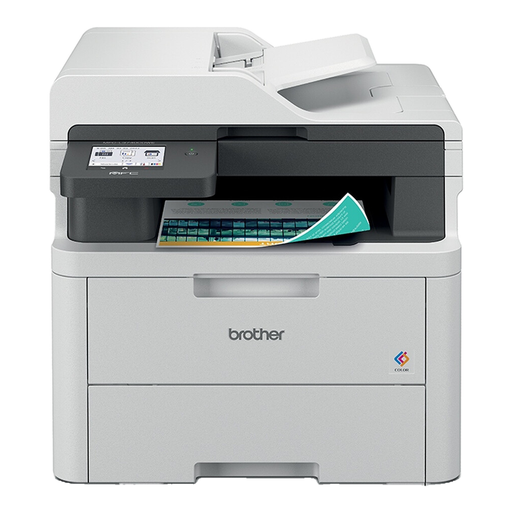 No image available
For colour timetables from a shared workspace, consider this wireless LED model if its paper handling fits the expected batches.
Compare replacement toner and confirm any double-sided scanning requirement separately from duplex printing.
Start with paper input, automatic A4 duplex printing and a connection that fits the studio’s devices. Check stated print speed for the exact model, then consider an ADF if you will also scan or copy multi-page paperwork.
Choose according to the work: a refillable business inkjet is worth comparing for frequent colour timetables, while a colour laser multifunction printer merits consideration when fast, sharp text is the priority. Which? describes laser printers as fast with sharp text; check the exact models’ paper handling and replacement supplies before choosing.
Not necessarily. Epson says duplex scanning through an ADF is available only on certain models, so check the exact scanning specification if studio paperwork has content on both sides.
Assign someone to manage supplies, the connection and device updates so routine tasks are not left between users. The National Cyber Security Centre advises keeping devices up to date; check the manufacturer’s support statement for the model you choose.
Use an appropriate electrical-waste collection route rather than putting it in household rubbish, as GOV.UK advises for unwanted electrical products. Check the available local collection arrangements when the printer is ready to be discarded.