Choose cloud backup if access from a replacement or additional device matters most, an external drive if you want a substantial local copy, or a USB stick for a small set of files you can copy manually. For irreplaceable photos and documents, keeping both a cloud copy and a disconnected local copy gives you separate recovery routes; check what each route backs up, how you would restore it and whether you can still access the account or device when needed.
Who needs which kind of backup?
Multi-device photo keepers
If you take photos on a phone and also use a computer or replacement device, look for a way to retrieve those photos without remembering to copy every new batch. Google One Help describes automatic Google Photos backup and access from signed-in devices; check that backup is switched on for the files you intend to keep.
Large-library local-copy buyers
If your photo, video or document library is substantial, or uploading it is impractical, an external drive offers a physical place for another copy. Microsoft Support describes using an external drive with Windows File History; you still need to check which folders are covered and where the drive will be kept.
Irreplaceable-file protectors
If losing family photos or personal records would be especially disruptive, plan for more than one way to restore them. The National Cyber Security Centre advises storing a backup in a separate safe location and warns that malware can also affect a drive left connected to an infected computer.
What should you check before choosing?
Start with the failure you need to recover from: replacing a phone, losing access to an account, or finding that a computer and its connected drive are both unavailable. Then check that your chosen copies contain the right files and can actually be restored.
Cloud backup
Choose it when: You want backed-up files available through your account on another device and have reliable internet access.
Trade-off: Recovery depends on continued account access, and the storage allowance may be shared with other services.
External HDD or SSD
Choose it when: You need a substantial local copy or cannot depend on uploading your whole library.
Trade-off: You must maintain the copy and store the drive safely; a connected drive can be affected by malware, as the National Cyber Security Centre warns.
USB stick
Choose it when: You need a manually managed copy of a small, selected set of files.
Trade-off: Recent changes are easy to miss unless you update and open the copied files regularly.
Cloud and offline copies
Choose it when: Important files must remain recoverable if either an account or a local device becomes unavailable.
Trade-off: Two copies mean two routines: maintain account recovery and update, disconnect and test the offline copy.
| Concern |
What to check |
Who this matters to |
| Recovery across devices |
Check which photos, folders and device data are backed up, and how restoration works on a replacement device. |
If my phone is lost, I want my photos and documents on the next device without relying on the missing phone. Around 33% of consumers put cross-device recovery first. |
| Space for a growing library |
Compare your current file library with the available capacity, including storage shared with email or other files. |
As my videos and documents accumulate, I need room for a sizeable copy that I can keep up to date. Roughly 25% of consumers make library capacity their primary concern. |
| Separate recovery routes |
Check account-recovery methods and where a disconnected local copy will be stored; restore a sample file from each. |
I cannot risk an account problem or an infected, connected drive taking away my only route to family photos or records. For approximately 25% of consumers, keeping recovery routes separate matters most. |
| A small portable copy |
Check the device port and file compatibility, then confirm that manually copied files open. |
When I only need selected documents, I want to carry a copy without setting up a whole-device routine. Around 17% of consumers prioritise this limited-file need. |
Backup mistakes to avoid
-
Relying on one account or a drive that stays connected
One inaccessible account can interrupt a cloud-only recovery plan. The National Cyber Security Centre also warns that malware can affect backup media connected to an infected computer.
For irreplaceable files, keep a separate recovery route, disconnect a local backup when it is not in use and test restoring a sample file.
-
Choosing capacity from the photo library alone
Google One Help says the included Google Account storage is shared across Gmail, Drive and Google Photos. Space available to photos therefore also depends on what those other services hold.
Check the size of your existing files, what shares the allowance and how much room your library will need as it grows.
-
Forgetting an encryption password or recovery method
Apple Support says an encrypted local iPhone backup cannot be recovered without its password. With Advanced Data Protection, Apple cannot recover end-to-end encrypted data for someone who loses their recovery method.
Before enabling either option, make sure you can securely maintain the password, recovery contact or recovery key it requires.
-
Choosing an SSD by its stated speed alone
For the Samsung Portable SSD T7, Samsung says its stated maximum transfer speeds require a compatible host and cable with USB 3.2 Gen 2 and UASP enabled. Some setups may also require reformatting.
Check the ports, cables and file format needed by every device you plan to use, particularly before formatting a drive that already contains files.
Relevant brands and services
Apple
Relevant if you back up an iPhone, iPad or Mac, use iCloud, or need to restore data after replacing a device.
- Apple Support describes local iPhone backups on a Windows PC and says encryption is needed to include Health and Activity data.
- Apple says the local-backup encryption password cannot be recovered. Its optional Advanced Data Protection also requires you to maintain a recovery method for end-to-end encrypted data.
Google
Relevant if your photos or Android device data are backed up through a Google Account.
- Google One Help describes automatic photo and video backup when enabled, access from signed-in devices and Android backup restoration during new-device setup.
- Google says its included storage is shared across Gmail, Drive and Photos. Check the available space and account-recovery arrangements before depending on it.
Microsoft
Relevant if you use OneDrive for files or want a Windows backup routine with an external drive.
- Microsoft Support describes OneDrive Version History for restoring earlier versions of supported files, and Windows File History for regularly copying files to an external drive or network location.
- A File History drive is a local backup destination, not an off-site copy by itself. Check which folders and file versions your chosen setup retains.
Samsung
Relevant if you are considering a portable SSD for a local copy or frequent file transfers.
- Samsung lists Portable SSD T7 variants from 1 TB to 4 TB and supplies USB-C-to-C and USB-C-to-A cables with the cited T7 model.
- Samsung’s stated T7 maximum speeds depend on a compatible host, cable and UASP mode; some devices or operating systems may require reformatting.
Western Digital
Relevant if you are considering a portable HDD for a substantial local file copy.
- Western Digital’s WD Drive PLUS documentation describes capacities up to 5 TB and password protection with 256-bit AES hardware encryption for that range.
- Check the exact model, connector and software support. Features documented for WD Drive PLUS should not be assumed for every Western Digital drive.
Seagate
Relevant if you want to set up computer-file copies on a portable HDD.
- Seagate’s One Touch HDD support materials describe Windows and macOS backup setup and Toolkit support for copying computer files to the drive.
- Check the particular model and included software rather than assuming the same setup applies to every Seagate external drive.
Local backup products on Joybuy
These external drives and USB storage devices suit the local-copy routes discussed above. A drive or stick still needs an update routine and safe storage; for irreplaceable files, consider how you will maintain a separate recovery copy.
 No image available
Samsung T7 Shield Portable SSD, 1 TB, Blue
A portable local-copy option for files used across computers or a compatible Android device.
The product listing specifies USB 3.2 Gen 2 and describes compatibility with PCs, Macs and Android devices. Check the connection and file format for your devices, and confirm the backup routine you intend to use.
View on Joybuy
 No image available
Western Digital My Passport Ultra for Mac, 5 TB, Silver
A portable HDD for keeping a substantial local copy of photos, videos and documents, particularly with a Mac.
The listing describes a USB-C cable, a USB-C-to-USB-A adapter and a driver requirement for Windows use. Confirm the setup for your computer and the warranty applicable to this model.
View on Joybuy
 No image available
Lexar ES4 Portable SSD with Magnetic Set, 1 TB
A removable local-copy option if you want to use storage with a compatible phone or computer.
The listing specifies USB-C and USB-A cables. Its magnetic mounting instructions apply to the described iPhone 15/16 series setup; check your phone’s file compatibility and backup workflow before relying on it. The listing says the drive does not support wireless MagSafe charging.
View on Joybuy
 No image available
Western Digital Elements Portable HDD, 4 TB, Black
A local-copy option for a sizeable collection of photos, videos and documents.
The listing specifies USB 3.2 Gen 1 and an included USB-A cable. It describes Windows 10 or later recognition; Mac or other systems may require reformatting. Confirm the backup routine before relying on the drive, and do not reformat it while it holds files you need.
View on Joybuy
 No image available
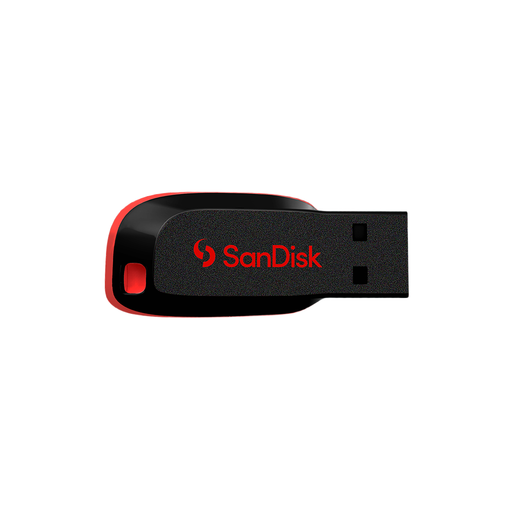
SanDisk Cruzer Blade USB Stick, 64 GB
For a small set of documents or photos that you intend to copy and check manually, rather than a broad device-backup routine.
The listing specifies USB 2.0. Check that your device has a suitable port, keep the stick separate from the original files and periodically open the copies.
View on Joybuy
Backup questions answered
Is cloud sync on its own a backup?
Not necessarily: check whether you can restore a separate copy after a file is deleted, overwritten or made inaccessible through the account. The National Cyber Security Centre describes a backup as a copy kept in a separate safe location; keep another copy of irreplaceable files if your sync setup does not give you an independent recovery route.
How can I protect access to a cloud backup?
Use two-step verification where available and keep your account-recovery method current. The National Cyber Security Centre recommends two-step verification for important accounts; Apple Support also says people enabling Advanced Data Protection need a recovery contact or key because Apple cannot recover their end-to-end encrypted data for them.
Should I leave an external backup drive plugged in?
Disconnect and store it safely after a completed backup if your routine does not require a continuous connection. The National Cyber Security Centre warns that viruses can also affect devices connected to an infected computer; reconnect the drive when it is time to update and check the copy.
What should I check before relying on cloud storage?
Check what the service backs up, how much space your files use, how you regain account access and how you can transfer files elsewhere. GOV.UK consumer guidance also advises keeping account details current and allowing time to transfer or back up data before leaving a service.


