Choose cloud backup if you want photos copied off your phone automatically, but check the account’s shared storage, renewal terms and recovery settings before making room on the device. An external drive or computer suits a manual copying routine, provided your phone and connections support it. A higher-capacity phone addresses a continuing need for space on the device; it does not, by itself, create a separate backup.
Who is this decision for?
People running out of phone space
If photos and videos are competing with apps and downloads, establish two things separately: where you will keep an accessible copy, and how you will free space on the phone. A larger device addresses the second problem, but not the first.
iPhone owners considering a drive
A physical copy may appeal if you prefer transferring files yourself. Before choosing a drive or adapter, check your iPhone’s connector, the storage format and partition requirements, and whether the drive needs additional power. Apple Support sets out these conditions for external storage on iPhone.
Android and Galaxy users making manual copies
A computer, connected USB storage or an SD card may fit a regular transfer routine. Check the exact phone model and connection method: Samsung UK says SD-card support varies by Galaxy model, while Android Help notes that not every USB cable transfers data.
What should you check before choosing?
Start with the problem you need to solve: preserving a separate copy, freeing space on the phone, or both. Then check the account or connection that your chosen route relies on.
| Priority |
What to check |
Your needs |
| Copies and phone space |
Check which files occupy device storage. Confirm that selected photos and videos are accessible at the backup destination before changing or removing local content. |
I want room to keep taking photos without losing the ones I already have. A copy elsewhere and free space on my phone are separate goals. |
| Cloud storage |
Check the storage used across the account, whether automatic backup is enabled, and the plan’s renewal terms. Apple Support says iCloud includes 5 GB; Google One Help says a Google Account includes up to 15 GB shared across Gmail, Drive and Photos. |
I would rather have photos copied automatically than remember to connect a cable. I also need enough account storage for the files that share it. |
| Account access |
Check which account holds the photos, its recovery information and the service’s access and sharing settings. Google Account Help recommends adding recovery information so you can regain access if you cannot sign in; the Information Commissioner’s Office advises checking a cloud service’s security and availability for your files. |
If my phone is lost or I forget my sign-in details, I still need a way to reach my photos. I want to know who can access personal images. |
| Phone-connected storage |
Match the drive and adapter to the exact phone. Apple Support requires a supported format and one data partition for iPhone external storage and notes that some hard drives need additional power. Samsung UK says Galaxy SD-card support depends on the model. |
I prefer a portable physical copy and am willing to select and check the files myself. The connection has to work with my phone, not just have a familiar-looking plug. |
| Computer transfers |
Check the phone-to-computer transfer method and the destination for the copied files. For Android USB transfers, Android Help specifies an unlocked phone, File transfer mode and a data-capable cable. |
I can connect my phone to a computer regularly and keep a copy there or on a separate drive. I need to remember that new photos will not be in a manual copy until the next transfer. |
| More device capacity |
Review current device-storage use before choosing a replacement phone. Apple Support distinguishes device storage from iCloud storage; a larger phone still needs a separate route for off-device copies. |
Photos and videos keep crowding out everyday use, even after I have decided what to copy or remove. I need more space available on the phone as well as a plan for preserving important files. |
Mistakes that can put photos at risk
-
Assuming any USB drive will work with the phone
A matching connector does not settle the drive’s format, partition or power requirements. Apple Support specifies these conditions for iPhone storage, and Samsung UK says Galaxy SD-card support varies by model.
Check the exact phone and storage requirements before choosing an accessory. Once files have transferred, open several photos and videos from the destination before removing originals.
Some connections may also require an adapter, powered hub or separate power supply.
-
Removing photos before checking the copy
Having a cloud plan or a connected drive does not establish that a particular photo has reached it. Google Photos associates its backup with the selected Google Account.
Check that recent items open from the intended account or physical destination. Keep originals you cannot replace until you have checked a separate copy.
-
Treating the included cloud allowance as photo-only space
Google One Help says Google Account storage is shared across Gmail, Drive and Photos. Photos may therefore use capacity needed by other account services.
Review the account’s storage breakdown and the size of the library you intend to keep there. If considering a subscription, check its renewal and cancellation terms; Google One Help says its subscription renews automatically unless cancelled.
-
Replacing the phone instead of making a backup
More device capacity gives files room on the new phone but does not create an independent off-device copy. Apple Support distinguishes device storage from iCloud storage.
Consider a larger phone when you need more local working space. Keep a separate cloud, computer or drive copy for photos you cannot replace.
Relevant service and phone brands
These brands provide account or device guidance for the routes above; their inclusion does not mean every service or device will suit your phone and workflow.
Apple
Relevant to iPhone owners weighing iCloud Photos, external storage and a phone with more device capacity.
- Apple Support says iCloud includes 5 GB of storage and documents ways to optimise photo storage on iPhone.
- For external storage, Apple specifies compatible connections, one data partition and a supported format; some hard drives need additional power. Check the requirements for the iPhone and drive you intend to use.
Google
Relevant to anyone considering Google Photos and a Google Account as the destination for phone photos and videos.
- Google Photos Help says backup can automatically save photos and videos to the selected Google Account when enabled.
- Google One Help says the account’s included storage is shared with Gmail and Drive. Check available capacity and account recovery settings before relying on that account for important files.
Samsung
Relevant to Galaxy owners considering external storage or transferring files when changing phones.
- Samsung UK describes copying or moving files to supported SD or connected USB storage and documents several Smart Switch transfer methods.
- Samsung UK says not all Galaxy models support SD cards. Confirm the storage and transfer options for the specific phone rather than assuming they apply across the range.
External storage options on Joybuy
These drives are options for making physical copies of phone photos and videos. Compare their stated capacity and connectors with the files you want to copy, then check your exact phone’s storage-access requirements; a drive does not replace the need to confirm that a transfer worked.
 Image unavailable
Lexar ES4 Portable SSD with Magnetic Set, 1TB
Consider this portable SSD if you want to make a physical copy and can connect a drive to your phone. The title specifies 1TB, USB 3.2 Gen 2 and listed speeds of up to 1050MB/s read and 1000MB/s write; those figures do not establish transfer speeds with your phone. Check the phone connection, drive format and partition setup before use.
View on Joybuy
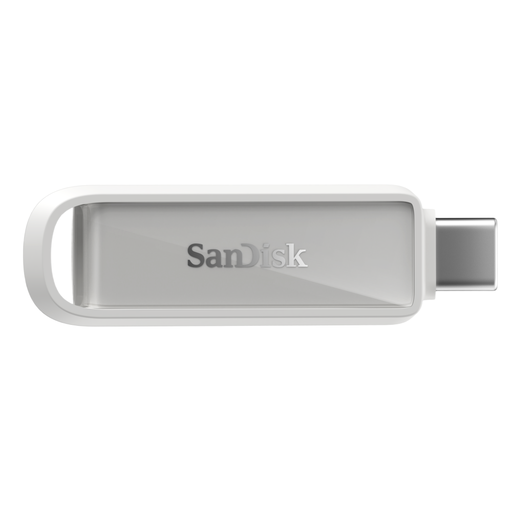 Image unavailable
SanDisk Phone Drive with USB-C, Arctic White, 128GB
This USB-C phone drive is an option for a physical copy if its connection and transfer method suit your device. Compare its stated 128GB capacity with the photos and videos you plan to move. If you intend to use an app-based backup routine, confirm that the app supports your exact phone and software version before relying on it.
View on Joybuy
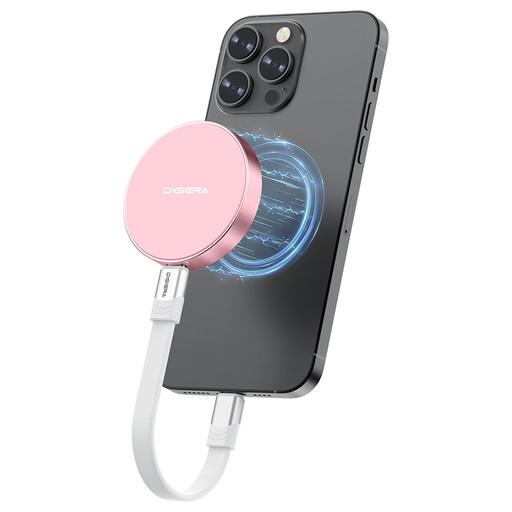 Image unavailable
DigiEra LPS2000M-3 Magnetic Portable SSD, 1TB, Pink
This 1TB USB-C SSD is a physical-copy option if your phone can access the drive. Its title states USB 3.2 Gen 2x2 and a transfer-speed claim of up to 2000MB/s; check phone compatibility rather than treating that figure as a promised phone transfer speed. Confirm the drive format and partition setup for your intended file-copy workflow.
View on Joybuy
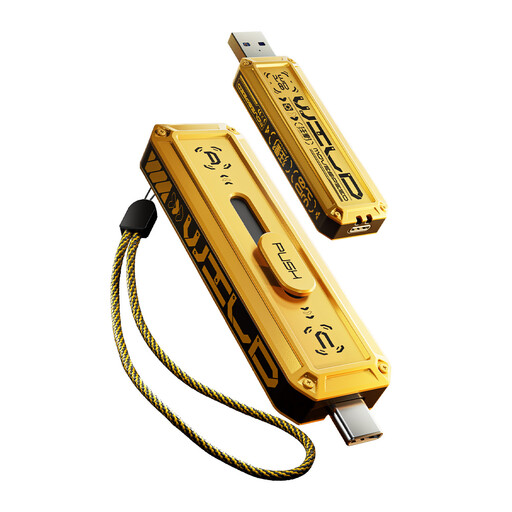 Image unavailable
MOVESPEED YSUWD10-1TSY USB Flash Drive, 1TB, Yellow
The stated 1TB capacity and USB-A and Type-C interfaces make this a candidate for manual copies between compatible devices. Check that your phone supports the connection and file-access method you intend to use. After copying, open files from the drive before removing them from the phone.
View on Joybuy
 Image unavailable
Samsung MU-PE1T0S USB Type-C SSD, 1TB, Black
This 1TB USB Type-C SSD is an option for manually copying photos to external storage. The title specifies USB 3.2 Gen 2. Before using it directly with a phone, check that phone’s connection, power and file-system requirements, then verify the copied files at their destination.
View on Joybuy
Phone photo backup questions
Does cloud storage add space inside my phone?
No. Apple Support distinguishes cloud storage from storage on the device. A cloud plan can hold photos, but making room on the phone is a separate step: confirm the relevant upload or sync has completed, then use the service’s or device’s settings to manage local content.
Will an external SSD work with any iPhone?
Do not assume one drive works with every iPhone. Apple Support says external storage may require a compatible connector or adapter, must have one data partition and a supported format, and may need additional power. Check the requirements for your exact phone and drive before choosing an accessory.
Can I copy Android photos to a computer without cloud storage?
Yes, using a supported file-transfer connection. Android Help says the phone must be unlocked, USB must be set to File transfer and the cable must carry data; not all USB cables do. Open a copied photo on the computer before removing its original.
What should I check before removing photos after cloud backup?
Confirm the backup or sync status and check that recent photos open from the intended account before changing local content. Make sure you can sign in to that account; Google Account Help recommends keeping recovery information current so you can regain access if you cannot sign in.


