Choose cloud storage if automatic access and sharing across devices matter most, a portable drive if you need a removable local copy, or network-attached storage (NAS) if your household wants a shared home library and can manage it. For photos and videos you cannot replace, combine everyday access with a separate recovery copy rather than relying on synchronisation alone. Check how deletions, account access and restoration work before settling on a setup.
Who each backup route suits
Multi-device photo households
If photos start on a phone but need to be available on a tablet or computer, automatic access and manageable sharing matter. The key distinction is whether the service synchronises changes or also gives you a separate copy you can restore.
Large-library local-copy buyers
If you regularly copy substantial photo or video libraries, a removable drive gives you a local place to keep or carry files. You still need to run the copies and decide where to store the drive between uses.
Privacy-conscious home sharers
If several people need access to a family library, look closely at who can open albums, change files and use remote access. A home NAS offers more direct administration, but its accounts and sharing settings need ongoing attention.
What matters when choosing
Decide how you want to reach current files, then identify a separate way to recover the ones you cannot replace. A cloud service, home NAS or removable drive can play different parts in that setup; none should be assumed to cover every need on its own.
| Concern |
What to check |
Who this matters to |
| Separate recovery copy |
Check whether deletions reach every copy and whether you can disconnect or independently protect one copy. Try restoring a few files. |
If I lose a device or accidentally delete a photo, I need another copy I can actually recover. Around 31% of consumers put that separate recovery path first. |
| Access across devices |
Check supported devices, automatic upload settings and whether the service retains files at the quality you need. |
When I switch between my phone and computer, I want the current library within reach without copying it by hand. For around 25% of consumers, automatic access is the primary need. |
| Local capacity and transfers |
Compare drive capacity with your current library and room for growth; check the connector and host requirements for advertised transfer speeds. |
With a growing video library, I need enough space for a removable copy and a practical way to transfer it. Around 25% of consumers prioritise local capacity and transfers. |
| Sharing and account control |
Check who can open shared albums, whether links have passwords or expiry dates, and what additional sign-in protection is available. |
Before I share family photos, I want to control recipients and limit access to sensitive files. Controlled sharing is the main concern for around 19% of consumers. |
Backup mistakes to avoid
-
Treating synchronisation as the only backup
Apple says deleting a photo from iCloud Photos deletes it across devices using the service, and advises keeping backup copies of the library. A synced library therefore needs a distinct recovery path for files you cannot replace.
Keep a separate copy, understand its deletion rules and test restoring a few files.
-
Leaving every copy continuously accessible
The National Cyber Security Centre describes incidents in which ransomware affected original files and connected backup locations. A drive that stays connected may not provide the independence you expect.
Disconnect a removable copy when it is not needed, and review which devices and accounts can change other backup locations.
-
Overlooking upload quality and shared storage
Google says Photos storage is shared with Gmail and Drive. Its Storage saver setting can compress photos and reduce videos above 1080p, so a smaller upload is not necessarily an unchanged original.
Measure your library, allow room for growth and choose the upload-quality setting deliberately.
-
Sharing an album without checking access
A convenient link can reach a wider audience than intended if its permissions are wrong. Synology says Photos links can have passwords or expiry dates, but those controls need to be set for the share.
Check the recipient settings before sending a link and review access when the sharing need ends.
Relevant brands for reference
These examples illustrate different storage routes and controls, not interchangeable products or a ranking of brands.
Apple
iCloud Photos is relevant when a household uses Apple devices and wants its photo library available across signed-in devices.
- Apple says iCloud Photos stores supported originals at full resolution and synchronises edits.
- Deletions also synchronise. Apple advises keeping backup copies of the library.
Google
Google Photos offers automatic photo and video backup with access from signed-in devices.
- Google documents backup and access across devices.
- Choose Original quality or Storage saver deliberately: Google says Storage saver can alter uploads, and account storage is shared with Gmail and Drive.
Microsoft
OneDrive is relevant to households that want Windows PC folder backup and access to those folders across devices.
- Microsoft says its PC folder backup can make backed-up folders available across devices.
- Personal Vault requires separate setup; check eligibility and its conditions if you want that additional authentication layer.
Synology
Synology NAS and Synology Photos suit a household prepared to administer a central home library.
- Synology describes background phone backup and album links with optional passwords or expiry dates.
- The owner must configure permissions, sign-in protection and remote access; a home NAS is not automatically a separate off-site copy.
Samsung
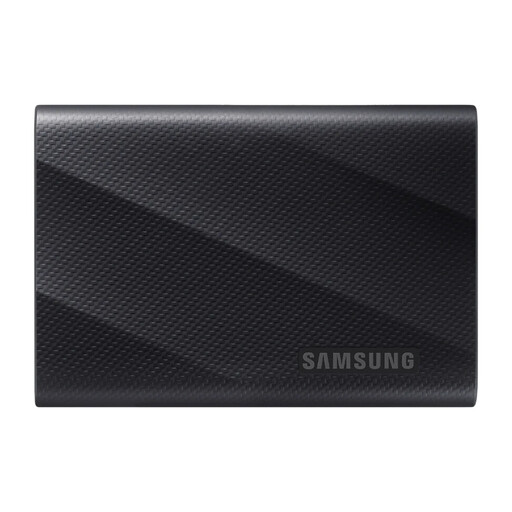
Samsung portable SSDs are examples of removable storage for a separately managed local media copy.
- Samsung advertises password protection and an IP65 rating for its specific T7 Shield 2 TB model.
- Samsung's advertised transfer speeds for that model depend on compatible host hardware, cable and USB settings. A portable SSD does not itself provide automatic cloud access.
Portable drives for a local copy
These Joybuy products are removable drives for keeping a local copy of a photo or video library. Choose capacity and device connections around the files you need to copy, then plan when to update and store that copy; a drive does not replace automatic access across devices.
 No image available
Samsung Portable SSD T7 2 TB Grey
For a removable local copy when 2 TB fits your library and expected growth.
USB Type-C and USB 3.2 Gen 2 are stated in the product name. Check the connections and file format your devices require, and plan to run copies yourself.
View on Joybuy
 No image available
Samsung T7 Shield Portable SSD 1 TB Blue
Consider this removable drive if a 1 TB local copy covers the files you intend to protect.
The product name specifies USB 3.2 Gen 2. Check your device connection and available capacity before relying on it for the full library.
View on Joybuy
 No image available
Samsung MU-PG1T0B 1 TB USB 3.2 Gen 2x2 Black
For a removable copy of media files when 1 TB is enough for your planned backup set.
The product name specifies USB Type-C and USB 3.2 Gen 2x2. Check whether your host device supports that interface; the interface name alone does not establish your transfer speed.
View on Joybuy
 No image available
Lexar ES4 Portable SSD with Magnetic Set 1 TB
This is a local-copy option to check if you want to move files from a compatible phone or computer.
The product name specifies USB 3.2 Gen 2 and advertised speeds of up to 1050 MB/s read and 1000 MB/s write. Its listed magnetic setup concerns iPhone 15/16; confirm the case or ring arrangement and your phone's file-transfer workflow before buying.
View on Joybuy
 No image available
Western Digital My Passport Ultra Portable Hard Drive 5 TB Blue
Consider the 5 TB removable drive for a larger local library, provided you have a routine for copying and checking files.
Before moving files between computers, confirm the required drive format and connections. Keep a separate copy disconnected when appropriate.
View on Joybuy
Photo and video backup questions
Is a cloud photo library automatically a separate backup?
No: synchronisation alone does not guarantee an independent recovery copy. Apple says deletions in iCloud Photos apply across devices using the service and advises keeping backup copies of the library. Check how your chosen service handles deletions, then keep and test a distinct copy.
Should I upload original-quality or storage-saving photos?
Choose original-quality uploads when retaining captured resolution matters to you. Google says its Storage saver setting can compress photos and reduce videos above 1080p; Original quality uses account storage, which Google shares across Photos, Gmail and Drive.
How should I protect a cloud or NAS account holding personal files?
Use a strong, unique password and enable an additional sign-in step where the service offers one. If you use a NAS, review remote access and each person's permissions as well; Synology documents two-factor sign-in options, but they need to be configured.
Can I share family albums without making them public?
Yes, where your chosen service provides private or invited-user sharing and you set it accordingly. The Information Commissioner's Office distinguishes private, public and invited-user cloud access; Synology says Photos links can have passwords or expiry dates. Check each link's audience before sending it.


