Students moving a catalogue between home and school
If you carry the drive between computers, check their ports and the drive’s cable as well as its quoted speed. A compact drive is useful only if you can connect it where you need to copy the files.


Choose a portable SSD if you regularly carry the photo catalogue between home and school or need to make transfers on a compatible computer. Consider a portable external hard drive if the catalogue needs substantial space and the backup will usually stay in a separate safe location. Whichever type you choose, check capacity, connections and school rules for the images, then make sure the drive holds a copy you can restore.
If you carry the drive between computers, check their ports and the drive’s cable as well as its quoted speed. A compact drive is useful only if you can connect it where you need to copy the files.
Allow space for the current catalogue, new images and project exports. The National Cyber Security Centre describes a backup as a copy kept in a separate safe location, so plan where you will keep the drive as well as what it will hold.
Check the school’s requirements before moving recognisable pupil photographs onto removable storage. The Information Commissioner’s Office says a photograph from which someone can be recognised is usually their personal data in official school use; a school may also have its own photography policy.
Start with the size of the complete backup set and where its separate copy will live. Then check how you will connect the drive to each computer and whether the school permits the proposed way of storing the images.
| Concern | What to check | Who this matters to |
|---|---|---|
| Capacity and backup location | Measure the complete catalogue, including originals and exports, and allow for additions. Plan a separate safe location for the copy. | If my catalogue is growing, I need room for new photographs without losing the separate copy I rely on. Around 40% of consumers put capacity and backup resilience first. |
| Portable transfers | Check the computers’ ports and the drive’s connection; treat quoted transfer speeds as conditional on the host and cable. | When I carry files between home and school, I want copying to fit the time available without assuming every computer will deliver the quoted speed. Around 30% of consumers prioritise portable transfers. |
| Compatibility and image handling | Confirm the file format, operating-system support and any school requirements for removable or encrypted storage. | I need the drive to work on the computers I use, and I must check the school’s rules before copying identifiable images. Around 30% of consumers make compatibility and appropriate image handling their primary concern. |
A copied folder may be incomplete or unreadable. If the drive stays beside the original computer, the same loss or damage could affect both.
Open a selection of copied files, check that the catalogue can be restored, and keep the backup in a separate safe location when practical.
Original photographs, edits and exports can expand the amount that needs copying during the project.
Measure the whole backup set and allow for expected additions before choosing a capacity; check the capacity of the exact model, not a product range.
Samsung and Crucial qualify their portable-SSD speed figures by the host configuration and connection. A drive may connect without reaching its stated maximum.
Check each computer’s port, the drive’s interface and the cable you will use before choosing a speed-focused SSD.
An older computer may also require a suitable cable or USB-A adapter.
The Information Commissioner’s Office says recognisable photographs used officially by a school are usually personal data. School photography or safeguarding policies may also affect how they are stored and shared.
Ask the school or project supervisor which storage, encryption and sharing methods are permitted before transferring those images.
The Portable SSD T7 is a model to consider when comparing compact drives for frequent catalogue transfers.
The X9 is a compact portable SSD with a stated USB-C connection that may suit a photo-catalogue workflow.
Seagate’s external-hard-drive range is relevant when the main task is keeping a sizeable removable copy of the catalogue.
These portable SSDs are options for carrying a photo-catalogue backup between locations. Compare each drive’s stated capacity with your complete backup set, and check the computers and school storage rules before copying files.
 No image available
Consider this portable drive if you need a removable copy of a growing catalogue; check whether 2 TB covers your files and expected additions.
USB Type-C 3.2 Gen 2 connection. Confirm the ports and cable you will use with each computer.
 No image available
This portable drive is worth considering if you move the catalogue between locations; measure the backup set before deciding whether 1 TB is enough.
USB 3.2 Gen 2 connection. Check that the computers and cables used for the project are compatible.
 No image available
This 1 TB portable drive may suit regular catalogue transfers if its capacity and connection meet your project’s needs; the magnetic set is not necessary for an ordinary computer backup.
USB 3.2 Gen 2, with stated maximum read and write speeds of 1,050MB/s and 1,000MB/s respectively. Check the required file format before copying, as reformatting erases data.
 No image available
Consider the 2 TB capacity if you expect the catalogue to grow, but measure the complete backup set before choosing it.
Check the connection, cable and operating-system compatibility for both the school and home computers.
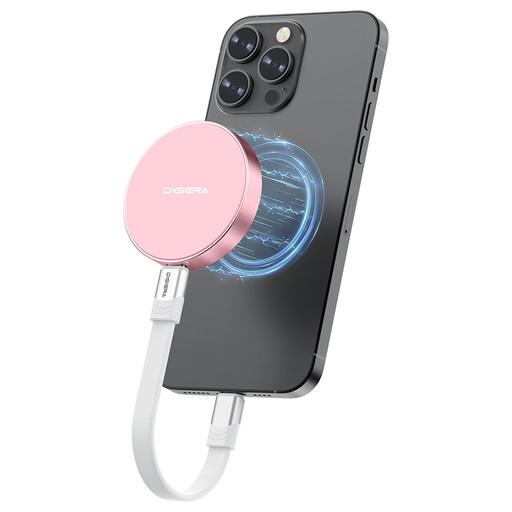 No image available
This portable SSD may suit transfers between USB-C devices if 1 TB accommodates the catalogue; its magnetic phone attachment is separate from the computer-backup task.
USB 3.2 Gen 2×2 Type-C, with a stated maximum transfer speed of up to 2,000MB/s. Check whether the project computers support that interface before relying on the quoted speed.
It is a useful backup only if the drive holds a separate copy you can restore when the original is unavailable. The National Cyber Security Centre advises keeping important data in a separate safe location; open or restore a selection of copied files to check that the copy is usable.
Consider a portable SSD for frequent carrying and transfers on compatible computers, or an external hard drive when a sizeable catalogue needs a removable copy that will usually stay in a safe place. Compare the exact models’ capacities and connections rather than assuming every drive of either type has the same features.
It can, provided its connector, cable and file format work with both computers. Check the exact drive and both machines before buying; if you need to reformat a drive, move any files you need off it first because reformatting erases its data.
Ask the school before copying them to personal removable storage. The Information Commissioner’s Office says recognisable photographs used for official school purposes are usually personal data, while school photography policies may apply separately. Follow the school’s permitted storage, encryption and sharing arrangements rather than assuming an encrypted drive alone grants permission.