For most households, first confirm that the photo service can export or copy the library in bulk, then keep a separate local copy on a drive that is disconnected between backups. A portable SSD suits frequent large transfers and travel, while a NAS makes more sense when shared household access justifies the additional setup; Amazon says whole albums cannot be downloaded in one browser action, so test that workflow before choosing storage.
Who this is for
Households exporting a large cloud photo library
You have years of photos in Google Photos, iCloud Photos or Amazon Photos and need a practical second copy without selecting files one by one. Google Photos Help supports creating a data archive, while Amazon Customer Service notes a browser limitation for whole-album downloads.
Families with photos across phones and computers
You need one local place to copy photos and documents from several devices, while keeping a recovery path if a device is lost, fails, suffers accidental deletion or is affected by malware. The National Cyber Security Centre advises keeping recoverable backups separately.
Photo and video collectors making regular transfers
You move large libraries, travel with a working copy or edit from external storage. Connection speed, host compatibility, physical handling and password protection can affect whether a portable SSD or external hard drive fits better.
What to check before buying
External hard drive
Choose it when: You want a straightforward local destination for scheduled computer backups and do not need always-on shared access.
Keep in mind: Check the file system before copying data; WD says covered My Passport models are supplied as NTFS and need reformatting for macOS.
Portable SSD
Choose it when: You regularly move large photo or video exports, use the drive away from home or prefer a compact working copy.
Keep in mind: Quoted transfer speeds depend on the host device, cable and connection support; a rugged enclosure is still not a second backup.
NAS and cloud-plus-local copy
Choose it when: A household needs shared access, central organisation or a local copy alongside a cloud photo service.
Keep in mind: A NAS needs drives, setup, account security and another independent copy; cloud services can have different export workflows.
| Priority |
What to check |
Your needs |
| Bulk export workflow |
Test a small export before buying storage. Check that originals, videos, folders or albums, metadata where needed, and file counts arrive as expected. |
I need a realistic way to copy a large cloud library without selecting every photo individually. Google Photos Help allows a Google data archive including Photos, while Amazon’s browser guidance says whole albums cannot be downloaded as a unit. |
| Restore and separation |
Keep a backup in a separate location, disconnect portable storage after a completed backup, and restore a small folder as a test. |
I want a copy I can recover after device loss, accidental deletion or ransomware, rather than another location that may fail alongside the main computer. |
| Device compatibility |
Confirm ports, supplied cables and file-system requirements. Check whether a drive needs reformatting and whether your device supports the connection needed for quoted speeds. |
My backup destination needs to work with the computer, phone or tablet used for the export, without a format surprise after purchase. |
| Private archive access |
Check password or encryption options, then arrange secure household access to recovery details. For a NAS, also plan user accounts and ongoing administration. |
I want to limit casual access to family photos while ensuring the household can still recover the archive if a password is forgotten. |
Backup mistakes to avoid
-
Buying storage before confirming the export process
A large drive does not remove a photo service’s download limitations. Google supports account-data archives, but Amazon’s browser guidance says whole albums cannot be downloaded together.
Export a representative sample first and check originals, videos, folders, metadata where needed and file counts before sizing storage for the full library.
-
Treating a permanently connected drive or NAS as the only backup
A device connected to the computer can be affected by deletion, malware or ransomware at the same time as the main library. The National Cyber Security Centre advises against leaving a backup device permanently connected and recommends knowing how to restore files.
Keep at least one independently recoverable copy, disconnect portable media after backup, and periodically restore a small folder to a different location.
-
Assuming a drive will work unchanged with every device
The WD My Passport models covered by WD guidance ship as NTFS and need reformatting for macOS. Samsung also says its maximum quoted SSD speed depends on the host device, cable and UASP support.
Before copying your only archive, verify the ports, supplied cable, file system and any reformatting requirement. Keep a second temporary location available while changing formats.
Reformatting can erase existing drive contents if it is done after data has been copied.
-
Confusing ruggedness or encryption with a complete backup strategy
Samsung’s water, dust and drop claims are based on controlled internal tests, and neither physical protection nor encryption prevents loss, hardware failure or an inaccessible password.
Use encryption where privacy needs it, store recovery arrangements securely, and retain another separate copy rather than relying on one portable drive.
Relevant brand references
Western Digital
Relevant for households seeking a conventional portable external hard-drive destination for a local photo copy.
- WD states that covered My Passport models support 256-bit AES hardware encryption and USB 3.2 Gen 1/USB 2.0 connectivity.
- WD states these models are supplied as NTFS and must be reformatted for macOS, so plan compatibility before loading the only backup copy.
Samsung
Relevant for portable SSD storage used for recurring large transfers, travel or direct work with photo and video files.
- Samsung’s UK T7 Shield page lists password protection and quoted sequential read/write speeds of up to 1,050/1,000 MB/s.
- Samsung says maximum speeds depend on the host, cable and UASP support; its resistance results come from controlled internal tests.
Synology
Relevant for a central networked photo library with multi-device access, sharing, backup and versioning.
- Synology describes the DS224+ as a two-bay NAS for storing, sharing, backing up and accessing files and photos, with versioning for rollback.
- A NAS still needs drives, network setup, account security and another independent backup.
Joybuy product options
Joybuy options for creating a separate local copy of a large household photo library, including portable SSDs for regular transfers and a higher-capacity external hard drive for computer-based backups.
 No image available
Samsung MU-PE1T0S 1TB Portable SSD
A compact local destination for regular exports or a copy moved between devices.
1TB capacity; USB Type-C 3.2 Gen 2. Stated maximum speeds of up to 1,050/1,000 MB/s depend on a compatible host, cable and UASP support. Check the library size and test a restore after copying.
Joybuy
 No image available
Lexar ES4 Portable SSD with Magnetic Set 1TB
Designed for copying a library from mixed household devices, with listed USB-C and USB-A cables.
1TB capacity; USB 3.2 Gen 2; stated speeds up to 1,050 MB/s read and 1,000 MB/s write. The listing specifies compatibility with PCs, Macs, Android devices and Type-C laptops; initial formatting may be needed.
Joybuy
 No image available
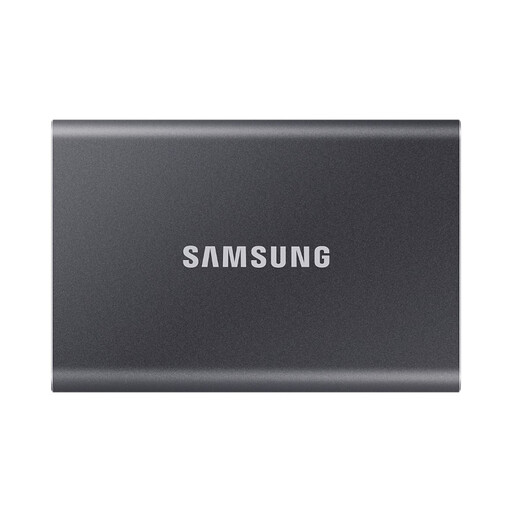
Samsung Portable SSD T7 1TB Grey
A portable option for recurring exports shared between Windows, macOS and Android devices.
1TB capacity; USB Type-C 3.2 Gen 2; stated sequential speeds up to 1,050/1,000 MB/s. The listing includes USB-C-to-C and USB-C-to-A cables and password protection; check capacity against future copies.
Joybuy
 No image available
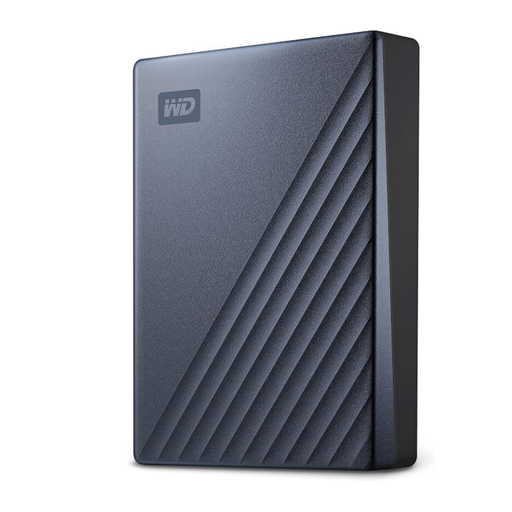
Western Digital My Passport Ultra 5TB Blue
A higher-capacity portable hard-drive option for a substantial computer-held photo and document archive.
5TB capacity; USB-C connection with USB-C-to-USB-A adapter; stated 256-bit AES hardware encryption. It is pre-formatted as NTFS for Windows, so macOS use requires planning for reformatting.
Joybuy
 No image available
SanDisk Portable SSD 2TB
A portable 2TB destination for a larger photo and video collection carried between locations.
2TB capacity; stated read speeds up to 800 MB/s; stated 2-metre drop protection and attachment hook. Confirm the intended device connection and any password-protection requirement before relying on it for private photos.
Joybuy
Frequently asked questions
Can I export all Google Photos without downloading every image individually?
Yes. Google Photos Help says you can create a Google data archive that includes Photos through Google Takeout. Changes made after requesting an archive may not be included, so check for recent additions or repeat the export before treating the copy as complete.
Can I make a local copy of iCloud Photos?
Yes. Apple Support says iCloud Photos stores photos and videos at full resolution and provides instructions for downloading copies. On an iPhone or iPad, Apple describes connecting external storage, choosing Download and Keep Originals, then exporting unmodified originals from Photos.
Does Amazon Photos offer a whole-album browser download?
No. Amazon Customer Service says whole albums cannot be downloaded through a browser; it instructs you to open an album and select the pictures to download. Test a small album before buying storage solely for a large Amazon Photos export.
Should an external backup drive stay plugged in all the time?
No. The National Cyber Security Centre advises that backup devices such as external hard drives or USB storage should not be permanently connected to the computer. Disconnect the drive after a completed backup and test that you can restore files from it.


