Choose cloud photo storage if automatic uploads and access on the replacement phone matter most, but check the account, available storage and sync status before changing devices. Make a separate computer or removable-drive copy if you want a recovery route under your own control; the phone, cable and storage device must work together. A home NAS can serve a shared household library, provided you are willing to maintain it and back it up elsewhere.
Who each approach suits
Families using several devices
If you want the same library on a replacement phone and other signed-in devices without repeated cable transfers, consider a cloud photo service. Apple and Google describe automatic upload options; check that the right account has access, uploads have finished and the library fits within its storage allowance.
Households wanting a local copy
A computer, removable drive or home NAS gives you a separate place to keep photos. Apple, Microsoft and Synology describe different ways to create those copies, but you will need to check connections and maintain another copy beyond any single local device.
People switching phones soon
Before handing over the old phone, check what has reached the new one and open photos and videos from a separate backup. Google notes that Android transfer coverage varies by device and Android version; computer-import steps also differ between iPhone and Android.
What to check before choosing
Start with the problem a missed or inaccessible photo would cause you. Cloud access, a local copy and phone-to-phone transfer serve different purposes, and you can use more than one.
| Concern |
What to check |
Who this matters to |
| Recovery before the old phone goes |
Confirm uploads or imports have finished, then open photos and videos on both the replacement phone and a separate backup destination. |
If the old phone is wiped or becomes unavailable, I need to know my photos can still be opened elsewhere. About 36% of consumers put a checked recovery copy first. |
| Access across devices |
Check which account holds the library, available storage and access from the devices your household uses. |
I want family photos to appear on my new phone and other devices without making another manual transfer. Easy ongoing access is the primary need for about 29% of consumers. |
| Control of a local copy |
Confirm the phone connection, data-capable cable, supported drive format and any adapter or power requirement. |
Keeping a copy on a computer, drive or home NAS matters more to me than relying on one cloud account. About 21% of consumers prioritise that local control. |
| Storage allowance and plans |
Compare your full photo and video library with the account’s remaining allowance and the work involved in maintaining a local copy. |
I would rather manage local storage than depend on an ongoing cloud plan as my library grows. Limiting that commitment comes first for about 14% of consumers. |
Mistakes to avoid
-
Treating migration as the only backup
Google says Android transfer coverage varies by device and Android version. Seeing some photos on the new phone does not establish that every item transferred or that another recoverable copy exists.
Before resetting or handing over the old phone, check recent and older photos and videos on the new device and open a separate cloud or local copy.
-
Choosing a drive by connector shape alone
Microsoft and Google note that not every USB cable transfers files. Apple also sets connector, format and partition conditions for iPhone external storage; some external hard drives need additional power.
Check the phone port, cable’s data-transfer capability and the drive’s format and power requirements for your intended workflow before buying.
The connection may also require a compatible adapter, replacement data-capable cable or powered USB hub.
-
Assuming an enabled cloud service has finished syncing
A storage limit or incomplete upload can leave items out of the cloud library. Apple notes that an iPhone using iCloud Photos may also need to download full-resolution originals before a PC import.
Check the service’s sync status and open items from the destination. If importing iPhone photos to a PC, confirm that the originals needed for the import are available first.
-
Keeping the only extra copy on one local device
A drive or NAS can itself become unavailable. Synology describes backing up a NAS to another location rather than treating it as the only copy.
Keep another copy in a separate location or service, and periodically check that photos and videos open from it.
Relevant brands and services
Apple
Relevant to iPhone households considering iCloud Photos, computer import or compatible external storage.
- Apple says iCloud Photos uploads photos and videos for access on signed-in devices.
- The library uses iCloud storage. For external storage, check the iPhone connection and Apple’s format and partition requirements; PC imports may first require full-resolution originals on the phone.
Google
Relevant to Android users and households using Google Photos during a phone change.
- Google documents automatic photo and video backup to a Google Account and Android transfer options.
- Google says a standard account includes up to 15 GB shared across Google Drive, Gmail and Google Photos. Android transfer coverage varies by device and version.
Microsoft
Relevant when a Windows PC is the destination for an iPhone or Android photo import.
- Microsoft describes importing phone photos through the Windows Photos app with a file-transfer-capable USB cable.
- The phone must be unlocked and connection prompts may need approval. You must also decide how to back up the copy saved on the PC.
Synology
Relevant to households considering a NAS-based shared photo library.
- Synology presents its Photos app as offering automatic mobile uploads to a configured NAS.
- Synology also describes backing up the NAS to another location. Running a home library means maintaining both the NAS and that additional copy.
Local-storage products on Joybuy
These drives are options for making a manual local copy before changing phones. Some are presented for compatible phone connections; the computer-based hard drive requires a separate phone-to-computer import step. Check your devices and backup workflow before choosing.
 Image unavailable
Lexar ES4 Magnetic Set 1TB portable SSD
Consider this for a manual copy if your phone and transfer workflow are compatible. The listed variant is a 1TB USB 3.2 Gen 2 SSD; the product name identifies iPhone 15/16, PC and Mac compatibility. Check the file system and the requirements of your exact phone before use. Its magnetic attachment has a specified case or ring setup and does not provide wireless MagSafe charging.
View on Joybuy
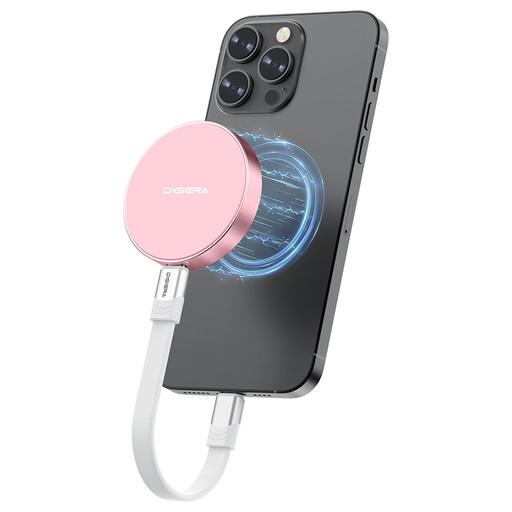 Image unavailable
DigiEra LPS2000M-3 1TB magnetic SSD, pink
This USB-C drive is another manual-copy option for a compatible phone. Its product name specifies 1TB, USB 3.2 Gen 2x2 and iPhone 15/16 series compatibility. Confirm the file system and transfer steps for your exact model; the listing’s direct ProRes recording claims concern specified iPhone Pro models, not every phone.
View on Joybuy
 Image unavailable
Samsung MU-PE1T0S 1TB USB Type-C SSD, black
Consider this for a separate copy managed through a compatible Android device or computer. The product name specifies 1TB and USB Type-C 3.2 Gen 2. Confirm compatibility with your exact phone and file system, particularly if you intend to use an iPhone, and retain another backup beyond the drive.
View on Joybuy
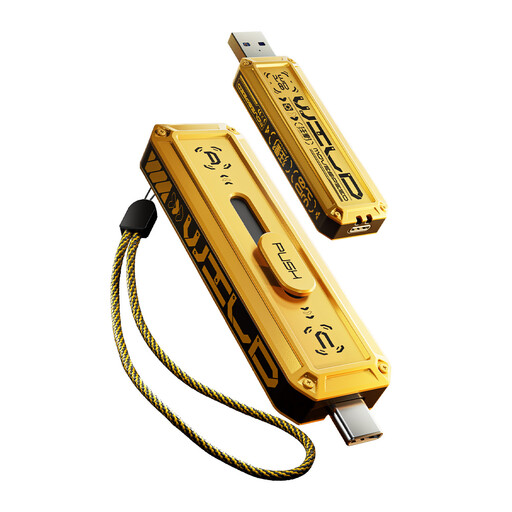 Image unavailable
MOVESPEED YSUWD10-1TSY 1TB flash drive, yellow
This is a portable option for a deliberate manual copy where the connection and file system suit your device. Its product name specifies USB-A and Type-C interfaces; the listing identifies Android support. Check your exact phone before buying, particularly for iPhone use, and do not treat a manual flash-drive copy as an automatic backup.
View on Joybuy
 Image unavailable
Western Digital Elements Port. 4TB, black
Use this as a computer-based destination after importing photos from the old phone. The product name specifies a 4TB USB 3.0 portable hard drive; it is not presented here as a direct phone connection. Check the phone-to-computer cable and import steps, plus the drive-format requirements of your computer before moving files onto it.
View on Joybuy
Questions about moving your photos
Should I make a backup before transferring photos to a new phone?
Yes, make and check a separate cloud or local copy where practical. Google says Android’s setup transfer coverage varies by device and Android version, so confirm that photos and videos open from the backup as well as on the replacement phone before erasing the old one.
What do I need to copy phone photos to a computer?
Use a cable that transfers data, unlock the phone and approve its connection prompts. Microsoft and Google describe these steps for PC and Android transfers; Android may also require File transfer mode. Apple notes that an iPhone using iCloud Photos may need full-resolution originals downloaded before import to a Windows PC.
Will my cloud storage hold the whole photo library?
Check the library size against the account’s remaining allowance, including space used by other files. Google says a standard Google Account includes up to 15 GB shared across Drive, Gmail and Google Photos; Apple says iCloud Photos uses iCloud storage. A new phone does not by itself establish how much room remains in either account.


