What to check before buying
Start with every device involved in the handover, then match the drive type and capacity to the files you actually move. Speed and security features are useful only when the surrounding equipment and policies support them.
| Priority |
What to check |
Your needs |
| Connector compatibility |
Compare the physical ports on every sending and receiving device. Check whether you need Type-A, Type-C or both connectors, and confirm the host port specification rather than relying on connector shape. |
I want the drive to plug directly into the computers, tablets or compatible phones used for a handover, without routinely needing an adapter. |
| Transfer performance |
Check the drive’s USB mode and both stated read and write figures. USB 3.2 has 5Gbps, 10Gbps and 20Gbps tiers, and the connection runs at the lowest common capability, according to the USB Implementers Forum. |
I move large folders, video or media often enough that waiting for copies to finish affects my day, but I do not want to pay for a speed my computer, cable or hub cannot use. |
| Usable capacity |
Calculate the usual transfer set and leave practical headroom. Kingston explains that formatting and other functions mean available flash capacity is lower than the figure on the label. |
I need enough room for the files I carry without assuming the advertised capacity is entirely free for storage. |
| Security and approval |
For personal, confidential or restricted information, confirm removable-media rules, approved encryption, recovery arrangements and device-management requirements before transfer. |
I need to protect sensitive files if a drive is lost and avoid buying storage that my workplace, university or client will not allow me to use. |
Joybuy product options
Joybuy product options for temporary file transfers between mixed home, study and work devices, including portable SSDs and dual-connector flash drives.
 No image available
Samsung MU-PE1T0S 1TB USB Type-C portable SSD
A portable SSD option for frequent large project or media transfers where a Type-C connection is suitable.
Stated 1TB capacity; USB 3.2 Gen 2; stated read/write speeds up to 1,050/1,000MB/s. The listing states IP65 resistance and up-to-3-metre drop resistance.
Check every device port and the supplied cable. Samsung states that maximum speed requires a compatible USB 3.2 Gen 2 host, cable and UASP; IP65 does not mean full submersion protection.
Joybuy
 No image available
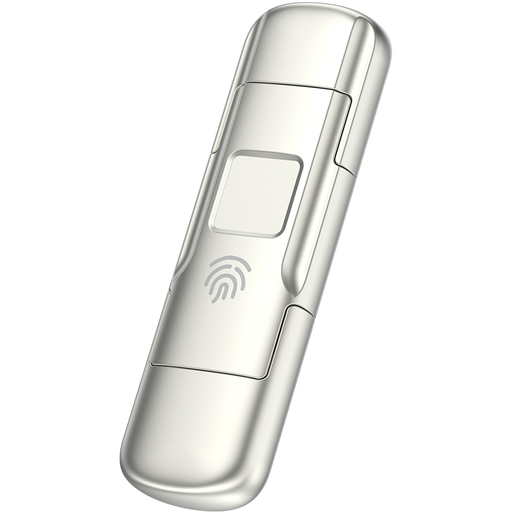
MOVESPEED 256GB USB-A and Type-C dual-interface flash drive
A compact option for direct handovers between Type-A and Type-C devices without a separate adapter.
Listed 256GB capacity, USB 3.2 Gen 1 dual interface, stated 550MB/s read and 500MB/s write figures, fingerprint access and AES-256 encryption.
For sensitive files, confirm that the organisation accepts this device and its encryption arrangement. Check recovery, lockout and device-management requirements before use.
Joybuy
 No image available
Lexar ES4 Portable SSD with Magnetic Set 1TB
A 1TB portable SSD for large files across Type-C and USB-A-equipped devices when the included cable options suit the workflow.
Listed USB 3.2 Gen 2 interface; stated speeds up to 1,050MB/s read and 1,000MB/s write; USB-C-to-C and USB-A-to-C cables are listed.
Maximum speed depends on compatible host hardware and connection conditions. The magnetic attachment has setup conditions for iPhone 15/16-series use and does not support MagSafe wireless charging.
Joybuy
 No image available
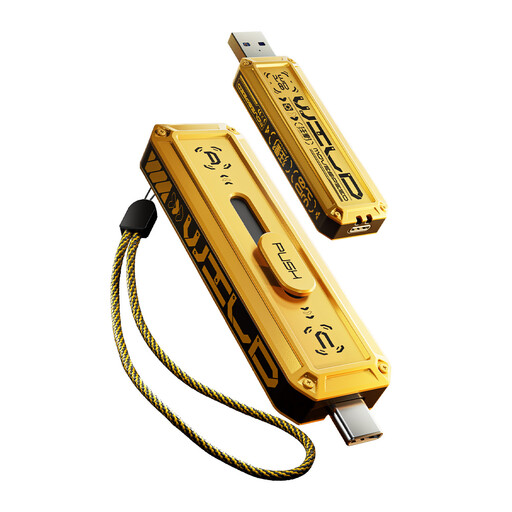
MOVESPEED 1TB dual-interface flash drive YSUWD10-1TSY
A 1TB dual-connector flash-drive option for carrying files between mixed Type-A and Type-C environments.
The listing states USB-A and Type-C interfaces, 1TB capacity, claimed read/write figures up to 1,090/1,030MB/s and a zinc-alloy housing.
Confirm which connector and host conditions apply to the stated maximum speed. USB transfer performance is limited by the lowest common capability of the drive, host, cable or hub.
Joybuy
 No image available
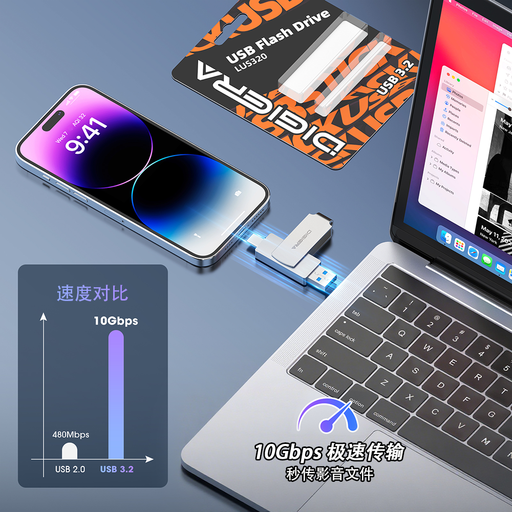
DigiEra 128GB USB-A and Type-C flash drive LUS320
A compact dual-interface choice for everyday documents, presentations and modest media folders across home, study and work devices.
Listed 128GB capacity, USB 3.2 Gen 1, USB-A and Type-C connectors, exFAT formatting, a swivel cover and a metal body.
Calculate the size of regular transfers before choosing 128GB and leave headroom. Check that intended phones, tablets and other devices support external storage through their stated ports.
Joybuy
Frequently asked questions
Should I buy a Type-A, Type-C or dual-connector USB drive?
Choose the connector that matches every device involved in the transfer. Type-A is the conventional rectangular connector, while Type-C is reversible and may support faster connections; neither shape guarantees a particular speed. A dual-connector drive is useful when both port types are used regularly.
Why does a USB 3.2 drive not always copy files at its stated maximum speed?
USB 3.2 includes 5Gbps, 10Gbps and 20Gbps transfer-rate tiers, and devices operate at the lowest common capability, according to the USB Implementers Forum. Kingston states that DataTraveler Max performance depends on the host port, software, cable or hub, while Samsung states that T7 Shield maximum speeds require USB 3.2 Gen 2 support, a suitable cable and UASP.
Do I legally have to encrypt a USB drive in the United Kingdom?
Encryption is not a universal requirement for every consumer USB drive. For organisations processing personal information, the ICO says encryption can be an appropriate measure depending on the nature and risks of processing; your employer, university, client or data owner may set stricter requirements.
Can I use my own USB drive for university or work research data?
Do not assume that personal removable storage is allowed. NCSC advises organisations to assess and control removable-media risks, and UWE Bristol states that non-UWE devices must not be used for its personal, confidential, restricted or otherwise valuable data. Check your own organisation’s current policy and approved-device process first.
How should I remove the drive after copying files?
Eject it through the operating system before unplugging. Which? advises safely ejecting a drive after copying to help prevent data corruption, then connecting it to the receiving computer to copy files out.


