What matters when choosing?
For broadband-plan comparisons, decide first whether the desk needs a conventional screen or wider side-by-side space. Then check the connected computers and the whole shared workstation, not just the monitor.
27-inch QHD
Choose when: one laptop normally uses the desk and a conventional 16:9 screen fits the available space.
Trade-off: compared with a 34-inch 21:9 screen, there is less horizontal room for separate plan pages and documents.
34-inch ultrawide
Choose when: one person regularly needs comparison tables, supplier pages and terms visible alongside one another.
Trade-off: the wider screen takes more desk space and still needs suitable positioning for each user.
| Concern |
What to check when buying |
Who this matters to |
| Side-by-side workspace |
Compare native resolution, aspect ratio and the space available for the screen and stand. |
Keeping tariff pages, contract terms and a spreadsheet visible together is my main priority. Around 33% of consumers put side-by-side workspace first. |
| Shared-desk connections |
Check each laptop’s video connection and charging requirement; confirm whether the desk also needs Ethernet or a two-computer KVM switch. |
When colleagues change desks, I want to avoid reconnecting several separate cables. For around 27% of consumers, easier shared-desk connections come first. |
| Workstation fit |
Check stand adjustment and screen placement alongside the desk, chair, lighting and task. |
Several people use this workstation, so each needs to position the screen comfortably. Workstation fit is the primary concern for around 27% of consumers. |
| Office deployment |
Confirm the full model, compatible video output, included cables and applicable warranty terms before ordering multiple units. |
I need the chosen monitor to work with existing office computers and the organisation’s support arrangements. Around 13% of consumers prioritise deployment and compatibility. |
Joybuy monitors for this setup
These choices include ultrawide screens for keeping comparison materials alongside one another, plus conventional-format monitors for desks with different space needs. Check each model against the office’s computers, desk dimensions and daily screen use.
 No image available
LG UltraGear 34GX900A-B 34-inch OLED WQHD monitor
Consider this wider screen if you need separate broadband-plan pages and documents in view at once. The product name specifies OLED and 240 Hz. Its OLED panel warrants particular care with prolonged static tariff tables or spreadsheets; check the screen-use guidance before choosing it for that work.
Confirm the desk space and the laptop’s video and charging requirements before relying on it at a shared workstation.
Joybuy
 No image available
Dahua 34-inch 3440 × 1440 curved VA monitor
The ultrawide format is relevant when comparison sheets and supplier pages need space side by side. Its name specifies a 200 Hz VA panel and two HDMI and two DisplayPort 1.4 inputs.
Check that the office computers have suitable video outputs and that the curved screen fits the desk. If USB-C docking, Ethernet or KVM is essential, confirm those functions for this exact model before purchase.
Joybuy
 No image available
ASUS ProArt PA278CV IPS WQHD monitor
This conventional-format QHD option is worth considering where the desk does not call for an ultrawide screen. The product name identifies an IPS WQHD display.
Check the connected laptop’s video and charging needs, the required ports and the available desk space before choosing it for a shared workstation.
Joybuy
 No image available
Philips Evnia 6000 34M2C6500 34-inch monitor
Its 3440 × 1440 format is relevant to viewing several plan-comparison materials together. The product name lists two HDMI inputs, DisplayPort, and height, swivel and tilt adjustment.
Measure the desk and check the computers’ video outputs. Confirm any required USB-C docking, Ethernet or KVM function for this exact model before making it part of the shared-desk setup.
Joybuy
 No image available
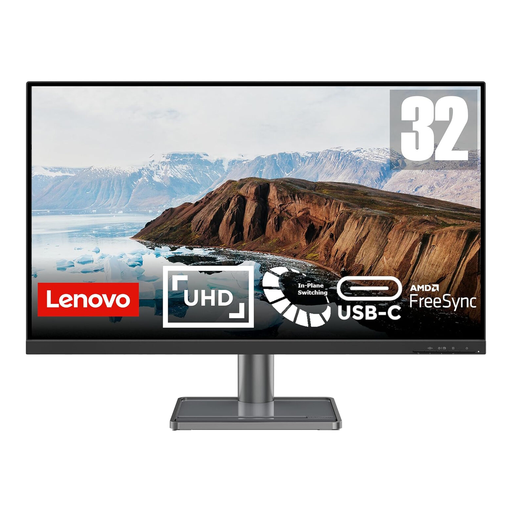
Lenovo L32p-30 31.5-inch 4K UHD monitor
Consider this larger conventional-format screen if a 34-inch ultrawide layout is not the desk’s priority. Its product name specifies a 31.5-inch 4K UHD IPS display and USB-C.
Check whether each computer can provide the required video output, whether USB-C charging meets its needs and whether the screen fits the shared workstation.
Joybuy
Questions about shared-office monitors
Should we choose a 27-inch QHD or a 34-inch ultrawide monitor?
Choose 27-inch QHD when a conventional screen fits a compact, mainly single-laptop desk; consider 34-inch ultrawide when broadband-plan pages, documents and spreadsheets need to remain visible side by side. LG describes the 34BA75QE-B’s ultrawide layout as accommodating multiple files, but a wider screen needs sufficient desk space.
When does a shared desk need a built-in KVM switch?
A KVM switch is worth considering when two computers must share one monitor, keyboard and mouse. Samsung describes this use for its S65UC; if the desk connects only one laptop at a time, check the needed display and charging connections instead.
Does an adjustable monitor take care of the workstation assessment?
No. For workers who use display screen equipment daily for continuous periods of an hour or more, the Health and Safety Executive says the employer’s assessment should consider the whole workstation, the job and individual requirements. An adjustable stand is one part of that setup.
How should we position a monitor at a shared desk?
Position the screen for the person using the desk, then check the chair, keyboard, lighting and viewing distance as part of the whole workstation. The Health and Safety Executive advises placing the top of the screen at about eye level and the screen roughly an arm’s length away; users may need to readjust a shared setup.
What should an office do with monitors it replaces?
Arrange collection and disposal through the organisation’s applicable electrical-equipment process. UK Government guidance on waste electrical and electronic equipment addresses organisations involved in buying and disposing of such equipment; check the arrangements that apply to your office rather than putting old monitors into ordinary waste.


