Choose a multifunction printer with an automatic document feeder (ADF) if the studio regularly scans batches of flat documents that meet the feeder’s stated limits. For small, curled or otherwise irregular receipts, make a usable flatbed and a workable shared scan destination the priorities; an ADF is an additional tool, not a guarantee that loose receipts can be batch-fed. Control access to scans that contain personal information.
Who needs which scanning workflow?
Studios with mixed loose receipts
If most originals are individual, small, curled or folded slips, give the flatbed more attention than the ADF sheet count. Epson’s feeder guidance restricts the types and condition of originals its documented models can accept.
Studios digitising document packs
If receipts arrive alongside flat invoices and supporting paperwork, an ADF can handle batches of documents that meet the exact model’s limits. Check whether two-sided scanning is needed for those documents rather than assuming it will help with loose slips.
Teams sharing sensitive scans
When several people scan to a computer or network destination, agree where files go and who can access them. The Information Commissioner’s Office says businesses must use personal information fairly and securely.
What matters when choosing a printer?
Start with the receipts the studio actually handles, then consider ordinary document batches, the shared filing workflow and day-to-day printing.
| Concern | What to check | Who this matters to |
|---|
| Receipt format |
Compare receipt size, paper type and condition with the exact model’s ADF limits; check that its flatbed suits individual slips. |
If my receipts are narrow, curled or folded, I need a way to scan them without assuming they belong in a document feeder. Around 36% of consumers put receipt handling first. |
| Document batches |
Check ADF capacity and whether the model scans both sides of supported documents; do not treat the sheet count as a receipt specification. |
When invoices and expense packs arrive in batches, I want to avoid placing every standard page by hand. For around 29% of consumers, document throughput is the primary need. |
| Shared scan access |
Confirm the required scan destination and how the team will manage folder access and files. Epson’s documented scan-to-computer workflow requires a USB connection or the same network. |
If several colleagues handle receipts, I need scans to reach an agreed location without leaving personal information open to everyone. Shared access is the first concern for around 21% of consumers. |
| Everyday printing |
Check the needed connection method, paper handling and ink arrangements against the studio’s printing routine. |
I also need the machine for regular printing and copying, so the scanning choice cannot ignore those tasks. Around 14% of consumers put broader office use first. |
Receipt-scanning mistakes to avoid
-
Assuming an ADF sheet count applies to receipts
A feeder capacity describes a batch size under the model’s conditions, not permission to feed any mix of thermal slips. Epson specifies plain-paper and weight limits for its documented WF-4830 feeder.
Compare the manual’s accepted sizes, media and original-condition rules with the studio’s most awkward receipts before relying on batch feeding.
-
Buying duplex scanning for a single-slip task
Two-sided scanning addresses suitable double-sided documents; it does not resolve the handling of curled or folded individual receipts.
Check the flatbed workflow for those receipts, and treat duplex ADF scanning as a separate consideration for standard paperwork.
-
Choosing connectivity without a filing plan
Wi-Fi or scan-to-computer capability alone does not decide which device receives a file or who can find it later.
Set the destination, file format, folder owner and access permissions before choosing a model. Check any required software and network connection for that exact workflow.
-
Leaving sensitive scans in an open shared folder
Receipts can contain personal information. The Information Commissioner’s Office says businesses need to use the personal information they hold fairly and securely.
Where scans contain personal information, decide who needs access and how the studio will store and manage the files.
Relevant brands to consider
Epson
Its cited WorkForce Pro models offer document-feeding and connection options worth comparing for an A4 studio workflow.
- Epson lists a 50-page ADF and double-sided scanning for the WF-4830DTWF and WF-C4810DTWF; it also lists Ethernet, Wi-Fi and Wi-Fi Direct for the WF-C4810DTWF.
- Epson’s WF-4830 feeder guidance specifies supported paper conditions. Its capacity should not be taken as approval to feed loose thermal receipts.
Brother
The cited MFC-J4540DW combines multifunction printing with wired and wireless connection options for standard studio paperwork.
- Brother lists a 20-sheet ADF and 400-sheet paper capacity for the MFC-J4540DW.
- Check that model’s feeder instructions before putting irregular receipts through it; its listed ADF capacity does not establish receipt compatibility.
HP
The cited OfficeJet Pro range includes a two-sided document-feeding option for studios that also process ordinary paperwork.
- HP lists a 35-page two-sided ADF for the OfficeJet Pro 9120 series.
- That series-level figure does not establish which receipt sizes or media an individual model’s feeder accepts; check its documentation.
Joybuy printers for studio use
These multifunction printers are choices for studios balancing receipt capture with ordinary paperwork and printing. Check each model’s flatbed, feeder limits and scan destination against the receipts and shared devices you use.
 No image available
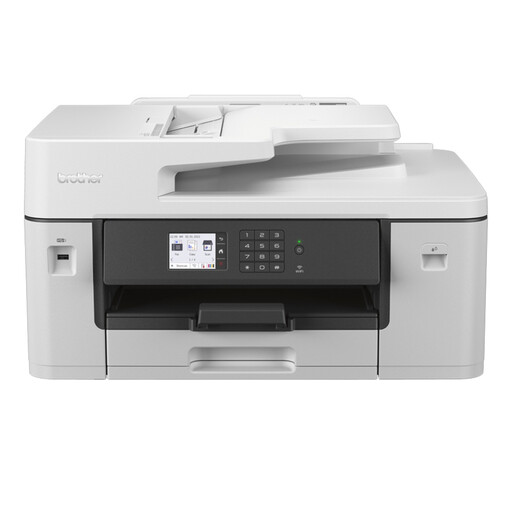
Brother MFC-J6540DWE Inkjet Printer
Consider this model if individual receipts and standard document batches are both part of the studio’s work. Confirm that its flatbed suits your smallest receipts and that its feeder accepts the originals you intend to batch-scan.
View on Joybuy
 No image available
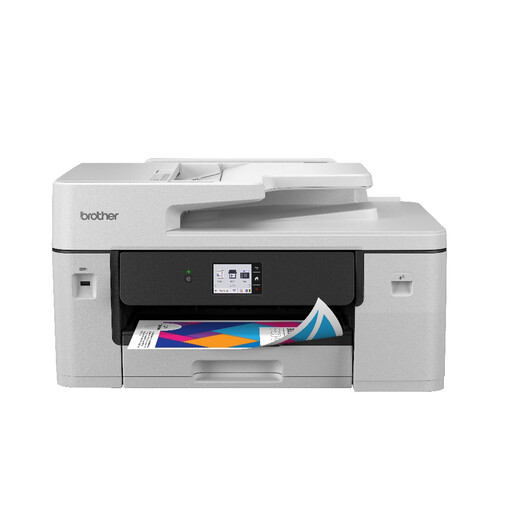
Brother MFC-J6760DW All-in-One Inkjet Printer
This model is worth considering when the studio regularly handles multi-page paperwork as well as receipts. Check the feeder’s media limits, the arrangement for scanning individual slips and who can access the chosen scan destination.
View on Joybuy
 No image available
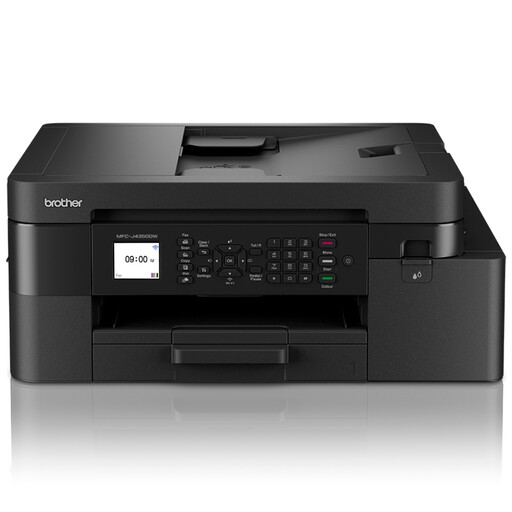
Brother MFC-J4350DW All-in-One Inkjet Printer
Consider it for occasional standard document batches alongside studio printing. If individual receipts are the main task, confirm the flatbed arrangement and the feeder’s accepted originals before choosing it.
View on Joybuy
 No image available
Canon MAXIFY GX6150
Consider this model if standard paperwork is part of the receipt-scanning workload. Confirm how it scans individual receipts, which originals its feeder accepts and whether its scan destinations fit the studio’s filing plan.
View on Joybuy
 No image available
Epson EcoTank ET-5150 A4 Multifunction Printer
This A4 model is a choice to examine when the studio needs printing alongside document scanning. Before relying on it for receipts, check the flatbed, the feeder’s media restrictions and the required shared scan destination.
View on Joybuy
Frequently asked questions
Can I put every studio receipt through an ADF?
No: use an ADF only for originals that meet that model’s stated conditions. Epson’s WF-4830 feeder documentation specifies plain paper and a 64–90 g/m² weight range, while its jam guidance warns against bent, folded, curled, taped or stapled originals. Use a suitable flatbed workflow for receipts outside the feeder limits.
Can several studio users scan to the same computer?
They can use a shared destination if the model and the studio’s setup support that workflow. For Epson’s documented scan-to-computer workflow, the destination computer must be connected by USB or be on the same network as the printer. Decide who manages the files and can access them before purchase.
What if scanned receipts contain personal information?
Treat access to those scans as part of the studio’s data-handling workflow. The Information Commissioner’s Office says businesses must use personal information fairly and securely; decide who needs access to the destination and how the files will be managed.


