Who is this monitor choice for?

Bridge-view immersion seekers

If you want the surroundings and navigation instruments visible together, assess a 34-inch 21:9 display at 3440 × 1440. Whether that extra width helps depends on your simulator’s ultrawide support and interface layout; Steam’s Professional Ship Simulator Demo illustrates the kinds of radar, sonar and radio information a ship simulation may present.

Balanced simulator PC owners

If smooth movement matters but you also need a mode your graphics card and connection can deliver, compare 144Hz–180Hz ultrawides. Samsung, AOC and Dell list models in this range; the refresh rate you can use still depends on your PC and the selected input.

Night-scene and mixed-game players

If dark-scene presentation matters to you and you also play faster games, the 240Hz OLED and QD-OLED models listed by LG and Dell are worth comparing. Their specifications do not make 240Hz a requirement for piloting a virtual cargo ship.

What matters when choosing?

144Hz–180Hz curved ultrawide

Consider it when: You want a 3440 × 1440 bridge view and do not specifically need OLED or 240Hz.

Trade-off: The wider view is useful only if your simulator displays it properly and your PC can drive the chosen mode.

240Hz OLED or QD-OLED ultrawide

Consider it when: Contrast-oriented display features and high refresh also matter in your other games.

Trade-off: Those features are not established requirements for ship simulation; check the exact model’s screen-care guidance as well as your PC connection.

Conventional 16:9 monitor

Consider it when: Your simulator’s ultrawide layout is unsuitable, or a wider screen does not fit your desk or PC setup.

Trade-off: It does not offer the same wide-format viewing area for a bridge scene and instruments.

Concern What to check Who this matters to
Bridge view and navigation space Check 21:9 support and readable interface scaling at 3440 × 1440. I want to see more of the bridge scene without losing sight of navigation instruments; around 42% of consumers put that viewing space first.
PC and connection compatibility Match the GPU output, cable and monitor input to the intended resolution and refresh rate. If my PC cannot deliver the mode I intend to use, a higher monitor specification offers little practical value; roughly 33% of consumers prioritise compatibility.
Dark-scene image quality Compare the exact panel and HDR specifications; assess reflections at your usual seating position. For night travel and darker sea scenes, I care more about the image I will see than the highest refresh figure; around 17% of consumers place image quality first.
Extra motion speed Check whether your other games and PC can use 240Hz at 3440 × 1440. I also play faster games and want to make use of a high-refresh display there; roughly 8% of consumers make extra motion speed their primary concern.

What should you check before buying?

  • Assuming every ship simulator works well at 21:9

    A wider screen helps only when the particular game supports the resolution and keeps its navigation interface readable.

    Check the game’s display settings, documentation or demo before choosing an ultrawide. Keep a 16:9 option in mind if its interface does not scale well.

  • Assuming every HDMI port reaches the advertised refresh rate

    Supported modes can differ by monitor input. Dell specifies particular DisplayPort 1.4 and HDMI 2.1 connections for the Alienware AW3425DW’s 3440 × 1440, 240Hz capability.

    Match the monitor’s stated input mode with your graphics-card output and cable, then select that mode in your PC settings.

    Using the intended mode may require a different compatible cable or an available output on your PC.

  • Treating every quoted 1ms response time as the same measurement

    AOC lists both MPRT and GtG figures for the CU34G2XE/BK, while Samsung quotes GtG for the Odyssey G5 G55H. The labels describe different measurements.

    Compare the number together with its measurement label rather than judging models by the number alone.

  • Overlooking energy information and the outgoing monitor

    Energy information affects a monitor comparison, while replacing a working setup also leaves you with an electrical item to handle.

    Review the energy label and product information for the monitor you are considering. If you replace an old one, check retailer take-back and local electrical-waste options; GOV.UK describes recovery, reuse and recycling as aims of UK WEEE rules.

Relevant monitor brands

Samsung

The Odyssey G5 G55H is a curved 34-inch ultrawide to consider for a non-OLED simulator setup.

  • Samsung lists the LS34HG550EUXXU with 3440 × 1440 resolution, 180Hz refresh and 1ms GtG response time.
  • Check your simulator’s 21:9 layout and your PC’s ability to use the intended display mode.

AOC

AOC’s curved 34-inch models give buyers distinct 144Hz and 180Hz ultrawide specifications to compare.

  • AOC lists the CU34G4CA at 3440 × 1440 and 180Hz, with Adaptive Sync and DisplayHDR 400; the CU34G2XE/BK is a separate 144Hz model.
  • Check response-time measurement labels and input modes for the exact model rather than applying one model’s figures to the range.

LG

The UltraGear 34GS95QE-W represents a 34-inch 21:9 OLED option for buyers also interested in high-refresh gaming.

  • LG lists 3440 × 1440 resolution, 240Hz refresh and 0.03ms GtG response time for this model.
  • Those specifications do not establish a need for OLED or 240Hz in a ship simulator.

Alienware

The AW3425DW is a QD-OLED ultrawide to assess if your other games can also use its high-refresh specification.

  • Dell lists a 34.2-inch 3440 × 1440 panel, 240Hz refresh, DisplayPort 1.4 and HDMI 2.1 for this model.
  • Confirm the supported mode for your chosen input, cable and graphics-card output.

Dell

The S3422DWG is a conventional curved gaming-monitor alternative within the 34-inch ultrawide choices.

  • Dell lists a 144Hz refresh rate and VESA DisplayHDR 400 for this model.
  • Check its current input and stand specifications against your particular desk and PC setup.

Joybuy monitors for this setup

These curved ultrawide monitors are relevant if your simulator supports a readable wide-format bridge view. They span VA, OLED and QD-OLED choices at different stated refresh rates; check each model’s connection modes before deciding which your PC can use.

LG UltraGear 34GX900A-B OLED gaming monitor

LG UltraGear 34GX900A-B 34-inch OLED monitor

Consider this model if a wide simulator view and high-refresh gaming elsewhere both matter to you.

The product name specifies a 34-inch OLED WQHD monitor with a 240Hz refresh rate. Check the input mode you intend to use and whether your simulator displays its interface correctly.

Its product description warns that the OLED screen is susceptible to burn-in; follow its screen-protection guidance and avoid leaving static images displayed for extended periods.

View on Joybuy
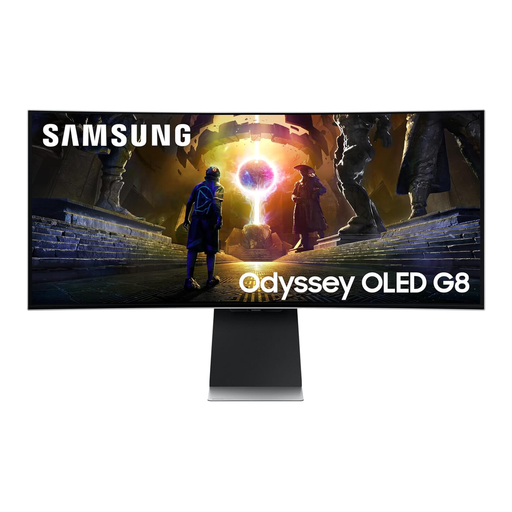
Samsung Odyssey G8 LS34DG850SUXXU curved OLED gaming monitor

Samsung Odyssey G8 LS34DG850SUXXU 34-inch curved OLED monitor

Consider this curved model if the bridge-view format appeals to you and you also want an OLED display for other games.

Its product name states WQHD resolution, 175Hz refresh and 0.03ms response time. Check the measurement and supported input mode for the exact model before comparing those figures with another monitor.

View on Joybuy

Dahua 34-inch curved UWQHD 200Hz gaming monitor

Dahua 34-inch curved UWQHD 200Hz VA monitor

This is a VA option to assess if your simulator supports a wide bridge view and your PC can use the refresh mode you want.

The product name specifies 3440 × 1440 resolution, a 200Hz refresh rate, 1ms MPRT and two DisplayPort 1.4 inputs. Its product description distinguishes 3440 × 1440 at 200Hz through DisplayPort 1.4 from 3440 × 1440 at 100Hz through HDMI 2.0; check which connection you will use.

View on Joybuy

Lenovo R34w-30 34-inch UWQHD gaming monitor

Lenovo R34w-30 34-inch UWQHD gaming monitor

Consider this model when a wide-format gaming screen is your main priority.

Its product name identifies a 34-inch UWQHD monitor. Before buying, check the exact connection mode your PC can use and how your simulator presents its navigation interface.

View on Joybuy

Lepow HC-SJ34MZ5 curved ultrawide monitor

Lepow HC-SJ34MZ5 34-inch curved ultrawide monitor

This is another wide-format choice if the simulator’s bridge view works well at ultrawide resolution.

The product name specifies 3440 × 1440 resolution and a 165Hz refresh rate. Check the supported mode on your chosen input; do not compare a response-time figure with a labelled GtG or MPRT figure without checking how it was measured.

View on Joybuy

Common questions

Do I need 240Hz to pilot a virtual cargo ship?

No particular refresh rate is established as necessary for ship simulation. A 144Hz or 180Hz ultrawide is worth considering if your PC can use it; choose a 240Hz model when its features also matter for your other games and your connection supports the intended mode.

Which connection should I use for a high-refresh ultrawide?

Use an input and cable that support your monitor’s intended resolution and refresh rate alongside your graphics-card output. Check the exact manual: Dell specifies DisplayPort 1.4 or HDMI 2.1 modes for the Alienware AW3425DW’s 3440 × 1440, 240Hz capability, but that does not establish the modes of other monitors.

Should a UK online monitor listing show energy information?

For electronic displays covered by UK energy-information rules, GOV.UK says an energy label must be shown at the point of sale, including on a website, and a product information sheet must accompany the product. Review both when comparing a monitor you intend to buy.

What can I do with an old monitor in the UK?

Check whether the retailer offers electrical-item take-back or your local authority provides an electrical-waste collection or drop-off service. GOV.UK describes UK WEEE arrangements as supporting recovery, reuse and recycling of electrical equipment.