Windows-dependent drawing reviewers
You need a particular Windows desktop application, plug-in or PC file workflow alongside the plans, rather than relying solely on a mobile viewer.


Choose the operating system around the files and applications your floor-plan work requires. A Windows Surface Pro is a route to consider for a Windows-dependent workflow; an iPad Air or Android tablet may suit mobile review and annotation once you have checked the exact apps and files. Then weigh a larger screen for detailed plans against the comfort of carrying or holding the device.
You need a particular Windows desktop application, plug-in or PC file workflow alongside the plans, rather than relying solely on a mobile viewer.
You spend much of the session inspecting detailed PDF sheets and adding comments. A larger screen and a compatible pen are worth considering if your annotation app supports them.
You carry plans between locations and mainly need to read, take notes and share comments, with connectivity planned around the places where you work.
Start with the required file and app workflow, then decide how much screen space you need for the plans you handle and how often you will carry the tablet.
| Concern | What to check | Who this matters to |
|---|---|---|
| Files and applications | Try the issued PDF or DWG files in the exact review and approval apps you need. For a Windows device, check required desktop apps and plug-ins against its configuration. | If my drawings depend on a particular desktop tool or file service, opening a plan in a mobile viewer is not enough. Around 40% of consumers would put the required workflow first. |
| Plan area and annotation | Test a detailed sheet at the screen size you are considering, including zooming and mark-up with a compatible pen. | For long sessions marking up dense PDF plans, I want room to see the drawing and place comments accurately. Seeing and annotating the plan is the primary need for around 40% of consumers. |
| Portability and access | Compare the size you will carry or hold, and decide whether Wi-Fi access is dependable where you work. Check the accessories needed for a full session. | When I move between the library and site, carrying the device and getting to my files matter most once my apps work. Around 20% of consumers would prioritise that mobile routine. |
A device may display a PDF yet still fall short when a job needs DWG editing, file permissions or a particular plug-in. Autodesk documents mobile DWG viewing, creation and editing, but that does not establish compatibility with every project process.
Try a representative plan: open it, add and export a mark-up, then test the permissions and syncing your work requires. Confirm any Windows-only tool before relying on a mobile app.
A pen, charging equipment or keyboard may be needed for the way you intend to review plans. Apple offers compatible iPad Air pencils separately; Samsung lists an S Pen with the Galaxy Tab S10+ but no travel adapter.
Check the contents of the exact configuration and whether your chosen annotation app works with the pen. Plan how you will charge and support the device during a session.
More screen space can help you see a drawing, but it changes how the device feels when carried or held. Apple lists its 11-inch Wi-Fi iPad Air at 464 g and the 13-inch Wi-Fi model at 616 g.
Try the size in the position you will use most often: handheld while moving, or on a table or stand for detailed review.
The iPad Air range offers 11-inch and 13-inch iPadOS options for plan review where the required PDF or drawing apps work on iPad.
The 12.4-inch Galaxy Tab S10+ is an Android option to consider when your approved review and annotation apps run on that platform.
The 13-inch Surface Pro (12th Edition) combines a Windows device with tablet-style pen and touch use for workflows that also call for keyboard-led work.
These iPadOS and Android tablets offer different screen sizes for mobile floor-plan review. Check each one against your files, annotation app and preferred way of carrying or supporting it.
 No image available
Consider this larger-screen Android tablet for plans you expect to review on a table or stand, after trying your required apps and files.
The product name specifies Android 15, a Helio G99 processor, 4G LTE connectivity and an included stylus. Confirm that your annotation and document-control workflow runs as needed.
 No image available
The 11-inch format is worth considering if you expect to carry or hold the tablet often and can work with less plan area on screen.
This is a Wi-Fi model. Apple Pencil is sold separately; check the compatible pencil and try your PDF, DWG and document-control apps before choosing it for mark-ups.
 No image available
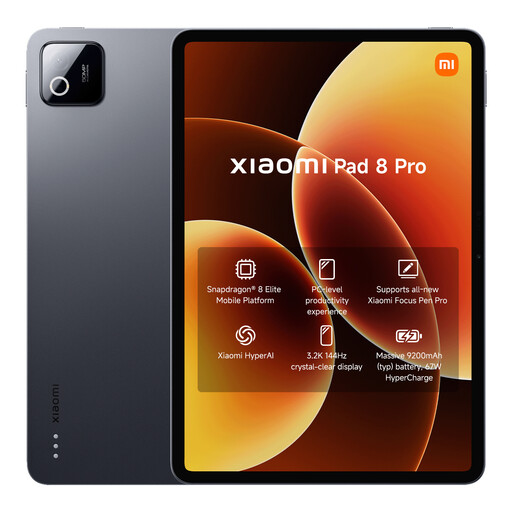
Consider this tablet for mobile plan review if the Android apps used by your project handle the files and collaboration steps you need.
The product name identifies the 12G RAM and 512G ROM variant. If you plan to make pen mark-ups, confirm the compatible pen, whether it comes with this item and how it works in your app.
 No image available
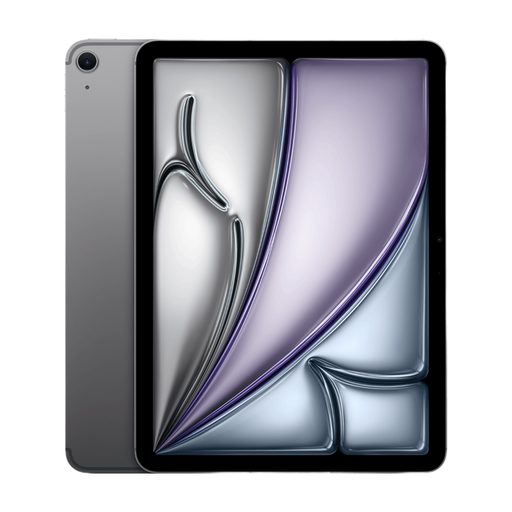
A larger iPad canvas may suit seated review of detailed plans, provided your required iPadOS apps support the files and mark-ups.
The product title identifies a 13-inch model, while other listing text describes a 14-inch display; confirm the actual screen size of this item before choosing it for plan area. Apple Pencil is sold separately.
It can cover review work if your issued files and required tools work on the selected device. Autodesk documents mobile DWG viewing, creation and editing, with full app functionality requiring an applicable subscription; test any named Windows desktop application or plug-in before relying on a tablet instead of your laptop.
A 12–13-inch screen is worth considering when you review detailed sheets on a table or stand; an 11-inch device may be easier to carry and hold. For a concrete weight comparison, Apple lists its Wi-Fi iPad Air models at 464 g for 11 inches and 616 g for 13 inches.
That depends on the model and bundle: Samsung lists an S Pen with the Galaxy Tab S10+, while Apple offers compatible iPad Air pencils separately. Check the exact item contents and whether your annotation app accepts the pen you intend to use.
Not if permitted Wi-Fi or files prepared in advance meet your needs. Consider a cellular configuration when you regularly need to connect without Wi-Fi, and check that a suitable mobile data plan is available for the device and locations involved.