Start with the position of the screen: the Health and Safety Executive advises avoiding glare and bright reflections, often by keeping a screen from directly facing a window. Then choose an ultrawide with enough workspace for the checkout page and test tools, checking its screen surface, stated brightness and connections against your desk and computers. Neither an anti-glare coating nor a higher brightness figure replaces control of window light.
Who this setup suits
Daylight-exposed checkout tester
You review form fields, error states and payment steps beside a bright window. Screen placement and control of reflections matter alongside the monitor specification; the Health and Safety Executive advises arranging the desk and screen to avoid glare.
Single-laptop web tester
You want room for the browser, developer tools and documentation, with a monitor that can also handle the laptop connections you need. Check video compatibility and charging requirements before relying on a USB-C connection for the whole desk.
Two-device QA tester
You regularly use a second computer for checkout or browser testing. A built-in keyboard, video and mouse switch, known as a KVM, and Picture-by-Picture are worth checking if you want to share controls or view both inputs at once.
What to check before buying
Set the screen away from direct window reflections before comparing monitors. Then decide whether your main constraint is readable detail, space for simultaneous windows or switching between computers.
| Concern |
What to check |
Who this matters to |
| Reflections and readability |
Check the screen surface, stated brightness and stand adjustment; assess whether the screen can be angled away from the window. |
When daylight catches the screen, I need to read form labels and validation messages without fighting reflections. Around 50% of consumers would put daylight readability first. |
| Side-by-side workspace |
Look for the stated native resolution and aspect ratio; consider how a 34-inch ultrawide fits your desk. |
I need the checkout page, browser tools and references visible together rather than continually changing windows. For around 30% of consumers, workspace is the primary concern. |
| Two-computer workflow |
Confirm the video inputs, KVM USB connections and Picture-by-Picture support on the exact model. |
If I test on two computers, I want to know whether they can share my keyboard and mouse or appear on screen together. Switching between devices comes first for around 20% of consumers. |
Buying pitfalls
-
Choosing by brightness alone
A stated brightness figure does not tell you how distracting a window reflection will be at your desk. The Health and Safety Executive advises positioning screens to avoid glare and using blinds or curtains where needed.
Work out where the screen will face first, then compare the surface treatment and brightness stated for the exact monitor.
-
Assuming every USB-C connection replaces a dock
A one-cable arrangement depends on what both the monitor and laptop support, including video, data and sufficient charging power.
Compare the laptop’s USB-C or Thunderbolt capabilities and charging requirement with the monitor’s ports, power delivery and KVM connection instructions.
If the required functions cannot run through the intended connection, the setup may need a separate dock, charger, cable or KVM.
-
Prioritising extras over the testing workflow
A KVM is useful when two computers share controls, but it does not address window reflections. A high refresh-rate specification alone does not resolve the layout of a checkout page and its test tools.
Choose multi-device features for regular two-computer use; otherwise focus on screen positioning, workspace and the connections you will use.
Brands to consider
Dell
Dell’s Pro P3426WEV is an office-oriented ultrawide for a laptop-centred testing desk.
- Dell UK specifies a 3440 × 1440 IPS display with anti-glare treatment, 90W power delivery, Ethernet, KVM and Picture-by-Picture.
- Anti-glare treatment does not remove the need to position the screen away from direct window reflections.
LG
The LG 34BA75QE-B combines a wide office workspace with laptop connections and two-computer controls.
- LG UK specifies a 3440 × 1440 IPS display, 300-nit typical brightness, USB-C power delivery up to 90W, RJ45, KVM and Picture-by-Picture.
- Its stated typical brightness is not a guarantee of readability with direct window reflections.
Samsung
Samsung’s ViewFinity S65UC is relevant when switching between two connected computers is central to testing.
- Samsung Business UK describes USB-C, LAN, a built-in KVM and multi-input viewing functions for this model.
- Check the brightness and screen-surface specification of the exact retail variant before choosing it for a bright-window position.
ASUS
The ASUS TUF Gaming VG34VQL1B is a gaming-oriented ultrawide to assess if stated peak brightness is a priority.
- ASUS UK specifies a 34-inch 3440 × 1440 display and 400-nit peak luminance.
- Peak brightness does not establish reflection handling or whether the monitor has the docking and KVM functions your workstation needs.
Ultrawides for a checkout-testing desk
These Joybuy ultrawides offer wide screens to consider for a checkout page and adjacent test tools. Before choosing one for a bright-window desk, check its screen surface, brightness and connections against your particular setup.
 No image available
Dahua 34-inch UWQHD 200Hz curved gaming monitor
Consider this wide display if you want to keep a checkout page and test tools open together; plan its position to limit window reflections.
The product title specifies 3440 × 1440 resolution, a VA panel, 200Hz refresh rate, two HDMI inputs and two DisplayPort 1.4 inputs.
Check the exact screen surface and how it performs in your room before relying on it beside a bright window.
Joybuy
 No image available
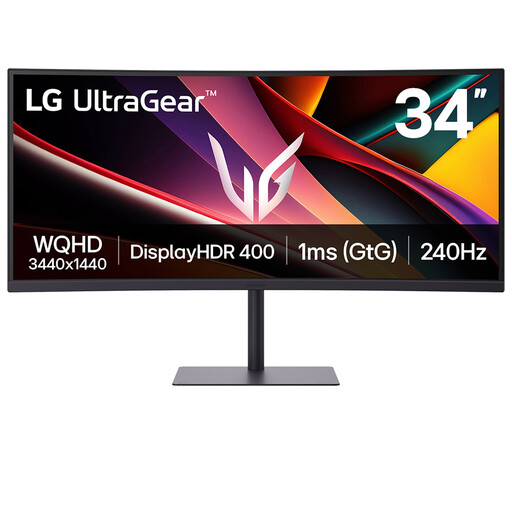
LG UltraGear 34G630A-B 34-inch VA WQHD monitor
Its ultrawide format is relevant if the checkout page needs to sit alongside other work windows; screen placement still matters near a window.
The product title specifies a VA panel and 240Hz refresh rate.
Check the screen surface on the exact model and confirm that its connections and charging capability meet your laptop’s needs.
Joybuy
 No image available
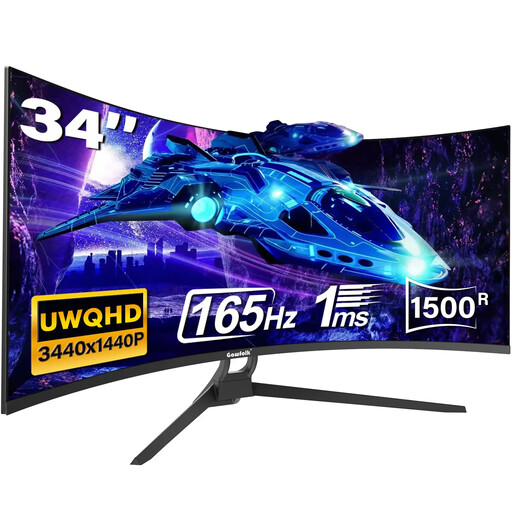
Gawfolk 34-inch UWQHD 165Hz curved monitor
The wide format is worth considering when the checkout page and testing tools need space on the same screen.
The product title specifies a 21:9 display, 3440 × 1440 resolution, 1500R curvature and 165Hz refresh rate.
Confirm the screen surface and the connections you intend to use; check Type-C functions directly before planning a one-cable laptop setup.
Joybuy
 No image available
Lenovo R34w-30 34-inch UWQHD gaming monitor
This is an ultrawide option for viewing a checkout page alongside related work, provided it fits your desk and connection needs.
The product title identifies a 34-inch UWQHD monitor.
Check stated brightness and screen treatment for your window position, and arrange the screen to avoid direct reflections.
Joybuy
 No image available
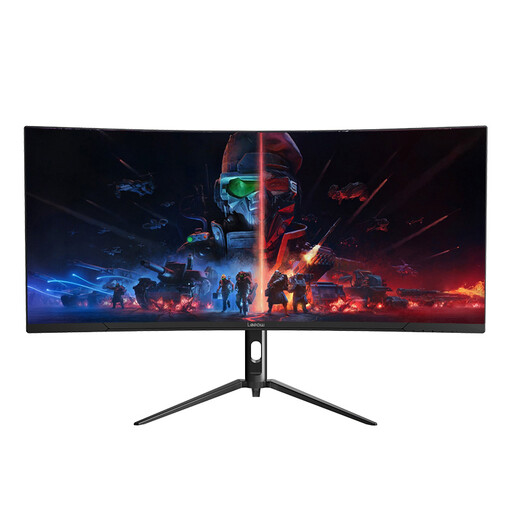
Lepow HC-SJ34MZ5 34-inch ultrawide curved monitor
The wide screen is relevant if you want the checkout page and reference windows visible together.
The product title specifies 3440 × 1440 resolution and a 165Hz refresh rate.
Check brightness, screen treatment and the available stand adjustment against your bright-window desk before choosing it.
Joybuy
Common questions
Will an anti-glare ultrawide solve reflections from a bright window?
Not by itself. The Health and Safety Executive advises arranging the screen to avoid glare or bright reflections, often by keeping it from directly facing a window; blinds or curtains can help control intrusive light. Treat the coating and brightness specification as supporting factors.
Do I need a KVM for checkout testing?
A KVM is useful if you regularly connect two computers and want one keyboard and mouse to control both. LG and Samsung describe built-in KVM functions on the models discussed above; check the exact USB and video connections needed before buying. If you use one laptop, a KVM will not address the window-reflection problem.
Does a UK workplace assessment call for a particular ultrawide specification?
The Health and Safety Executive’s display-screen-equipment guidance concerns the workstation setup rather than prescribing an ultrawide model. It says employers must carry out a workstation assessment when workers use display screen equipment daily as part of normal work for continuous periods of an hour or more; avoiding glare is also relevant to how the desk and screen are arranged.


