Bright-room interface designers
If you work on forms and browser previews near a window, screen position comes before display features. The Health and Safety Executive advises arranging the desk and screen to avoid glare and bright reflections.


Position the screen to avoid direct window reflections before choosing an ultrawide: the Health and Safety Executive advises arranging the desk and screen to avoid glare and bright reflections. A 34-inch 3440 × 1440 display can accommodate a contact-form editor, preview and references side by side; a 39.7-inch 5120 × 2160 model offers more workspace if the desk and computer can support it. Check USB-C charging and multi-device controls against the computers you will actually connect.
If you work on forms and browser previews near a window, screen position comes before display features. The Health and Safety Executive advises arranging the desk and screen to avoid glare and bright reflections.
If your form editor, preview and documentation need to stay visible together, compare resolution, stand adjustment and USB-C charging against your desk and laptop requirements.
If you switch between a work computer and a test machine, a compatible built-in KVM or picture-by-picture feature may reduce peripheral or input switching. Check how both computers connect.
For a contact-form workstation beside a bright window, plan screen position and daylight control before comparing workspace and connections.
| Concern | What to check | Who this matters to |
|---|---|---|
| Glare and reflections | Check where the screen can sit relative to the window, whether its stand adjusts, and whether blinds or curtains can control intrusive light. | If window reflections obscure my form layout, I need to make the desk position workable before relying on display settings; around 42% of consumers put glare control first. |
| Room for layout work | Compare 3440 × 1440 with 5120 × 2160 for the panes you use, then check desk space and computer display-output support. | I want the form canvas, preview and supporting material visible without constantly switching windows; around 33% of consumers prioritise workspace. |
| Device connections | Match USB-C video and charging requirements to your laptop; for two computers, check the monitor’s input and KVM arrangement. | When I move between a work laptop and a test computer, I want fewer cable and peripheral changes; roughly 25% of consumers put connectivity first. |
Even a higher-resolution screen can be hard to use if bright window reflections fall across it. The Health and Safety Executive recommends arranging the desk and screen to avoid glare and bright reflections.
Check the intended desk position when the window is brightest, and plan screen orientation and daylight control before choosing display features.
BenQ lists 200 nits typical brightness and 400 nits HDR peak brightness for the EX3415R. Those figures describe different conditions; neither tells you how reflections will affect that screen beside your window.
Consider typical brightness, screen finish and the room’s lighting separately. Do not treat an HDR peak figure as a substitute for positioning the screen away from glare.
A monitor’s USB-C charging or KVM feature does not establish that your laptop can send video through its port, accept the available charging power or use your intended two-computer arrangement.
Check each computer’s video output, charging needs and required cables against the exact monitor connections before ordering.
Depending on that combination, you may need a compatible cable, dock or separate power adapter.
These model examples illustrate workspace and connection choices; their features do not establish how a screen will handle reflections at your desk.
Dell’s UltraSharp U4025QW is a large ultrawide for a workspace with several visible panes.
LG’s 34BA75QE-B is a 34-inch work-oriented example for side-by-side form and preview windows.
Samsung’s ViewFinity S65UC is relevant when form work involves switching between two computers.
BenQ’s EX3415R is a 34-inch 3440 × 1440 matte-screen example with an ambient-light-responsive mode.
These ultrawides offer different screen widths for keeping a contact-form layout and supporting windows in view. Compare their desk fit and connections after deciding how to control light from the window.
 No image available
Consider this 34-inch ultrawide if you want a form editor and preview side by side. The listed refresh rate is 240 Hz; that figure does not indicate how the screen handles window reflections.
The listing warns that static images can cause OLED burn-in, so check its screen-protection features if your design interface stays in place for long periods. Position the desk to avoid intrusive light.
 No image available
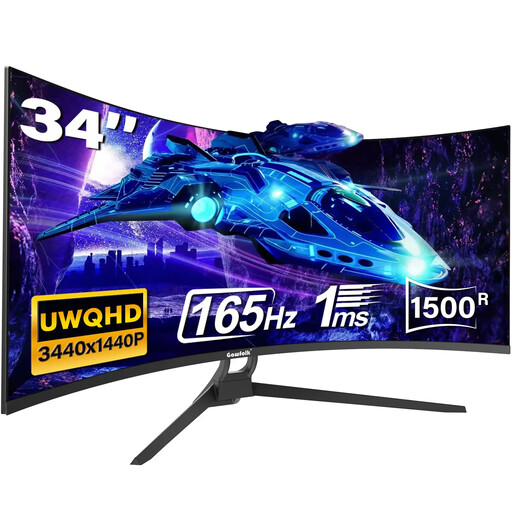
The 34-inch 3440 × 1440 format is relevant to a form canvas alongside a browser preview. The title specifies a VA panel, two HDMI inputs and two DisplayPort 1.4 inputs.
Check how the screen finish looks in your intended position rather than assuming it will overcome reflections from the window.
 No image available
Its listed 3440 × 1440 resolution gives you a wide format for a form layout and preview. The title specifies two HDMI inputs and DisplayPort, with refresh rates that differ by connection.
The listed 1000 cd/m² figure is peak brightness, not a measure of everyday readability or reflection handling beside your window.
 No image available
The 49-inch 32:9 format is worth considering if you need a particularly wide arrangement of windows. Its 1440-pixel vertical resolution is different from the 2160-pixel height of the Dell U4025QW discussed above.
Check desk depth and support, computer output and the supplied stand’s adjustment range before choosing this larger format. Screen width alone will not control window reflections.
 No image available
Its listed 21:9 format is relevant if a contact-form layout and preview need to remain visible together. The title identifies HDMI 2.1, DisplayPort 1.4 and VESA mounting.
Confirm the connections and mounting or stand arrangement you need for your laptop and desk. In particular, check the Type-C connection mentioned in the title before relying on it.
Not reliably on its own. The Health and Safety Executive advises arranging the desk and screen to avoid glare and bright reflections; consider screen position and daylight control before treating the finish or brightness setting as a solution.
Choose a 34-inch 3440 × 1440 format if it fits the form editor, preview and references you need to see together. Consider a 5120 × 2160 display for more simultaneous workspace, after checking its physical fit and your computer’s display-output support; LG’s 34BA75QE-B and Dell’s U4025QW illustrate the respective resolutions.
It can with a compatible laptop and monitor, but the connector alone does not establish video output, sufficient charging power or hub support. LG specifies power delivery up to 90 W for the 34BA75QE-B and Dell up to 140 W for the U4025QW; compare the exact monitor and laptop requirements, including the cable.
Yes, where the worker uses display screen equipment daily as part of normal work, continuously for an hour or more, the Health and Safety Executive says the employer must carry out a workstation assessment. It covers the whole workstation, work conditions and task, not just the ultrawide monitor.