For comparing two document versions, start by considering a 34-inch ultrawide with 3440 × 1440 resolution, then check its screen finish, adjustment range and position relative to the window. Brightness alone will not resolve direct reflections: the Health and Safety Executive advises adjusting screens and lighting to avoid glare. USB-C charging, KVM and picture-by-picture matter chiefly when your laptop or two-computer workflow can use them.
Who this setup suits
Window-side document reviewers
If you spend long periods comparing edits, contracts or spreadsheets, readable text and a screen position that avoids reflections matter alongside display width. The Health and Safety Executive advises adjusting screens and lighting to avoid glare.
Two-computer knowledge workers
If the versions are on separate computers, check whether the monitor can show both inputs and let you share a keyboard and mouse. Dell and Samsung document relevant connection and switching features on particular models; check the exact model and input combination.
Colour-sensitive layout reviewers
If the documents include artwork or proofs, screen geometry and documented colour features may matter as well as room for two pages. BenQ positions its flat PD3420Q for this kind of creative work.
What to check before choosing
Check the screen in relation to the window and the space available for two documents before deciding whether multi-computer features are useful.
| Concern | What to check | Who this matters to |
|---|
| Window glare |
Look for a matte or anti-glare finish and enough adjustment to position the screen away from direct reflections. Assess the desk in daylight. |
If daylight reflections obscure edits, I need readable text without leaning around the screen; roughly 33% of consumers would put glare control first. |
| Two-document workspace |
Compare native resolution and screen width; check how two documents look at your preferred zoom and text scaling. |
When both versions stay open, I want each pane wide enough to read without constant window switching; for roughly 27% of consumers, usable side-by-side space comes first. |
| Two-computer switching |
Check supported video inputs, KVM and picture-by-picture modes. For USB-C, confirm laptop video compatibility and the monitor's charging limit. |
If the versions sit on different computers, I want to share a keyboard and mouse without repeatedly changing cables; roughly 20% of consumers would prioritise switching between sources. |
| Desk fit and positioning |
Measure the available width and depth, then check the stand footprint, adjustment range and any intended monitor-arm compatibility. |
A narrow window-side desk makes comfortable placement as important to me as screen size; roughly 20% of consumers would put desk fit and positioning first. |
Buying pitfalls
-
Choosing by brightness alone
A brightness rating does not tell you whether daylight will reflect directly off the screen. The Health and Safety Executive advises adjusting screens and lighting to avoid glare.
Check the finish and stand adjustments, then plan where the display will face during the brightest part of your working day.
Blinds or a monitor arm may be needed if repositioning the display is impractical.
-
Assuming USB-C means one-cable docking
Charging power differs between monitors, and the laptop must support a compatible video connection.
Compare the exact monitor's power-delivery rating and video requirements with your laptop before relying on one cable.
You may still need a separate charger or a compatible cable.
-
Paying for switching features you will not use
KVM and picture-by-picture serve a different task from placing two application windows side by side on one computer.
Prioritise those features if you routinely connect two sources; otherwise, concentrate on readable panes, screen placement and desk fit.
-
Treating the monitor as the whole workstation
A wider display can be awkward to use if its stand leaves too little desk depth or places the screen poorly in relation to the window.
Measure the desk and check the intended viewing position. For qualifying display-screen work, consider the wider workstation setup rather than the monitor alone.
Relevant brands to consider
Dell
Dell's P3425WE and U3425WE are distinct 34-inch, 3440 × 1440 curved ultrawides for document-focused desks.
- Dell specifies anti-glare treatment and USB-C power delivery of up to 90 W for the P3425WE; the U3425WE adds Thunderbolt hub and picture-by-picture features.
- Those additional hub features are not essential for comparing two windows on one computer, and neither model removes the need to manage window reflections.
BenQ
BenQ's flat PD3420Q is a 34-inch, 3440 × 1440 option for document comparison that also involves layout or colour review.
- BenQ specifies a matte coating, colour-focused features, KVM, picture-by-picture and USB-C power delivery up to 65 W.
- Check whether its stated USB-C charging limit meets your laptop's needs; a matte finish does not replace sensible screen positioning.
Samsung
Samsung's curved ViewFinity S6 S65UC supports a desk shared by two source devices.
- Samsung documents USB-C, a built-in KVM and multi-input viewing options for the S65UC.
- Its pronounced curve is a viewing preference, not a requirement for document comparison; assess it if straight-line layout work matters to you.
Ultrawide monitors for this setup
These Joybuy ultrawides offer different screen sizes and formats for keeping document versions visible together. Compare each model's desk fit and window-side positioning needs before choosing; the larger displays are not automatically easier to use beside a window.
 No image available
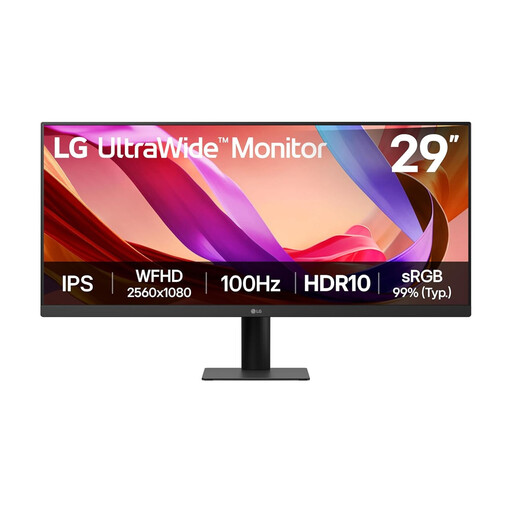
LG UltraWide 29U511A 29-inch IPS monitor
Consider the 29-inch format if desk width is tight, but check that two documents remain legible at your preferred scaling.
The product title specifies UWFHD 1080p, 100 Hz, DisplayPort and HDMI. Check whether the available stand adjustment lets you position it away from window reflections.
Joybuy
 No image available
Dahua 34-inch UWQHD curved monitor, 200 Hz
The 34-inch, 3440 × 1440 format is worth considering when two document panes need more room; measure the desk before committing to the curved screen.
The product title specifies a VA panel, two HDMI ports and two DisplayPort 1.4 ports. If daylight reflections are a concern, confirm the screen finish and check how far you can reposition it.
Joybuy
 No image available
Acer X Predator X49X 49-inch curved QD-OLED monitor
Consider this 32:9 display only if the desk has room for a 49-inch screen and you can place it comfortably in relation to the window.
The product title specifies an 1800R curve and Double Quad HD resolution. Check the display and stand dimensions, mounting clearance and position in daylight before buying.
Joybuy
 No image available
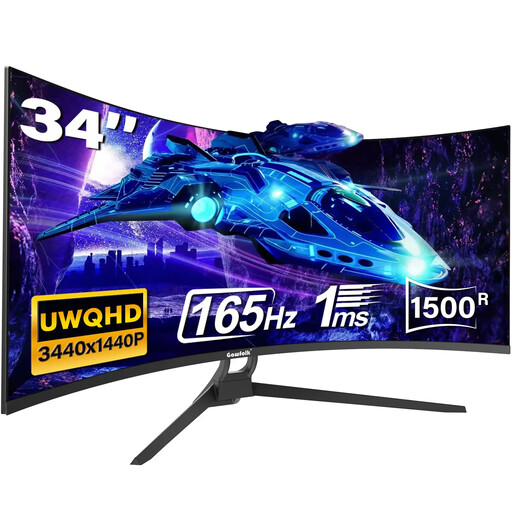
Gawfolk 34-inch UWQHD curved monitor, 165 Hz
Its stated 21:9 format is relevant to opening two document versions together; check how the curved display fits your desk and viewing position.
The product title specifies a 1500R curve, HDMI 2.1 and DisplayPort 1.4. Confirm the screen finish and stand adjustment for window-side use, and check the exact USB-C connection if it matters to your laptop setup.
Joybuy
 No image available
Lenovo R34w-30 34-inch UWQHD monitor
The 34-inch ultrawide format is relevant to side-by-side documents, provided it fits the desk and gives each pane enough room at your preferred scaling.
Check the exact native resolution, screen finish and stand movement against your two-pane and window-side needs before buying.
Joybuy
Frequently asked questions
Will a brighter monitor solve reflections from a nearby window?
No: a brightness figure alone cannot tell you whether the window will reflect off the screen. The Health and Safety Executive advises adjusting the display and lighting to avoid glare, so check the finish and assess the intended screen position in daylight.
Should I choose a flat or curved ultrawide for document comparison?
Choose by the work you do and how the screen looks from your normal seat, rather than assuming either shape is superior. BenQ's flat PD3420Q is positioned for creative layout work, while curved models offer another viewing arrangement; in either case, check resolution, desk fit and reflections.
When is a built-in KVM useful?
A KVM is useful when you regularly connect two computers and want to control them with one keyboard and mouse. Samsung documents this function on its S65UC; if both documents are on one computer, first check whether ordinary side-by-side windows meet your needs.
Does buying a new monitor address the whole workplace screen setup?
No: monitor choice is only one part of arranging a workable display-screen station. The Health and Safety Executive says the Display Screen Equipment Regulations apply to workers who use a screen daily for continuous periods of an hour or more, and its guidance includes adjusting screens and lighting to avoid reflections.


