Control the window light before relying on monitor specifications: the Health and Safety Executive advises repositioning a screen or using blinds to avoid glare. For the display, consider a matte or anti-glare surface and a stand that lets you adjust its position, then choose a roughly 34-inch workspace or a larger, higher-resolution 40-inch workspace according to how much of the calendar and its supporting tools you need visible at once. Brightness and HDR labels do not guarantee comfortable viewing in direct reflections.
Who this choice affects
Bright-desk calendar designers
If you work on schedules, grids and event artwork beside a window, reflections can interfere with judging fine text and colour. Screen placement and control of daylight matter alongside the display surface; the Health and Safety Executive specifically advises repositioning screens or using blinds to avoid glare.
Large-canvas planners
If a calendar grid, artwork, messages and references need to stay open together, compare the workspace offered by 34-inch 3440 × 1440 and approximately 40-inch 5120 × 2160 models. The larger option also needs a desk position and viewing distance that work for its size.
Laptop-first creative workers
If you want display output and charging through one connection, check the laptop's USB-C video support and charging requirement against the particular monitor. A USB-C socket alone does not establish which functions will work together.
What to prioritise
Start with the screen's position relative to the window. Then decide how much calendar workspace you need and whether colour-management or laptop connections change which monitor fits your desk.
| Concern |
Buying checks |
Who this matters to |
| Daytime reflections |
Look for a stated matte or anti-glare surface. Check whether the stand and desk position let you turn the screen away from reflections or control daylight with blinds. |
When daylight crosses my calendar grid, I need to see its text and colours without fighting reflections. Around 42% of consumers put glare control first. |
| Calendar workspace |
Compare 34-inch 3440 × 1440 and approximately 40-inch 5120 × 2160 layouts; measure the desk and confirm native-resolution output from your computer. |
If I keep the date grid, design tools and references open together, I need enough visible space without losing a workable viewing distance. Around 33% of consumers make workspace their primary concern. |
| Colour and laptop setup |
Check stated colour-space coverage for your delivery format, plus the laptop's USB-C video mode and the monitor's power delivery. |
For campaign artwork on a laptop-led desk, I need a suitable colour workflow and a connection that works with my computer. Around 25% of consumers put those needs first. |
Buying pitfalls
-
Expecting HDR or brightness figures to cancel window glare
DisplayHDR describes defined HDR performance characteristics, according to the Video Electronics Standards Association. It does not replace control of reflections at the desk.
Check the screen surface, window direction, available blinds and monitor adjustment before treating an HDR label as relevant to this particular problem.
-
Choosing a larger screen without planning its position
A roughly 40-inch 5120 × 2160 monitor can accommodate a larger working canvas than a 34-inch 3440 × 1440 model, but the screen and its stand must fit the desk. Your computer must also support the intended display output.
Measure the available width and depth, plan your viewing position, and check native resolution and refresh-rate support for the connection you intend to use.
-
Assuming every USB-C connection handles video and charging
Monitor power delivery differs by model: BenQ specifies 65 W for the PD3420Q, while ASUS specifies up to 96 W for the PA34VCNV. Whether one cable works also depends on the laptop's video mode and power needs.
Check the laptop's USB-C DisplayPort Alt Mode or Thunderbolt support and compare its charging requirement with the monitor's stated output. Keep the laptop charger available if needed.
-
Treating colour coverage as a finished-output guarantee
A manufacturer's stated colour-space coverage does not by itself establish how every application, export or print will look under your working conditions.
Work in the colour space required for the calendar's delivery format, keep the design application's colour-management settings consistent and use proofing or test output when print matching matters.
Relevant brands to consider
BenQ
BenQ positions the PD3420Q as a 34-inch designer ultrawide. Its specifications list a 3440 × 1440 IPS panel, matte coating and 350-nit typical brightness.
- The matte surface and stated height adjustment are relevant when finding a position away from window reflections; BenQ also lists 100% sRGB and 98% P3 coverage.
- Its 3440 × 1440 canvas has fewer pixels than the 5120 × 2160 models discussed here, and its display specifications do not guarantee readability in direct sunlight.
Dell
Dell lists the UltraSharp U4025QW as a 39.7-inch curved 5120 × 2160 ultrawide with a 120 Hz refresh rate and Thunderbolt hub functionality.
- Its large, high-resolution canvas is worth considering when a detailed calendar and several working panes need to remain visible together.
- Plan for the physical size and viewing distance; the listed features do not establish that the screen will avoid glare beside a bright window.
ASUS
ASUS specifies a 34.1-inch 3440 × 1440 IPS panel with an anti-glare surface for the ProArt PA34VCNV, alongside USB-C DisplayPort Alt Mode, up to 96 W power delivery and RJ45.
- Its stated connections and adjustable stand make it relevant to a laptop-led calendar-design desk.
- ASUS lists 300 cd/m² typical brightness; manage daylight and confirm the laptop's USB-C video and charging compatibility rather than relying on that figure for glare control.
LG
LG lists the UltraFine 40U990A-W as a 40-inch 5120 × 2160 ultrawide with a Nano IPS Black panel and Thunderbolt 5.
- The stated resolution and size provide another large-canvas option for arranging calendar work and references.
- Check desk fit, computer compatibility and reflections independently; an HDR specification is not a glare guarantee.
Joybuy monitor choices
These ultrawide choices include 34-inch calendar workspaces and larger 39-inch and 49-inch screens. For a bright-window desk, assess placement and screen finish for each model; a wider screen alone does not solve reflections.
 No image available
LG UltraGear 34GX900A-B 34-inch OLED monitor
Consider this 34-inch ultrawide if you want room for a calendar and tools without moving to a 49-inch screen.
The product name specifies OLED, WQHD and 240 Hz. If your calendar stays on screen for long periods, check the stated OLED screen-protection guidance and assess the risk of static-image burn-in.
View on Joybuy
 No image available
Acer Predator X49X 49-inch curved QD-OLED monitor
Consider its broad 32:9 format if you want a calendar and several work areas side by side and have space for a 49-inch screen.
The product name specifies QD-OLED, an 1800R curve and 240 Hz. Measure the desk and confirm that your computer and intended cable support the display mode you plan to use.
View on Joybuy
 No image available
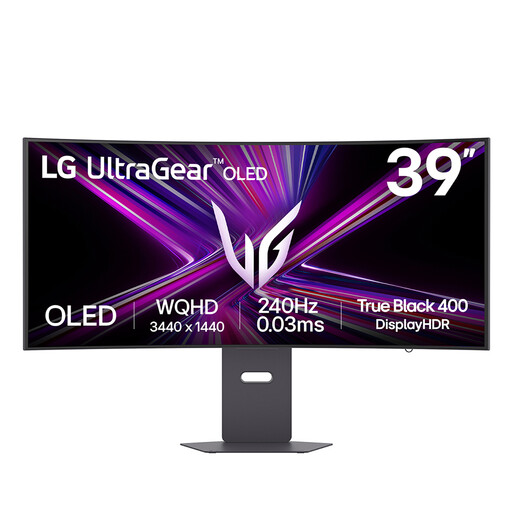
LG UltraGear 39GX900A-B 39-inch OLED monitor
This 39-inch ultrawide may suit a calendar workspace where you want a larger screen without choosing a 49-inch format.
The product name specifies OLED, QHD and 240 Hz. Check the exact screen-surface finish for your window-side position, along with desk fit and viewing distance.
View on Joybuy
 No image available
CRUA 49-inch 5120 × 1440 curved VA monitor
Its 49-inch, 32:9 layout is an option if you want a wide calendar canvas and can accommodate the screen at your desk.
The product name specifies 5120 × 1440 resolution, a 1500R curve, a VA panel and 165 Hz. Confirm the stand's height-adjustment range before relying on it to reposition the screen away from reflections.
View on Joybuy
 No image available
Dahua 34-inch 3440 × 1440 curved VA monitor
This 34-inch ultrawide offers a broad calendar workspace without the physical width of a 49-inch model.
The product name specifies 3440 × 1440 resolution, a VA panel and 200 Hz. Check whether its screen finish suits a bright-window desk before choosing it for reflection-sensitive work.
View on Joybuy
Common questions
Will a brighter monitor solve glare from a nearby window?
Not on its own. The Health and Safety Executive advises repositioning a screen or using blinds to avoid glare, so check where reflections fall before comparing brightness or HDR specifications.
Should I choose 34-inch 3440 × 1440 or 40-inch 5120 × 2160 for an event calendar?
Choose a 34-inch 3440 × 1440 workspace if it accommodates your calendar and tools and fits your desk; consider a roughly 40-inch 5120 × 2160 model if you need a larger, more detailed canvas with several panes visible. Measure the desk and check your computer's native-resolution output before deciding.
Can a USB-C ultrawide replace my laptop charger and dock?
It can serve those functions only when the laptop supports the required USB-C video mode and the monitor supplies enough charging power and the connections you need. ASUS specifies USB-C DisplayPort Alt Mode and up to 96 W power delivery for the PA34VCNV; BenQ specifies 65 W USB-C power delivery for the PD3420Q.
Does workplace glare guidance affect how I set up the monitor?
Yes, for covered display screen equipment work, Health and Safety Executive guidance addresses arranging screens and lighting to avoid reflections and glare. It concerns the workstation setup, not a requirement that every consumer monitor have a particular brightness or HDR rating.


