Calendar-and-content multitaskers
If you arrange dates while consulting briefs, spreadsheets, messages and design assets, a wide desktop gives those windows room to sit alongside one another. LG describes this use for its 34-inch 21:9 WQHD display.


A 34-inch, 3440 × 1440 ultrawide is a sensible starting point if you need an event calendar beside email, spreadsheets and design files. Prioritise a USB-C hub if you regularly dock a compatible laptop, or a KVM switch if you work across two computers; in either case, check the desk fit and exact connections before buying.
If you arrange dates while consulting briefs, spreadsheets, messages and design assets, a wide desktop gives those windows room to sit alongside one another. LG describes this use for its 34-inch 21:9 WQHD display.
If you connect and disconnect a work laptop regularly, a compatible USB-C hub monitor can combine its display connection and charging at the desk. Dell and LG list models with USB-C power delivery and Ethernet, but the laptop’s requirements still matter.
If calendar work moves between two computers, look at how you will switch inputs and peripherals. Samsung lists a built-in KVM switch and two-source display modes for its ViewFinity S65UC.
For an event-calendar desk, settle the screen layout first, then decide whether laptop docking or two-computer control is part of your daily work.
| Concern | What to check | Who this matters to |
|---|---|---|
| Side-by-side workspace | Compare a 3440 × 1440, 21:9 layout with the space available for the screen and stand. More width does not add the vertical pixels of a 3840 × 1600 display. | If I keep a calendar open while consulting briefs and spreadsheets, I want less window switching. Around 42% of consumers put that shared workspace first. |
| Docking and device control | Match the laptop’s video connection and charging requirement to the monitor’s USB-C specification; check KVM inputs if you use two computers. | When I disconnect a laptop often or move between two machines, managing cables and controls becomes the priority. For around 33% of consumers, those connections come first. |
| Viewing and positioning | Check stand adjustment and the panel and colour specifications relevant to your work. Confirm that the screen and stand fit your viewing position. | If I spend long sessions placing labels and colours, I need a screen I can position comfortably and assess for visual-layout work. That is the primary concern for around 25% of consumers. |
A monitor’s stated charging wattage does not establish that your laptop can receive its video signal or enough power through that connection.
Compare the exact monitor connection with your laptop’s video support and the wattage of its supplied charger.
An ultrawide needs room for its stand, cables and your viewing position. Dell lists its 37.5-inch U3824DW at approximately 13.27 kg, which also matters if you intend to use an arm.
Measure usable desk width and depth, then check the exact screen-and-stand dimensions or the arm’s capacity and mounting compatibility.
A KVM switch and Picture-by-Picture address switching or viewing two sources; they do not create more space for windows from a single computer.
List the devices that will stay connected and prioritise these functions only if two-source work is routine.
Ratings are no substitute for knowing who is selling the monitor and checking the product information. GOV.UK advises online marketplace shoppers to examine seller details, product information and relevant warnings.
Check the seller and listing before ordering, and retain the listing and order confirmation so you can compare them with the delivered monitor.
These model-specific examples show which features to compare; a brand name alone does not establish the ports or adjustments on another model.
Dell’s Pro P3425WE and UltraSharp U3824DW illustrate different home-office ultrawide layouts.
LG’s 34BA75QE is a curved 34-inch, 3440 × 1440 IPS option for keeping files beside a calendar.
Samsung’s ViewFinity S65UC is relevant when a calendar workflow uses two computer sources.
These choices include 34-inch ultrawides for placing calendar and reference windows side by side, plus a 31.5-inch Lenovo 16:9 alternative if you are also considering a different screen shape. Check each model’s connections and desk fit against your own setup.
 No image available
Consider this ultrawide if you want calendar and reference windows on one screen, while accepting the care required for prolonged static content.
The product name specifies WQHD resolution and a 240 Hz refresh rate. The listing warns of OLED burn-in risk; if your calendar remains unchanged on screen for long periods, consider how that affects your use.
If you intend to dock a laptop, check its video connection and charging requirement against this model’s USB-C specification.
 No image available
Consider this if you are open to a 16:9 screen for high-resolution calendar and document work rather than requiring an ultrawide layout.
The product name specifies a 31.5-inch 4K UHD IPS display and USB-C. Its 16:9 shape is not a direct match for a 21:9 ultrawide.
Check this model’s USB-C charging specification against your laptop before relying on it for docking.
 No image available
Its wide format is relevant when you want a calendar beside messages and reference files.
The product name specifies 3440 × 1440 resolution, a VA panel, 200 Hz, two HDMI inputs and two DisplayPort 1.4 inputs.
Check its dimensions with the stand before ordering. Confirm the exact visual specifications if colour presentation or HDR is important to your work.
 No image available
Consider its wide screen if your calendar and supporting documents need to remain visible together.
The product name specifies 3440 × 1440 resolution, two HDMI inputs, DisplayPort, and height, swivel and tilt adjustment.
Check the dimensions with the stand and confirm any laptop-docking requirements against the exact connections before buying.
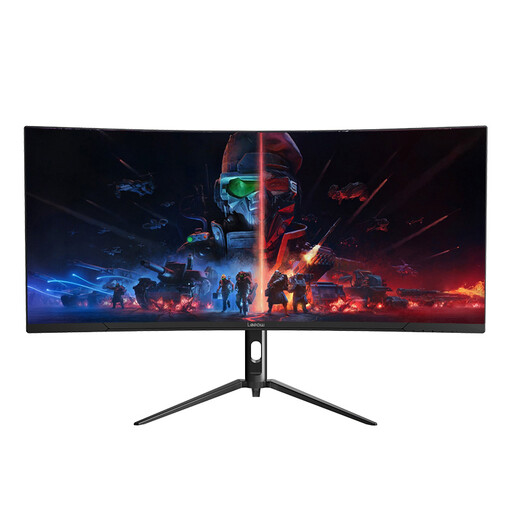 No image available
This is another wide-screen option for keeping an event calendar beside other work windows.
The product name specifies 3440 × 1440 resolution and a 165 Hz refresh rate.
Check the screen-and-stand dimensions and adjustment options for your desk, along with the connections needed by your computer.
A 34-inch, 3440 × 1440 ultrawide is a useful starting point when the main need is keeping windows side by side. LG describes its 21:9 WQHD format as suitable for viewing multiple files and extended spreadsheet rows; consider a 3840 × 1600 model if extra vertical space matters enough to accommodate a larger screen.
No—check both the laptop’s supported video connection and its charging requirement against the exact monitor specification. Dell and LG list models with up to 90W USB-C power delivery, but that figure alone does not establish compatibility with your laptop.
A built-in KVM is worth considering if you routinely control two computers with one keyboard and mouse. Samsung lists a KVM switch and two-source display modes for its S65UC; if you use only one computer, focus instead on the screen layout and connections you need.
You may have remedies when goods are faulty or not as described, rather than being limited to a retailer’s change-of-mind policy. Citizens Advice’s guidance for England explains that the available remedy depends on the problem and circumstances; use the relevant regional advice for purchases elsewhere in the UK.
Check the seller’s identity and location, the monitor’s description and any relevant instructions or warnings before ordering. GOV.UK’s marketplace shopping guidance also recommends examining seller information rather than relying on ratings alone; when replacing an old monitor, check your local electrical recycling options.