Laptop-first checkout testers
Students who want the checkout, browser developer tools and notes visible together. A compatible USB-C connection may also carry video and charging, but the laptop and monitor must both support the functions needed.


A 34-inch, 3440 × 1440 ultrawide is a useful starting point if it fits your student-room desk and you want the desktop checkout, developer tools and notes in view together. Prioritise screen positioning and connections your laptop can use; USB-C charging needs compatibility at both ends, while a KVM is chiefly useful when switching between computers. A wide screen does not replace narrow-viewport checks or direct keyboard and screen-reader testing.
Students who want the checkout, browser developer tools and notes visible together. A compatible USB-C connection may also carry video and charging, but the laptop and monitor must both support the functions needed.
Students moving between a laptop and another computer or test source who want to share a keyboard and mouse rather than move peripherals each time.
Students who also use the display for fast-moving games. Refresh rate becomes relevant to that second use, after desk fit, screen position and checkout-testing needs are addressed.
Start with the desktop workspace and physical desk fit, then check laptop connections. Treat gaming refresh rate as a separate priority if you will use it.
| Concern | What to check | Who this matters to |
|---|---|---|
| Checkout workspace and viewport testing | Compare native resolution and aspect ratio for side-by-side desktop work. Plan separate checks at narrow viewport widths in Chrome DevTools Device Mode. | If I keep the checkout, developer tools and notes open together, I need enough desktop space without overlooking the mobile layout. Around 38% of consumers would put this workspace-and-testing need first. |
| Room fit and screen position | Measure usable desk space and check stand adjustment, screen placement and glare. Plan cables around the available sockets. | A large screen is difficult to use if I cannot position it comfortably on my desk. For around 31% of consumers, room fit and positioning would be the primary concern. |
| Laptop and second-device connections | Match USB-C video and power delivery to the laptop; consider a KVM and LAN connection if your workflow uses them. | I want fewer cables when working from my laptop, or an easier way to switch between two computers. Around 23% of consumers would prioritise that connection workflow. |
| Study and gaming use | Compare refresh-rate specifications for the gaming use you have in mind, without treating them as a checkout-testing requirement. | If the same screen is also for fast-paced games, motion specifications matter to my purchase. That mixed-use need would come first for around 8% of consumers. |
An ultrawide screen does not show how the checkout reflows at narrow widths or behaves on a device.
Use Chrome DevTools Device Mode to check responsive dimensions, then try important journeys in relevant browsers and on real devices where available.
Display input and charging are model-specific. LG and Dell list up to 65 W power delivery for the 34WR55QK-B and S3425DW respectively, but that does not establish whether either will meet your laptop’s needs.
Check the exact monitor port, the laptop’s USB-C video capability and its charging requirements before relying on one cable.
If those functions do not match, your setup may still need a separate charger or a suitable video adapter.
Gaming specifications will not resolve a screen position that causes glare or leaves too little usable desk space. The Health and Safety Executive advises arranging desk space and adjusting screens and lighting to reduce reflections and glare.
Measure the workstation and check the stand or mounting options before deciding how much refresh rate matters to you.
A crowded student desk can put several devices near limited sockets. University of Strathclyde student-accommodation guidance warns against overloading sockets and connecting one extension lead to another.
Plan the socket load, use an extension lead within its rating and do not chain leads together.
The 34WR55QK-B is a reference point for a laptop-led, 34-inch ultrawide setup.
The S3425DW is relevant to students considering USB-C for a laptop-based workspace.
The S65UC is relevant when two connected sources need to share desk peripherals.
The CU34G2XP/BK is a reference point for students combining checkout work with high-refresh gaming.
These ultrawide monitors offer desktop space for checkout work alongside gaming-oriented features. Check each one against your desk measurements and laptop connections; the list is not a comparison of every possible workstation setup.
 No image available
Consider this 32:9 model if you want a particularly wide desktop workspace and have room for a 49-inch display.
The product name specifies a 240 Hz refresh rate, 1800R curve and HDMI, DisplayPort and USB-C connections. Measure the desk and confirm the USB-C functions against your laptop before planning a one-cable setup.
 No image available
Consider this 34-inch display when desktop workspace and stand positioning both matter at a study desk.
The product name lists 3440 × 1440 resolution, height, swivel and tilt adjustment, and refresh rates of 175 Hz via DisplayPort or 100 Hz via HDMI. Check the laptop connection and charging arrangement if you want a single-cable setup.
 No image available
Consider this model if you want a 34-inch desktop view for checkout work as well as a gaming display.
Its product name lists a 200 Hz refresh rate, VA panel, two HDMI inputs and two DisplayPort 1.4 inputs. Check your laptop’s video connection and how the screen will fit on the desk.
 No image available
This 34-inch ultrawide is an option to compare for a desktop checkout workspace that will also be used for gaming.
Before choosing it for a laptop-led student desk, confirm the required video connection, charging arrangement and physical fit.
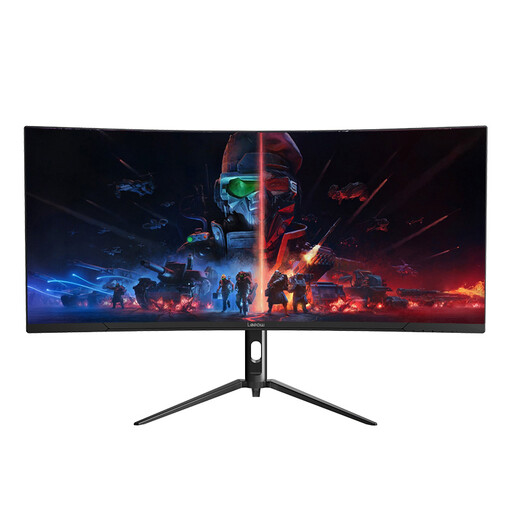 No image available
Consider this 34-inch model if a wide desktop view is your starting requirement for checkout work.
The product name specifies 3440 × 1440 resolution and a 165 Hz refresh rate. Check its positioning options and your laptop’s connection and charging needs before choosing it for a student-room desk.
Not on its own. Use Chrome DevTools Device Mode to check responsive or named-device dimensions, then test important journeys on relevant browsers and real devices where possible; the monitor’s native width shows a desktop view.
Check that the exact monitor supports USB-C video input and that your laptop supports the matching video output, then compare its charging requirement with the monitor’s power delivery. LG lists display, data and charging up to 65 W for the 34WR55QK-B; Dell lists USB-C DisplayPort Alt Mode and power delivery up to 65 W for the S3425DW.
A KVM is useful if you regularly switch between two connected computers while sharing a keyboard and mouse. Samsung describes that function on its S65UC; a single-laptop workflow does not require it.
Check the equipment and socket load before adding an extension lead. University of Strathclyde student-accommodation guidance advises using one extension lead per socket and never connecting one extension lead to another.
No. Chrome for Developers says some errors require trying the page with a keyboard or screen reader, so use those direct checks alongside DevTools when testing the checkout.