Calendar-first student designers
If your calendar sits alongside messages, deadlines and visual assets, a 34-inch, 21:9 display at 3440 × 1440 gives you room to arrange those windows together. Check whether the wider screen will fit where you study.


For event-calendar design, a 34-inch, 21:9 monitor with 3440 × 1440 resolution is a useful starting point when you want the calendar, design tools and reference material visible together. Check the stand and assembled footprint against your student-room desk before prioritising gaming features; USB-C charging and two-computer controls are worth considering only if your devices and working habits call for them.
If your calendar sits alongside messages, deadlines and visual assets, a 34-inch, 21:9 display at 3440 × 1440 gives you room to arrange those windows together. Check whether the wider screen will fit where you study.
A compatible laptop may be able to send video and receive power through one USB-C connection, reducing cables on a small desk. Check the laptop’s video-output and charging requirements against the monitor and cable.
If the same screen serves calendar work and fast-paced games, refresh rate and adaptive sync may matter after you have checked the workspace, connections and desk fit.
Start with the space needed for your calendar and the space available on your desk. Then decide whether laptop charging or gaming features will change how you use the monitor.
| Concern | What to check when buying | Who this matters to |
|---|---|---|
| Side-by-side workspace | Check for 21:9 and native 3440 × 1440 resolution if you want a calendar beside design and reference windows. | I want to keep the calendar visible while working from notes and visual assets, rather than repeatedly changing windows. Around 36% of consumers would put that shared workspace first. |
| Desk fit and positioning | Compare the assembled monitor-and-stand dimensions with your usable desk space, and check the stand’s adjustment range. | A wide display has to fit my student-room desk and sit where I can use it comfortably. Roughly 29% of consumers would make fit and positioning their primary concern. |
| One-cable laptop setup | Confirm USB-C video output on the laptop and compare its charging requirements with the monitor’s stated power delivery. | I have little room for cables and want my laptop connected to the display and power through one compatible lead. About 21% of consumers would prioritise that connection. |
| Study and gaming | If fast-paced games matter, check refresh rate at the intended resolution and connection, plus adaptive-sync compatibility. | My screen needs to handle calendar work as well as games where motion matters. Around 14% of consumers would put that mixed use ahead of the other concerns. |
A 34-inch ultrawide gives you horizontal workspace, but its stand also needs room. The Health and Safety Executive highlights desk arrangement, screen adjustment and lighting as factors in display-screen use.
Measure usable desk width and depth, then compare them with the chosen model’s assembled dimensions and stand adjustment range.
A monitor’s USB-C charging rating does not establish whether your laptop can send video through that port or accept the available power. LG specifies up to 65W power delivery for the 34WR55QK-B.
Check your laptop’s USB-C video and charging specifications, its supplied charger rating and the cable required by the monitor.
AOC lists 180Hz, Adaptive Sync and 1ms GtG for the CU34G2XP/BK. Those specifications address gaming use; they do not establish colour accuracy or whether the screen will fit your workspace.
Make resolution, desk fit, positioning and connections your initial checks unless fast-paced gaming is a substantial part of your use.
A Joybuy description for the Dell S3425DW calls its panel IPS, while Dell UK specifies VA for that model. A listing’s panel description should not be the sole basis for choosing a particular variant.
Compare the complete model identifier and key specifications with the manufacturer’s information, then check the current product page and availability before ordering.
The 34WR55QK-B is relevant to a single-laptop workspace where screen adjustment and USB-C connectivity matter.
Dell’s S3425DW and P3425WE address different ways of using a 34-inch-class workspace: mixed use and a more connected desk setup.
The ViewFinity S65UC is relevant when a student-room desk serves two computers.
The CU34G2XP/BK is relevant when fast-paced gaming shares the monitor with calendar work.
These ultrawide models are relevant if your event-calendar workspace will also be used for gaming. Check each monitor’s assembled size and connections against your student-room setup before choosing.
 No image available
Consider this model if you want a 3440 × 1440 workspace that also serves gaming.
The title lists 175Hz via DisplayPort or 100Hz via HDMI, two HDMI inputs, DisplayPort, and height, swivel and tilt adjustment. Check the assembled stand dimensions and whether your device supports the refresh rate through your chosen connection.
 No image available
This is a 3440 × 1440 option for a calendar workspace that will also be used for gaming.
The title specifies a VA panel, two HDMI and two DisplayPort 1.4 inputs, and 1ms MPRT. Measure your desk and check the complete monitor-and-stand dimensions before ordering.
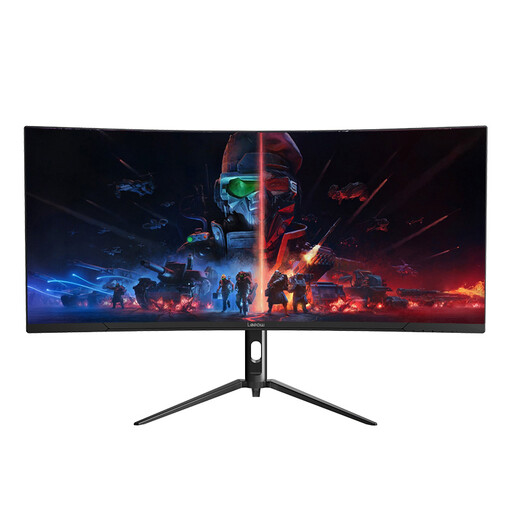 No image available
Consider this model if you want a wide screen for calendar and reference windows alongside other uses.
Its title specifies 3440 × 1440 resolution and a 165Hz refresh rate. Check the assembled dimensions and available stand adjustments for your desk; assess colour requirements separately if your design work depends on accurate colour.
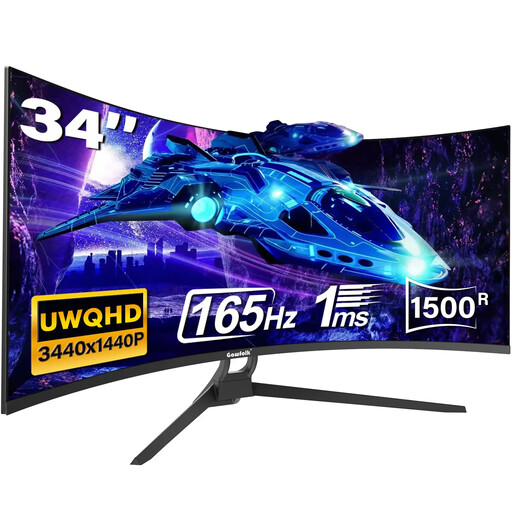 No image available
Its 34-inch ultrawide format is relevant when calendar work and gaming share a screen.
The title lists a 21:9 format and HDMI 2.1 and DisplayPort 1.4 connections. It also mentions Type-C, while the detailed port list names HDMI and DisplayPort; confirm the exact connections, stand adjustment and assembled dimensions before choosing it.
 No image available
This 34-inch ultrawide may suit a desk used for both calendar work and gaming.
Before choosing it for side-by-side windows, confirm the native pixel resolution and aspect ratio for the exact model. Check the assembled monitor-and-stand dimensions against your desk too.
Yes, if you want calendar, design and reference windows visible together and have room for the monitor on your desk. LG UK lists a 34-inch, 21:9 display at 3440 × 1440 for the 34WR55QK-B; compare the dimensions of any model you choose with your available desk space.
It can if your laptop supports video over USB-C and accepts the monitor’s power delivery. LG UK specifies up to 65W for the 34WR55QK-B, while Dell UK specifies up to 90W for the P3425WE; check your laptop’s requirements and the cable before buying.
Not if you work from one computer. A KVM switch becomes useful when you regularly connect two computers and want to use one keyboard and mouse for both; Samsung Business UK lists this function for the ViewFinity S65UC.
Measure the desk and account for the monitor’s stand, screen position and nearby lighting. The Health and Safety Executive’s workplace guidance highlights furniture adjustment, desk arrangement and reducing reflections and glare; these are useful checks when arranging a home study space.