Fine-type proofreaders
If you inspect small letters, kerning and interface copy at close range, native pixel density may matter more to you than maximum screen width.


For close inspection of small type, start by considering a 39.7-inch 5120×2160 ultrawide, provided your computer can drive it and your desk can accommodate it. The screen sizes and resolutions specified by Dell, LG and BenQ put that 5K2K format at about 140 pixels per inch, compared with about 109 pixels per inch for the 34-inch 3440×1440 and 49-inch 5120×1440 examples. A 34-inch screen is worth considering when desk fit matters more; a 49-inch Dual QHD screen makes more sense when broad side-by-side workspace is the priority.
If you inspect small letters, kerning and interface copy at close range, native pixel density may matter more to you than maximum screen width.
If type layouts are part of a colour-managed workflow, look for documented colour modes and calibration features alongside enough room to position the screen comfortably.
If you keep writing, browser and reference windows open together, laptop connections and an adjustable workstation may matter more than the highest pixel density.
Choose the screen format around your primary task, then check that its native resolution, connections and physical size work with your computer and desk.
Consider it when: close inspection of small type and full-height documents takes priority.
Trade-off: allow room for a roughly 40-inch display and confirm that your computer and connection support 5120×2160.
Consider it when: a smaller 21:9 workspace suits your desk; the BenQ PD3420Q also offers a flat panel and documented colour modes.
Trade-off: the reviewed 34-inch format has lower native pixel density than the 39.7-inch 5K2K examples.
Consider it when: keeping several wide application panes visible matters most.
Trade-off: 5120×1440 provides fewer vertical pixels than 5K2K, and a 49-inch screen needs careful desk planning.
| Concern | What to check | Who this matters to |
|---|---|---|
| Fine type detail | Compare diagonal size, native resolution and vertical pixels; check the computer’s supported output. | If I inspect small glyphs and spacing closely, I want enough native detail without choosing by width alone. Around 33% of consumers would put fine type detail first. |
| Side-by-side windows | Compare usable width with vertical resolution, and check whether you need picture-by-picture for multiple inputs. | When my copy, preview and references need to stay visible together, a broad layout takes precedence. For around 27% of consumers, simultaneous windows would be the primary concern. |
| Laptop connection and positioning | Check video support, charging requirements, cable specifications and stand adjustment. | I want fewer cables and a screen I can position around the light in my study, without assuming every USB-C connection carries video. Roughly 20% of consumers would prioritise this setup need. |
| Desk fit | Measure clear width, depth and any monitor-arm clearance before choosing a screen size. | If a large display would crowd my work surface, fitting the screen comfortably comes before extra width. Desk fit would be the leading concern for around 20% of consumers. |
LG specifies 5120×1440 for its 49WL95C-WE and 5120×2160 for its smaller 40WP95CP-W. The wider format does not provide the same vertical pixel count for close type inspection.
Compare native resolution and screen size together before deciding how much horizontal space you need.
A monitor’s USB-C charging capability does not establish what video mode or charging power your laptop and cable can support.
Check the laptop’s applicable USB-C or Thunderbolt video support, its charging requirement and the cable supplied with the exact monitor.
Colour-space and calibration specifications do not establish that fonts will render identically across operating systems, browsers, scaling settings and print.
Proof type in the intended browser or application, using the scaling and output path your audience will use.
BenQ states a width of 825.8 mm for the PD3420Q, while LG states 1215.1 mm for the 49WL95C-WE. The Health and Safety Executive also advises arranging screens and lighting to avoid reflections and glare.
Measure the usable desk and plan screen and light positions before buying.
Dell’s UltraSharp U4025QW is a 39.7-inch curved 5120×2160 option for a 5K2K workstation.
BenQ’s flat, 34-inch PD3420Q offers a 3440×1440 designer-monitor format.
LG’s 40WP95CP-W and 49WL95C-WE represent different priorities: 5K2K detail and Dual QHD width.
Samsung’s 49-inch curved ViewFinity S9 S95UC is a Dual QHD option for a broad multi-app workspace.
These 34-inch 3440×1440 and 49-inch 5120×1440 monitors suit different workspace priorities. Check the exact screen’s connections, desk fit and operating noise for your quiet-study setup; these product choices do not cover the 40-inch 5K2K route discussed above.
 No image available
Consider this 34-inch screen if a 3440×1440 workspace and adjustable positioning suit your desk. Its listing states a VA panel, 200 Hz refresh rate, 85% DCI-P3 coverage and height, tilt and swivel adjustment; check your computer’s output and the exact model’s operating noise for quiet-study use.
 No image available
This 21:9, 3440×1440 screen is an option for keeping type layouts and references visible together. Confirm the exact SKU’s colour specification and USB-C connection before relying on either for your workflow; also check computer compatibility and operating noise.
 No image available
Its 32:9, 5120×1440 format is relevant if wide side-by-side panes matter more than 5K2K vertical detail. The product description lists USB-C power delivery up to 90 W and stand adjustment; measure desk space and check laptop compatibility and operating noise before buying.
 No image available
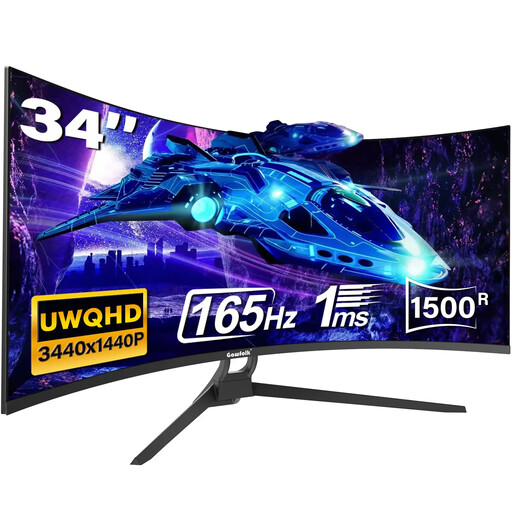
This 3440×1440, 165 Hz option provides a 34-inch ultrawide layout for documents and previews. If colour-managed proofing is essential, check the exact model’s calibration and colour-space specifications; confirm computer compatibility and operating noise as well.
 No image available
Consider its 32:9 workspace if several wide windows need to remain open at once. The title states a 165 Hz refresh rate and height adjustment; check physical clearance, your computer’s supported output and the exact model’s operating noise before purchase.
A 39.7-inch 5120×2160 screen is a useful starting point when close glyph inspection is the priority. Dell and LG specify that size and resolution for their reviewed models, giving a calculated density of about 140 pixels per inch; confirm that your computer supports the native mode you intend to use.
Not necessarily: LG specifies 5120×1440 for the 49WL95C-WE, which gives broad horizontal space but fewer vertical pixels than a 5120×2160 5K2K screen. Choose that Dual QHD format for wide simultaneous panes rather than assuming its diagonal size improves fine type detail.
Only if the laptop, monitor and cable support the required video connection and charging power. Compare your laptop’s specifications with the exact monitor’s USB-C or Thunderbolt capabilities and check which cable is supplied.
Plan the desk, screen and lighting together rather than treating the monitor’s specifications as a complete workstation setup. The Health and Safety Executive advises arranging desk space and adjusting screens and lighting to avoid reflections and glare; check that the stand or a suitably rated arm allows a comfortable position.
Do not assume a particular monitor is silent from its display or connectivity specifications. If operating noise matters to you, check the exact model’s manual, relevant independent acoustic testing and the retailer’s return terms before committing.