A 34-inch, 21:9 monitor at 3440 × 1440 is a practical starting point when you want a help-centre editor, page preview and reference material visible together. Prioritise USB-C docking only if it works with your laptop, and a built-in KVM only if you regularly use two computers. Check desk fit and screen positioning separately; a wider display does not settle those questions.
Who is this setup for?
Single-laptop help-centre editors
If you format articles and templates on a laptop, an ultrawide can give you room to arrange the editor, browser preview and source material side by side. A one-cable desk setup depends on the monitor and laptop supporting the required connections.
Two-device support and content teams
If tickets, staging or quality checks run on a second computer, a monitor with a KVM can let you use one keyboard and mouse for both sources. Samsung documents this function for its S65UC; check how switching works on any model you consider.
Long-session desk users
If you spend sustained periods formatting pages, consider screen adjustment and the whole workstation alongside display size. The Health and Safety Executive advises checking screen position and viewing distance for display screen equipment work.
What matters when choosing?
Start with the space needed for writing and previewing, then decide whether laptop docking or two-computer control is part of your daily workflow. Check how the screen will fit and sit on your desk before choosing additional display features.
| Concern |
What to check |
Who this matters to |
| Writing and preview space |
Compare 34-inch, 21:9 models at 3440 × 1440, then check the monitor’s dimensions against your desk. |
When formatting pages, I want the authoring interface, preview and references in view without constantly rearranging windows; around 42% of consumers put this workspace need first. |
| Laptop docking |
Check USB-C video support, the monitor’s power-delivery rating and your laptop’s charging requirement. |
A single connection would make my laptop desk easier to set up, but it needs to carry the functions I use; for around 33% of consumers, docking is the primary concern. |
| Two-computer control |
Check the documented KVM, connected inputs and keyboard-and-mouse switching behaviour. |
If writing and staging run on separate computers, I want to change sources without changing peripherals; around 17% of consumers place that two-device need first. |
| Screen positioning |
Check stand adjustment and whether the screen can be positioned appropriately on your desk. |
During long formatting sessions, I need a screen position that works with the rest of my workstation; this is the leading concern for around 8% of consumers. |
Mistakes to avoid
-
Expecting a wider screen to fix the workstation
An ultrawide can still sit at an awkward height or distance. The Health and Safety Executive’s display screen equipment guidance considers the workstation as a whole, not monitor size alone.
Check screen height and distance, where the keyboard and mouse sit, and any workplace assessment that applies to your work pattern.
-
Assuming a USB-C port means complete laptop docking
Video output and charging depend on the exact laptop and monitor. Dell’s P3425WE and LG’s 34WQ75C-B specify power delivery of up to 90 W, which does not establish compatibility with every laptop.
Compare your laptop’s USB-C display support and charging requirement with the exact monitor specification, and check the cable needed for the connection.
If the required video, charging or network connection cannot run through the monitor, you may still need a separate charger, dock or Ethernet adapter.
-
Choosing a KVM for a single-computer desk
A KVM shares a keyboard and mouse between two sources. It offers little help with formatting pages if you use only one computer.
List the computers that will stay connected and check the monitor’s switching behaviour if moving between them is a routine task.
Relevant brands to consider
Dell
Dell’s P3425WE and U3425WE illustrate two different 34-inch hub-monitor configurations for a laptop-based desk.
- Dell lists 3440 × 1440 resolution, an IPS panel, up to 90 W USB-C power delivery and RJ45 Ethernet for the P3425WE. Its U3425WE has a 34.1-inch IPS Black panel, 3440 × 1440 resolution and 120 Hz operation.
- These are specifications of the named models, not features of every Dell ultrawide. Check which hub connections and stand adjustments you would actually use.
LG
LG’s 34WQ75C-B is a 34-inch, 21:9 option for arranging several work windows on one screen.
- LG lists a 3440 × 1440 IPS display, USB-C, RJ45 Ethernet and up to 90 W power delivery for the 34WQ75C-B.
- LG specifies the included USB-C cable for its described connection. Confirm that your laptop supports the video and charging functions you need.
Samsung
Samsung’s S65UC ViewFinity S6 addresses desks that regularly switch between two computers.
- Samsung lists a 34-inch, 21:9 curved display and a built-in KVM that controls two sources with one keyboard and mouse.
- The KVM is relevant to a two-source workflow; it is not a reason by itself to choose this model for a single-computer desk.
Joybuy monitor choices
These ultrawide monitors offer screen space to consider for help-centre writing, previewing and reference windows. The 49-inch Acer is a different desk-fit decision from the 34-inch options; check connections and positioning against your own setup rather than assuming the models share the same docking features.
 Image unavailable
Philips Evnia 6000 34M2C6500, 34-inch WQHD
Consider this format if you want to arrange an editor, preview and references across one screen. The title specifies 3440 × 1440 resolution, DisplayPort and HDMI inputs, and height, swivel and tilt adjustment.
If laptop docking matters, check the required USB-C and network connections against your laptop before choosing it.
View on Joybuy
 Image unavailable
Lenovo R34w-30, 34-inch UWQHD
Its 34-inch ultrawide format is worth considering when your main need is space for writing and reference windows. Check its exact stand adjustments, laptop connections and desk fit against your setup.
View on Joybuy
 Image unavailable
Dahua 34-inch UWQHD curved monitor, 200 Hz
The stated 3440 × 1440 screen gives you a 34-inch ultrawide format to consider for arranging help-centre windows. Its title specifies a VA panel, two HDMI inputs and two DisplayPort 1.4 inputs; check your laptop’s connection needs separately.
View on Joybuy
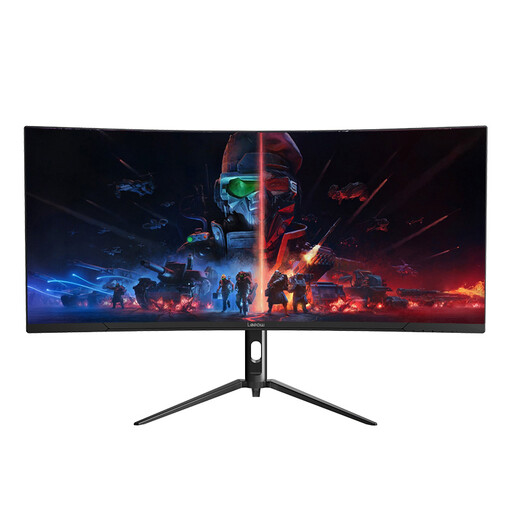 Image unavailable
Lepow HC-SJ34MZ5, 34-inch curved ultrawide
Consider its stated 3440 × 1440 format if your priority is room for multiple help-centre windows. Check the stand’s adjustment range if you need a particular screen height or angle, and confirm any laptop-docking connections you require.
View on Joybuy
 Image unavailable
Acer Predator X49X, 49-inch 32:9 QD-OLED
This 49-inch, 32:9 option is for a desk where you want to consider a wider layout than the 34-inch starting point. Its title specifies USB-C alongside HDMI and DisplayPort; check desk dimensions, laptop video and charging compatibility, and screen placement before choosing it.
View on Joybuy
Frequently asked questions
What screen format should I start with for help-centre formatting?
Start by comparing 34-inch, 21:9 monitors at 3440 × 1440 if you want an editor, preview and references visible together. LG describes this format on its 34WQ75C-B as able to display multiple programmes; check the monitor’s dimensions and your preferred window arrangement before deciding.
Do I need a USB-C ultrawide monitor?
USB-C is useful if you want a compatible laptop to connect for video and charging through one cable. Check the exact monitor’s power-delivery rating, the required cable and whether your laptop supports video over USB-C; a USB-C port alone does not establish a complete docking setup.
When is a built-in KVM useful?
A built-in KVM is worth considering when you regularly switch between two connected computers while keeping one keyboard and mouse. Samsung documents that function for its S65UC; check input and peripheral switching on the exact model if your writing and staging work use separate devices.
How should I position an ultrawide for prolonged desk work?
Position the monitor as part of the whole workstation, rather than relying on screen size for comfort. The Health and Safety Executive advises placing the top of the screen around eye level and the screen about an arm’s length away; check that your stand or compatible arm allows a suitable position on your desk.


