A 34-inch, 21:9 WQHD monitor is a sensible starting point for formatting help-centre pages with an editor, browser preview and reference material open together. Choose laptop-docking or two-computer features only if your workflow needs them, and check desk fit, screen adjustment, video output and charging compatibility before buying.
Who needs this setup?
Side-by-side help-centre editors
If you format articles or templates while checking a live browser preview and source material, a wide display can keep those windows visible together. LG UK describes its 34WQ75C-B as a 21:9, 3440 × 1440 screen for viewing multiple programmes.
Laptop-first home-office workers
If you connect and disconnect a work laptop regularly, a USB-C hub monitor may combine the display connection, charging and, on certain models, Ethernet. Check the laptop's video-capable port and charging requirement before relying on one cable.
Two-computer support and QA workers
If you check formatting on a work computer and a second system, a built-in keyboard, video and mouse switch, or KVM, may reduce peripheral swapping. Samsung Business UK documents control of two sources with one keyboard and mouse on the ViewFinity S65UC; confirm the inputs needed for your own devices.
What matters when choosing?
Start with the windows you need to see and the space available on your desk. Then decide whether laptop docking or two-device control would change how you work.
| Concern |
What to check |
Who this matters to |
| Editing workspace |
Check the resolution and aspect ratio against the editor, preview and reference windows you plan to show together. For a 34-inch model, also measure desk width and stand depth. |
I want to see my draft beside its live preview without repeatedly hiding reference material. Roughly 33% of consumers put that workspace need first. |
| Laptop docking |
Confirm that the laptop supports video over its USB-C port or Thunderbolt, and compare its charging requirement with the monitor's stated power delivery. |
When I reconnect my work laptop each day, I want the display and essential connections ready with minimal cable swapping. For around 25% of consumers, docking is the primary need. |
| Two-device workflow |
Check the exact model's KVM function, inputs for both devices and any Picture-by-Picture mode you intend to use. |
I need to move between a work system and a test computer while checking the same help-centre layout. About 25% of consumers prioritise that two-device workflow. |
| Workstation fit |
Measure the desk and viewing position, then check stand adjustment or mounting compatibility. Reassess the setup if it causes discomfort. |
A wider screen is useful to me only if I can position it comfortably at my home desk. For roughly 17% of consumers, workstation fit comes first. |
Mistakes to avoid
-
Assuming every USB-C port carries video
A laptop port used for data or charging alone will not necessarily send a picture to a USB-C monitor. Dell Technologies states that USB-C monitor video requires DisplayPort Alt Mode or a Thunderbolt port.
Check the laptop manual for the exact video-capable port. If necessary, confirm whether the laptop and monitor can instead connect through HDMI or DisplayPort.
A different cable, adapter or dock may be needed if your preferred connection is unsuitable.
-
Choosing screen size before checking the desk
A larger display takes more physical space, and screen size alone cannot establish a comfortable viewing position. The Health and Safety Executive advises that home-working display setups should support a comfortable, sustainable posture.
Measure the usable desk area, including the stand or monitor arm, and check the available height and tilt adjustment before choosing a larger format.
-
Choosing KVM for a single-computer workflow
KVM is useful when you regularly control two connected computers, but it does not replace suitable inputs, cables or desk space. Picture-by-Picture is a separate feature for showing two sources on one screen; check which functions the exact model provides.
If you work on one laptop, prioritise the display format, workstation fit and connection features you will actually use.
Brands to consider
Dell
Dell's P3425WE and UltraSharp U3425WE illustrate different 34-inch, laptop-oriented monitor configurations.
- Dell Technologies UK specifies a 3440 × 1440 screen, USB-C power delivery up to 90W and RJ45 Ethernet on the P3425WE.
- The U3425WE's Thunderbolt hub and 120Hz specification are worth weighing against what static help-centre editing actually requires; features differ between the two models.
LG
LG offers 34-inch UltraWide models with different docking and screen-adjustment features.
- LG UK specifies a 3440 × 1440, 21:9 display on the 34WQ75C-B and USB-C charging up to 65W on the 34WR55QK-B.
- Check the particular model for Ethernet, charging output and two-source display features rather than treating them as standard across the range.
Samsung
Samsung's ViewFinity S65UC and S65TC are relevant when a curved ultrawide will also serve connected devices.
- Samsung Business UK documents a built-in KVM for two sources on the S65UC; Samsung UK specifies Thunderbolt 4 and 90W charging on the S65TC.
- Choose switching or Thunderbolt features for a real device requirement, not simply because the screen will be used for documents.
Philips
Philips has business ultrawides spanning 34-inch WQHD and larger 5K2K workstation formats.
- Philips UK documents Thunderbolt 4 and Smart KVM on the 34B2U6603CH/00, and a 39.7-inch, 5120 × 2160 display on the 40B1U6903CH/00.
- A 39.7-inch setup needs more physical room than a 34-inch screen; check desk dimensions and viewing position before moving to that format.
Joybuy product choices
These choices centre on 34-inch WQHD displays for keeping an editor and preview visible together. The 49-inch, 32:9 model is a substantially wider alternative to consider only if your desk and viewing position can accommodate it.
 No image available
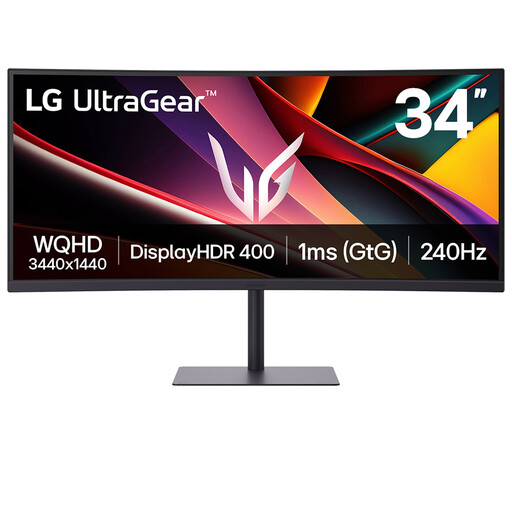
LG UltraGear 34G630A-B 34-inch VA WQHD Monitor
Consider this 34-inch WQHD model if your main need is room for an editor and preview rather than a specified docking setup.
The product name identifies a VA panel and 240Hz refresh rate. Check desk fit and your laptop's intended video connection before buying.
View on Joybuy
 No image available
LG UltraGear 34GX900A-B 34-inch OLED WQHD Monitor
This 34-inch WQHD option fits the editor-and-preview screen format, but prolonged static help-centre windows make its OLED usage guidance important.
The product name specifies OLED and 240Hz. Its product guidance warns about burn-in with extended static images; consider how long fixed toolbars and page layouts will remain on screen.
View on Joybuy
 No image available
Philips Evnia 6000 34M2C6500 34-inch WQHD Monitor
The 3440 × 1440 screen is a format to consider for viewing help-centre editing and preview windows together.
The product name specifies DisplayPort and HDMI inputs, with stated refresh rates of 175Hz through DisplayPort and 100Hz through HDMI. Check the connection needed by your laptop and the space required by the stand.
View on Joybuy
 No image available
Dahua 34-inch UWQHD 200Hz Curved Monitor
Its 34-inch, 3440 × 1440 format is relevant if you want editing and preview windows on one screen.
The product name specifies a VA panel, two HDMI inputs and two DisplayPort 1.4 inputs. Match those inputs to the laptop's video outputs, and measure the available desk space.
View on Joybuy
 No image available
Acer X Predator X49X 49-inch 32:9 QD-OLED Monitor
Consider this substantially wider format only if several visible work windows justify it and your workstation can accommodate a 49-inch screen.
The product name identifies a curved 32:9 QD-OLED display with Double Quad HD resolution and HDMI, DisplayPort and USB-C connections. Check the stand footprint, viewing position and laptop connection before choosing it for prolonged editing.
View on Joybuy
Questions about ultrawide monitors
Is a 34-inch ultrawide a sensible size for help-centre editing at home?
Yes, a 34-inch WQHD, 21:9 screen is a sensible starting point when you need an editor, browser preview and source material visible together. LG UK documents that format for viewing multiple programmes, but you still need to measure the desk and position the screen comfortably.
Will one USB-C cable always run the monitor and charge my laptop?
No: the laptop must support video through the port you intend to use, and the monitor's power delivery must meet the laptop's charging needs. Dell Technologies states that USB-C monitor video requires DisplayPort Alt Mode or Thunderbolt; check the exact laptop port and monitor specifications.
When is a KVM monitor useful for formatting and QA?
A KVM monitor is useful if you regularly switch control between two connected computers using one keyboard and mouse. Samsung Business UK documents that function on the ViewFinity S65UC; if you work on one laptop, check screen fit and docking needs before prioritising KVM.
Should I move from a 34-inch WQHD screen to a larger 5K2K model?
Choose a larger 5K2K format if you need its additional resolution and can accommodate its physical size and connections. Philips UK specifies a 39.7-inch, 5120 × 2160 model; for an editor-and-preview workflow, check whether a 34-inch WQHD screen already gives you the window arrangement you need.


