The Health and Safety Executive advises arranging the desk and screen to avoid glare or bright reflections, so start with window-light control and a documented glare-reducing surface rather than screen size alone. A 34-inch 3440 × 1440 ultrawide suits side-by-side menu inspection; consider a 39.7-inch 5120 × 2160 model if you need more desktop detail and have room for it. Chrome for Developers describes Device Mode as an approximation, so check the finished menu on a real phone too.
Who this setup suits
Developers working near a window
If reflections make small menu states difficult to inspect, plan where the screen will sit and how you will control the window light. The Health and Safety Executive advises arranging the desk and screen to avoid glare or bright reflections; a documented anti-glare surface is an additional consideration.
Responsive-design testers using several panes
An ultrawide can keep a mobile viewport, DevTools and reference material visible together. Chrome for Developers describes Device Mode as a first-order approximation, so use a real phone for the final behaviour check.
Laptop users consolidating a desk setup
If the same monitor serves browser testing and everyday laptop work, check its stand adjustment, video connection and USB-C power delivery against your laptop’s requirements before relying on one cable.
What matters when choosing
Control reflections and settle the screen position first. Then choose enough desktop space for your inspection panes and check any laptop-docking requirements.
| Concern |
What to check |
Who this matters to |
| Window reflections |
Look for a documented anti-glare or glare-reducing surface, and check whether the desk lets you turn the screen away from direct reflections. |
When reflections hide small menu states, I need to control the light before judging the display. Around 42% of consumers put reflection control first. |
| Workspace detail |
Compare 34-inch 3440 × 1440 and 39.7-inch 5120 × 2160 layouts against the panes you use and the space available on your desk. |
Keeping a mobile preview, DevTools and reference material visible together matters more to me than gaming refresh rate. Roughly 33% of consumers prioritise workspace detail. |
| Docking and adjustment |
Check stand movement, USB-C video support and the exact power-delivery rating against your laptop’s requirements. |
If I move between laptop work and menu checks, I want a screen I can position comfortably and connect appropriately. About 25% of consumers put docking and adjustment first. |
Mistakes to avoid
-
Treating a desktop mobile preview as a phone test
Chrome for Developers calls Device Mode a first-order approximation. A menu that looks right in an emulated viewport still needs checking on mobile hardware.
Use the ultrawide to inspect widths and breakpoints, then check opening, scrolling, touch targets and device-specific behaviour on a real phone.
-
Choosing display specifications without planning for window light
Resolution and refresh rate do not remove a bright reflection across the area you need to inspect. The Health and Safety Executive advises arranging the desk and screen to avoid glare.
Check the screen’s position and window-light control before choosing a documented anti-glare or glare-reducing surface.
-
Assuming any USB-C monitor will dock a laptop
Power delivery and video support depend on the exact monitor and laptop; a USB-C connector alone does not establish that one cable will handle both.
Compare the monitor’s video and power-delivery specifications with the laptop manufacturer’s requirements, and keep another charger available if needed.
Relevant brands to consider
Dell
Dell’s UltraSharp U3425WE and U4025QW illustrate two work-oriented ultrawide sizes for browser, DevTools and multi-pane tasks.
- Dell lists a 3440 × 1440 anti-glare display and height, swivel and tilt adjustment for the U3425WE.
- The U4025QW has a 39.7-inch 5120 × 2160 IPS Black panel for buyers who need a larger, higher-resolution desktop.
- The larger model needs more desk space; neither model’s specifications remove the need to control direct window reflections.
LG
LG’s 34BA75QE is a 34-inch, 3440 × 1440 IPS option for a laptop-based workspace.
- LG lists USB-C power delivery at 90 W, RJ45, a built-in KVM and height, tilt and swivel adjustment for this model.
- Assess its position near the window rather than assuming the listed 300-nit typical brightness will resolve reflections.
Samsung
The 34-inch Odyssey OLED G8 G85SD is a gaming-led ultrawide to consider when the same setup is used for menu inspection and high-refresh gaming.
- Samsung lists 3440 × 1440 resolution and an OLED Glare Free treatment, which it says reduces glare from external light sources.
- That glare-reduction statement is Samsung’s claim, not an independent comparison. Check desk positioning, work connections and warranty terms for the exact model.
BenQ
BenQ’s EX3415R offers a documented matte surface in a 34-inch ultrawide format.
- BenQ lists 3440 × 1440 resolution, height adjustment and 100 × 100 mm VESA mounting for the EX3415R.
- Plan window-light control rather than treating its matte coating as a complete solution to direct reflections.
Joybuy product choices
These ultrawides offer different screen sizes and display types for arranging responsive-work panes. Check each model’s surface, desk fit and connections against your bright-window setup; these choices do not replace testing the menu on a phone.
 No image available
LG UltraGear 34GX900A-B 34-inch OLED monitor, 240 Hz
Its 34-inch ultrawide format suits a mobile preview beside other work panes.
The listing describes an anti-glare finish, but position the screen to avoid direct window reflections. Consider the listing’s OLED burn-in caution if menus or other fixed content remain on screen for long periods, and confirm USB-C video and charging compatibility with your laptop.
View on Joybuy
 No image available
Acer X Predator X49X 49-inch curved QD-OLED monitor
This 49-inch, 32:9 model is worth considering if you want a particularly wide desktop for several work panes and have a desk that can accommodate it.
The listing describes an anti-glare surface, though screen placement still matters. Check the desk or mount’s suitability for the large display and confirm USB-C compatibility before relying on laptop docking.
View on Joybuy
 No image available
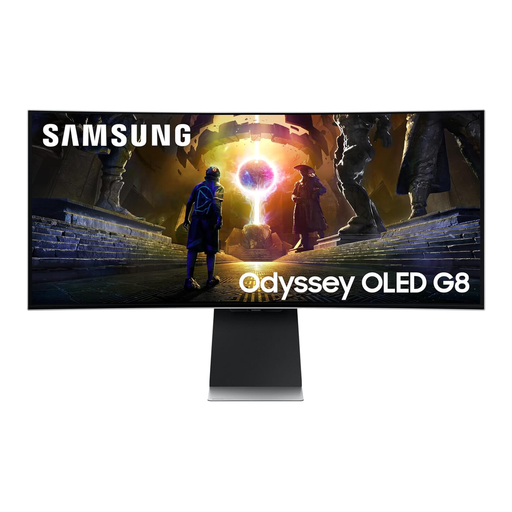
Samsung Odyssey G8 LS34DG850SUXXU 34-inch curved OLED monitor
This 3440 × 1440 ultrawide suits menu inspection alongside other panes if you also want a gaming-led display.
Samsung says its OLED Glare Free treatment reduces glare from external light sources; it does not replace careful screen positioning. Check the exact connections against your laptop’s docking needs and review the product’s warranty terms.
View on Joybuy
 No image available
Lenovo R34w-30 34-inch UWQHD monitor
The 34-inch ultrawide format is relevant if you want a mobile preview alongside DevTools.
Check the native pixel resolution and your computer’s video output before ordering. For a bright-window desk, confirm the surface treatment and whether the available positioning will keep reflections off the working area.
View on Joybuy
 No image available
Dahua 34-inch 3440 × 1440 curved VA monitor, 200 Hz
Its 3440 × 1440 ultrawide desktop is relevant when you need room for a responsive preview and adjacent work panes.
Check how the stated haze surface treatment looks in your lighting rather than assuming it controls window glare. Also confirm any laptop-docking requirements separately.
View on Joybuy
Common questions
Can Chrome Device Mode replace checking the menu on a phone?
No: use it to inspect viewport widths and responsive breakpoints, then check the menu on a real phone. Chrome for Developers describes Device Mode as a first-order approximation of how a page looks and feels.
Will a brighter monitor solve reflections from the window?
Brightness alone is not a substitute for positioning the screen away from direct reflections. The Health and Safety Executive advises arranging the desk and screen to avoid glare or bright reflections; window coverings and a documented glare-reducing surface may also be relevant to your setup.
What should I check before using one USB-C cable with my laptop?
Check that the exact monitor and laptop support the required USB-C video mode and that the monitor’s power delivery meets the laptop’s charging needs. Dell lists up to 90 W for the U3425WE, while LG lists 90 W for the 34BA75QE; neither figure establishes compatibility with every laptop.


