Choose a 34-inch, 3440 × 1440 ultrawide if you want a narrow responsive viewport, DevTools and code or design references visible together. USB-C, Ethernet and KVM matter only if they fit your laptop or two-computer setup. Use the desktop display to inspect the layout, then check the menu on a relevant handset before treating its mobile behaviour as confirmed.
Who this setup suits
Responsive UI developers
If you investigate mobile-menu breakpoints, an ultrawide can keep a narrow viewport beside DevTools and implementation or design references. Chrome for Developers documents responsive viewport simulation and device presets in Device Mode.
Laptop-based web workers
If your laptop supports the required USB-C display connection, a monitor with suitable charging and Ethernet connections may simplify your desk cabling. Check the capabilities of both the laptop and the exact monitor.
Two-computer testers
If you regularly switch between two computers, a suitable KVM setup can let them share a keyboard and mouse. Check how the particular monitor connects and switches its sources.
What to prioritise
Start with the space needed for your desktop windows, plan a separate handset check, then decide whether docking or source switching will simplify your work.
| Concern | What to check | Who this matters to |
|---|
| Space for parallel windows |
Check for native 3440 × 1440 resolution and enough desk space for the display. |
When I am tracking down a menu breakpoint, I want the narrow viewport, DevTools and my code or design reference in view together. Roughly 42% of consumers put this workspace need first. |
| Real-handset validation |
Use Chrome Device Mode for responsive viewport checks, then test on a relevant handset. |
I do not want a menu that looks right in desktop emulation to be signed off without a phone check. For around 33% of consumers, validating on a real device is the primary need. |
| Laptop and source connections |
Match USB-C display and charging capabilities to the laptop; check KVM connections if you use two computers. |
If I connect a work laptop daily or switch between two computers, I want the monitor's connections to fit that routine. Approximately 25% of consumers prioritise this setup need. |
Buying pitfalls
-
Treating an ultrawide as a substitute for a phone
Chrome for Developers distinguishes a simulated responsive viewport from debugging a page running on a mobile device. A wider desktop view does not settle how the menu behaves on a handset.
Use Device Mode to investigate breakpoints, then check the interaction on a relevant phone before sign-off.
Allow time and access to a handset or an appropriate device-testing workflow.
-
Choosing connections before checking your equipment
A KVM serves a two-source workflow, while USB-C display operation and charging depend on the connected computer and monitor.
Compare the exact monitor's ports and power-delivery rating with your laptop documentation and cable requirements. Choose KVM for a recurring two-computer need.
-
Assuming all 34-inch ultrawides have the same features
The Dell, LG and Samsung models discussed here differ in their stated connections, KVM provision and stand features. Screen size alone will not establish whether a model fits your desk setup.
Check the full model number and its specifications against the connections and adjustments you intend to use.
Relevant brands to consider
Dell
Dell has 34-inch WQHD models with desk-oriented connection options.
- Dell specifies a 34.1-inch WQHD panel, USB-C power delivery up to 90 W and RJ45 Ethernet for the P3425WE. Its P3424WE specifications include 3440 × 1440 resolution and KVM ports.
- These are features of particular models. Check the model number and your laptop's connection requirements before choosing.
LG
LG offers 34-inch ultrawides with connections that may suit a laptop-based workspace.
- LG specifies a 34-inch, 3440 × 1440 IPS display, USB-C and RJ45 LAN for the 34WQ75C-B.
- Connections and stand features vary by model; do not assume they apply across the UltraWide range.
Samsung
Samsung's ViewFinity S65VC is relevant to a two-source desk setup.
- Samsung describes a built-in KVM that lets one keyboard and mouse control two connected sources on the S65VC.
- Confirm the required ports, source connections and peripheral arrangement for your devices.
Joybuy ultrawide monitors
These monitors offer an ultrawide desktop for working beside a responsive viewport; they are not substitutes for checking the menu on a handset. Compare each model's stated resolution and connections with your own setup.
 No image available
Philips Evnia 6000 34M2C6500, 34-inch WQHD
Consider this 3440 × 1440 model when you want room for DevTools beside a narrow viewport and other work.
Its title specifies HDMI and DisplayPort inputs and height, swivel and tilt adjustments. Check USB-C, Ethernet or KVM requirements separately if they matter to your setup.
View on Joybuy
 No image available
Dahua 34-inch curved UWQHD monitor
Its stated 3440 × 1440 resolution makes it an option for arranging a responsive viewport beside other desktop windows.
The title lists a VA panel, two HDMI inputs and two DisplayPort 1.4 inputs. Confirm any docking or two-source controls you need before ordering.
View on Joybuy
 No image available
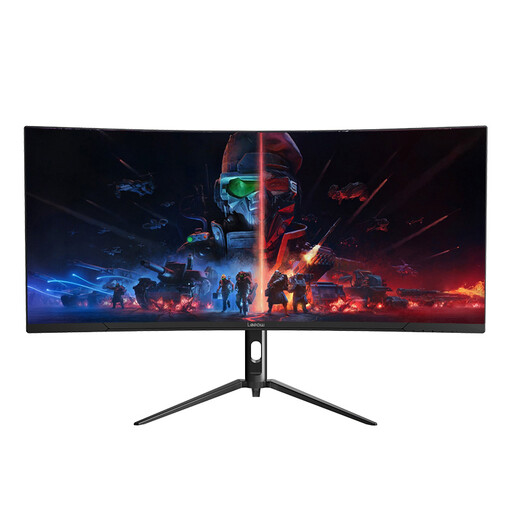
Lepow HC-SJ34MZ5, 34-inch curved ultrawide
This 3440 × 1440 model is worth considering if your main requirement is space for a mobile-sized viewport and adjacent work.
Check its stand adjustments and required connections against your desk setup before choosing it.
View on Joybuy
 No image available
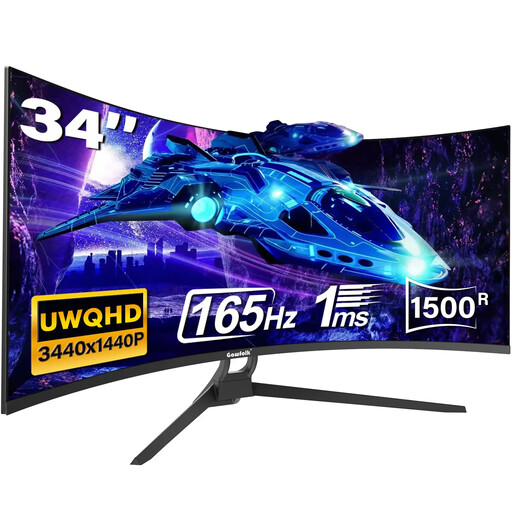
Gawfolk 34-inch curved UWQHD monitor
Its title states a 21:9 ultrawide format for arranging a responsive viewport beside other windows.
The title mentions Type-C, but the detailed port information does not confirm its availability or capabilities. Check those details directly if your laptop setup depends on USB-C.
View on Joybuy
 No image available
Lenovo R34w-30, 34-inch UWQHD monitor
Consider its ultrawide format if you need a desktop layout for DevTools and neighbouring work windows.
Confirm the native pixel resolution before buying if your layout requires 3440 × 1440, and check any laptop-docking connections you need.
View on Joybuy
Common questions
Is an ultrawide monitor enough to verify a mobile menu?
No. Use the monitor with Chrome DevTools Device Mode to inspect responsive viewport sizes, then check the menu on an actual handset. Chrome for Developers also documents debugging a page while it runs on a mobile device.
What resolution should I consider for this workflow?
A 3440 × 1440 ultrawide is a practical starting point if you want DevTools beside a narrow viewport and another work window; the Dell, LG and other models discussed here include displays specified at that resolution. Set the viewport to the dimensions you need to inspect, and still validate the menu on a relevant phone.
When do USB-C, Ethernet or KVM matter?
Choose USB-C charging and Ethernet when they suit a compatible laptop setup, or KVM when you regularly control two connected computers with one keyboard and mouse. Check the exact monitor's ports and your devices' capabilities rather than choosing those features solely for mobile-menu testing.


