Colour-critical gallery preparers
If photographs are being prepared for print, client review or consistent online delivery, colour-space coverage and a workable calibration and profiling process matter alongside screen size.


Choose a 40-inch 5120 × 2160 ultrawide if the desk can accommodate it and several images, editing tools and proofing windows need to stay visible together. A 34-inch 3440 × 1440 model takes a more compact approach but provides less pixel workspace. For gallery delivery, check the intended colour space and calibration workflow; at a shared desk, also check screen adjustment and each laptop’s display, charging and peripheral compatibility.
If photographs are being prepared for print, client review or consistent online delivery, colour-space coverage and a workable calibration and profiling process matter alongside screen size.
People keeping a contact sheet, file browser, editing controls and reference images open together have a particular reason to compare native resolution and usable desk space.
When colleagues rotate through one workstation, adjustable positioning and compatible connections for their laptops and shared peripherals can make the desk easier to use.
Start with the gallery’s colour-delivery needs, then decide how much simultaneous image workspace the desk can hold. Check laptop connections and individual screen positioning before settling on a model for shared use.
| Concern | What to check | Who this matters to |
|---|---|---|
| Reliable gallery colour | Match the stated colour-space coverage to the intended output, and check the calibration and profiling options. | If I’m preparing images for print or client delivery, I need a display workflow that helps me judge colour consistently. Around 42% of consumers would put colour reliability first. |
| Room for images and tools | Compare native resolution and physical width, then check whether the computer supports the intended output. | When I’m selecting and retouching photographs, I want previews and editing controls visible without continually switching windows. Around 33% of consumers would prioritise image workspace. |
| Shared-desk operation | Check stand or mounting adjustments and each laptop’s video, charging and peripheral requirements. | If several colleagues use the desk, I need to reposition the screen and connect my laptop without disrupting shared equipment. Around 25% of consumers would make shared-desk operation their primary concern. |
Dell UK and LG UK list 5120 × 2160 options, while BenQ UK lists a 3440 × 1440 option; the larger pixel canvas does not establish that every laptop can drive it as intended. Colour-gamut specifications likewise do not replace calibration and an appropriate display profile.
Gamut coverage alone does not tell you whether a display is calibrated or suitably profiled. Photography News notes that an uncalibrated screen can show inaccurate colour, brightness or contrast, affecting decisions made for prints or other screens.
Identify the gallery’s delivery colour space and plan how the display will be calibrated and profiled. Check whether the required calibration device is included, already available or optional.
LG UK states that the hardware calibrator for its 40WP95CP-W is sold separately.
A large panel may be difficult to position at a suitable distance or height on a shallow desk. The Health and Safety Executive says employers must assess the whole workstation for people who use display screen equipment daily as part of normal work for continuous periods of an hour or more.
Measure the desk and stand footprint, consider a suitable mounting arrangement, and assess the workstation as installed for the people who use it.
Video output, charging and access to connected peripherals depend on the monitor, laptop and cable together; a monitor’s stated power delivery does not establish compatibility with every office computer.
Check the display output, charging requirement and peripheral permissions of each laptop used at the desk against the exact monitor and cable specifications.
Depending on those connections, users may need a suitable cable, adapter, dock or separate laptop charger.
These product lines illustrate different approaches to colour work, screen space and shared-desk connections; their specifications should be checked for the exact model under consideration.
Dell’s UltraSharp U4025QW is a 39.7-inch option for a desk that needs both a 5120 × 2160 canvas and docking features.
BenQ’s 34-inch DesignVue PD3420Q combines a more compact 3440 × 1440 format with documented creative colour settings and shared-peripheral features.
LG’s 40WP95CP-W is a 39.7-inch 5120 × 2160 option for teams considering a wide-gamut display with Thunderbolt connectivity.
Philips’ Business Monitor 40B1U6903CH puts docking and conferencing functions alongside a 5120 × 2160 screen.
ViewSonic’s 34-inch ColorPro VP3481 offers a colour-oriented 3440 × 1440 alternative.
These ultrawides offer different screen sizes for arranging gallery images at a shared desk. Their gaming-oriented features do not, by themselves, establish suitability for colour-critical delivery; check the colour workflow, desk fit and computer connections for the model you choose.
 No image available
Consider its 49-inch format if the desk has room for a broad arrangement of gallery images. The listed variant has a 32:9 QD-OLED panel and an 1800R curve; check desk fit, computer connections and the calibration workflow before choosing it for gallery delivery.
 No image available
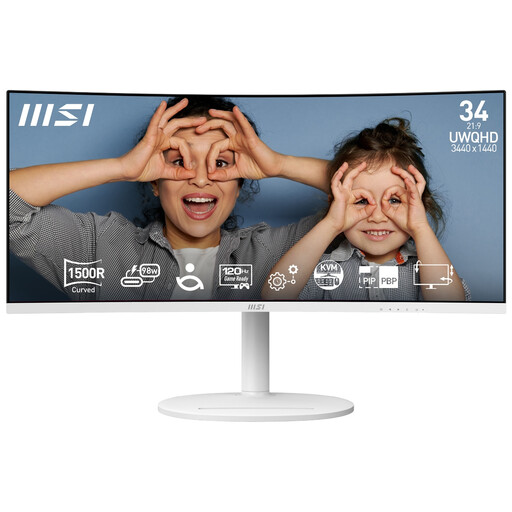
This 34-inch option is worth considering where a 49-inch screen would be difficult to accommodate. Its stated resolution is 3440 × 1440, with a 1500R curve; check the colour workflow and the shared laptops’ connections.
 No image available
The 34-inch ultrawide format may suit a desk used for an image browser and editing tools. The product title specifies an OLED panel and 240 Hz refresh rate; consider the reported burn-in risk if gallery software leaves static elements on screen for long periods, and check the colour workflow separately.
 No image available
Its 34-inch, 3440 × 1440 format provides an ultrawide layout for arranging images and tools. The title lists a VA panel, 85% DCI-P3 and HDMI and DisplayPort inputs; check whether those connections suit the shared computers and whether the display meets the gallery’s calibration needs.
 No image available
This 32:9 screen offers a wide layout for viewing several gallery images side by side, provided the desk can accommodate its 49-inch format. The title lists a 1500R VA panel and HDMI 2.1 and DisplayPort 1.4 inputs; confirm the stand’s adjustment range and the required colour workflow before purchase.
No particular diagonal or resolution is prescribed in the cited Health and Safety Executive guidance. It requires employers to assess the whole workstation for people who use display screen equipment daily as part of normal work for continuous periods of an hour or more, so choose the screen with the work, furniture and users in mind.
Each user should be able to adjust the workstation to suit them. The Health and Safety Executive advises placing the top of the screen at eye level and the display about an arm’s length away; check that the stand or a suitable mount allows that positioning at this desk.
No. Gamut coverage does not establish that a display is correctly calibrated or profiled for the intended output. Photography News explains that an uncalibrated screen can show inaccurate colour, brightness or contrast; plan the display workflow around the gallery’s delivery requirements.
Only if the particular monitor, laptop and cable support all the functions you need. Check each shared laptop’s display-output and charging requirements, along with its access to the monitor’s connected peripherals, before relying on a one-cable setup.