Script-led callers
If notes or an agenda must stay visible throughout a call, a wide display lets you arrange them beside the meeting window instead of repeatedly switching between windows.


For a script beside a video call, start by checking whether a 34-inch, 3440 × 1440 ultrawide gives both windows enough room on your desk. Choose integrated call hardware if you want fewer separate devices, USB-C docking if a compatible laptop is your main computer, or Picture-by-Picture and KVM if the script and call run on different computers. A larger screen needs a separate check of desk space, viewing position and computer output.
If notes or an agenda must stay visible throughout a call, a wide display lets you arrange them beside the meeting window instead of repeatedly switching between windows.
If your laptop is the main computer, a monitor with suitable USB-C video, charging and peripheral connections can simplify the desk setup. Dell UK and LG UK list docking features for their P3425WE and 34BA75QE models.
If the call and script are on separate computers, Picture-by-Picture can show both sources while a built-in KVM can let them share a keyboard and mouse. LG UK and Samsung Business UK list these functions for the 34BA75QE and S65UC respectively.
Start with the space your script and call windows need, then decide whether call hardware, laptop connections or control of two computers changes your choice. Each concern below describes consumers for whom that need takes priority.
| Concern | What to check | Who this matters to |
|---|---|---|
| Script space | Check native resolution, usable desk depth and whether your computer can output that resolution. A 49-inch, 5120 × 1440 screen is not the same format as a 39.7-inch, 5120 × 2160 screen. | I need to read the script without covering the people on my call; around 33% of consumers would make visible script space their primary concern. |
| Call hardware | Check camera position, microphone and speaker requirements, and compatibility with your calling application. | If I want the call equipment to stay at the desk, an integrated camera and microphone matter more than another connection option; around 27% of consumers would put call hardware first. |
| Laptop docking | Confirm USB-C video support and compare the monitor’s stated power-delivery limit with your laptop’s requirements. | When I bring one laptop to the study, I want fewer connections to make each time; for around 20% of consumers, a simpler laptop setup would be the main priority. |
| Two-computer control | Check Picture-by-Picture input combinations and the KVM’s USB connections for both computers. | My script and meeting run on different machines, so keeping both connected matters most; around 20% of consumers would prioritise two-computer control. |
A wide panel can dominate a shallow study desk. The Health and Safety Executive advises placing the display about an arm’s length away, with the top of the screen at eye level.
Measure the desk and allow for the stand or monitor arm before choosing a 34-inch, 39.7-inch or 49-inch model.
A monitor’s power-delivery rating does not establish that a particular laptop will receive the video signal or charging it needs.
Check the laptop’s charging requirement and USB-C video capability against the exact monitor and cable you intend to use.
Picture-by-Picture and KVM address two connected sources. If the script and call are applications on one computer, arranging its windows may be simpler.
Prioritise these functions when you routinely need to view or control two computers at the same desk.
A built-in camera and microphone can reduce separate desk equipment, but the call setup still depends on camera position, lighting, software settings and how you prefer to listen and speak.
Check the camera’s placement and privacy mechanism, and decide whether you will still use a headset.
Dell’s P3425WE is a 34.1-inch curved USB-C hub monitor for a laptop-based ultrawide desk.
LG’s 34BA75QE is a 34-inch curved ultrawide with docking and multi-computer features.
HP’s Series 5 Pro 534pm is a 34-inch WQHD conferencing ultrawide.
Philips’ 40B1U6903CH is a 39.7-inch, 5120 × 2160 conferencing and docking ultrawide.
Samsung’s ViewFinity S65UC is a 34-inch curved ultrawide for workflows using more than one source.
These displays offer wide layouts for a script beside a call window, including 34-inch and 49-inch options. Choose the screen size and resolution for your desk and computer, then check how you will connect your call equipment.
 No image available
Consider this 34-inch screen if your main need is room for separate script and call windows. Its listed resolution is 3440 × 1440, with a VA panel and two HDMI and two DisplayPort 1.4 inputs.
Check your camera and microphone setup, computer connections and assembled desk footprint before choosing it.
 No image available
Consider its 32:9 format if you want a particularly wide area for the script and call. The product name identifies a 49-inch QD-OLED display with USB-C, HDMI and DisplayPort connections.
Check the desk space, your computer’s intended resolution and USB-C capabilities, and the call equipment you will use.
 No image available
This is another 32:9 option for placing a script beside a call window. Its listed specifications include 5120 × 1440 resolution, a height-adjustable stand, two HDMI 2.1 inputs and two DisplayPort 1.4 inputs.
Allow for the 49-inch screen on your desk and confirm your computer connection and separate call-equipment needs.
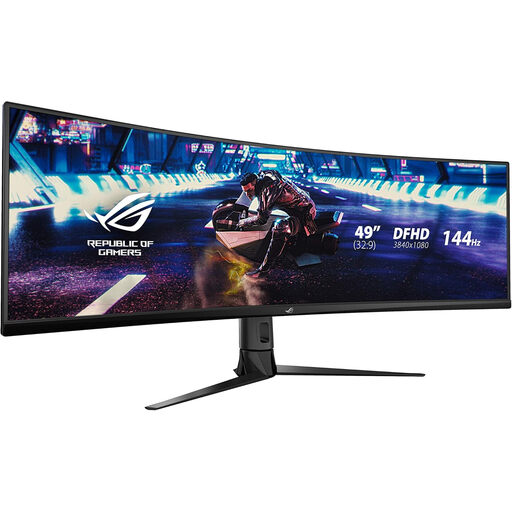 No image available
Consider this model if you want a 49-inch, 32:9 screen for arranging script and call content, while checking that its listed 3840 × 1080 resolution suits your reading needs.
Measure the desk and confirm the connections, positioning adjustments and call equipment required for your setup.
No: a 34-inch, 3440 × 1440 ultrawide is a sensible starting point for two windows. Consider the 39.7-inch Philips 40B1U6903CH if you need more simultaneous workspace and can accommodate its size and 5120 × 2160 output requirement; these model specifications come from the manufacturers’ UK information.
Choose built-in call hardware if you want a permanent camera arrangement and it suits how you take calls. HP Store UK describes a pop-up webcam on the 534pm, while Philips UK lists a pop-up webcam and microphone on the 40B1U6903CH; check placement and whether you would still prefer a headset.
Picture-by-Picture is useful when the script and call come from two connected computers. If both run on one computer, arrange its application windows first; LG UK and Samsung Business UK describe Picture-by-Picture and KVM options for the 34BA75QE and S65UC.
Only if the laptop, monitor connection and cable support the required functions. Compare the laptop’s charging requirement with the monitor’s stated power-delivery limit, and confirm that the laptop can send video through the USB-C or Thunderbolt connection you plan to use.
Plan for the screen to sit about an arm’s length away, with its top at eye level, in line with Health and Safety Executive guidance. For workers who use display screen equipment daily as part of normal work, continuously for an hour or more, the Health and Safety Executive also says employers must assess the workstation and working conditions.