Single-laptop form-layout workers
If you keep a form editor, browser preview and reference material open together, a wide workspace matters; straightforward laptop connectivity may matter just as much.


For laying out a contact form beside a preview or reference material, a 34-inch, 3440 × 1440 ultrawide is a practical starting point if it fits your study desk. Prioritise compatible USB-C display and charging for a laptop, suitable screen-position adjustment for longer sessions, or a KVM switch if you regularly move between two computers; none of those extras is necessary for every setup.
If you keep a form editor, browser preview and reference material open together, a wide workspace matters; straightforward laptop connectivity may matter just as much.
If form work moves between two computers, a monitor with a built-in KVM can let you use one keyboard and mouse with both. Check how each computer will connect.
If you spend extended periods at the screen, check whether the stand or a compatible mount will let you position it appropriately on your desk.
Start with the space needed for your form editor and preview, then check how the monitor will connect to your computer and fit on the desk. The Health and Safety Executive advises positioning a screen with its top around eye level and the display about an arm’s length away.
| Concern | What to check | Who this matters to |
|---|---|---|
| Side-by-side workspace | Check for a native 3440 × 1440 resolution and measure the available desk space. | I want to see the form editor beside its preview without constantly changing windows; around 36% of consumers put workspace first. |
| Laptop connection | Check the laptop’s USB-C video output and charging requirements against the monitor’s stated capabilities. | With one laptop on my desk, I would rather connect the display and charging through one compatible cable; roughly 29% of consumers prioritise that connection. |
| Two-computer control | Look for an explicit KVM feature and check the video and USB connections required for both computers. | When I switch between a work computer and a personal one, I want to keep using the same keyboard and mouse; around 21% of consumers make two-device control their main concern. |
| Desk fit and positioning | Measure desk width and depth, then check stand adjustment or compatibility with your intended mount. | For longer sessions in a compact study, I need to place the screen comfortably rather than choose by width alone; about 14% of consumers put fit and positioning first. |
A wider monitor still needs enough desk depth and a suitable viewing position. Samsung’s UK home-office guide describes 32- to 34-inch screens as a balanced size for multitasking, while larger screens call for more room.
Measure the desk before buying, and check height adjustment or mounting compatibility if the supplied stand will not place the display where you need it.
A separate compatible monitor arm may be needed if the stand cannot provide a suitable position.
USB-C power delivery varies by monitor: LG UK states up to 65 W for the 34U640B-B, while Dell UK states up to 90 W for the P3425WE. The laptop must also support the required display connection.
Compare the laptop’s video-output and charging specifications with those of the exact monitor, and check which cable is required.
A KVM is useful when two connected computers need to share a keyboard and mouse. Samsung describes that function for its S65UC; it adds little to a study desk that uses only one computer.
Consider a KVM if both computers will stay connected and you expect to switch between them regularly.
Screen shape does not replace an appropriate workstation setup. The Health and Safety Executive advises attention to screen height and viewing distance, as well as regular changes of activity during display-screen work.
Place the display in front of you, adjust its height and distance, manage glare and take breaks from sustained screen work.
Dell’s 34-inch office models include the Pro P3425WE USB-C hub monitor and the UltraSharp U3425WE.
LG has 34-inch ultrawide models with differing connections and adjustment options; compare exact model numbers rather than treating them as interchangeable.
Samsung’s ViewFinity S65UC is relevant to study desks shared by two computers.
These 34-inch ultrawides offer screen space relevant to placing a contact-form editor beside a preview. Compare their listed connections and positioning options with your own desk and computer; gaming-oriented specifications need not drive a form-layout decision.
 No image available
Consider its 34-inch WQHD format for keeping form-layout windows side by side.
The title identifies an OLED panel and a 240 Hz refresh rate. If form-building tools will remain static on screen for long periods, check the applicable OLED screen-care guidance and warranty before choosing it.
For laptop use, confirm USB-C video compatibility and whether the available charging output meets your laptop’s requirements.
 No image available
Its 34-inch, 3440 × 1440 format is relevant if you want the form editor and preview visible together.
The title lists DisplayPort and HDMI inputs plus height, swivel and tilt adjustment. If you need laptop charging through the monitor, check its USB-C capabilities before buying.
 No image available
The 34-inch ultrawide format is relevant to arranging form-building and reference windows side by side.
The title specifies a VA panel, two HDMI inputs and two DisplayPort 1.4 inputs. Check the stand footprint against your desk and confirm how your computer will connect if USB-C display or charging matters to you.
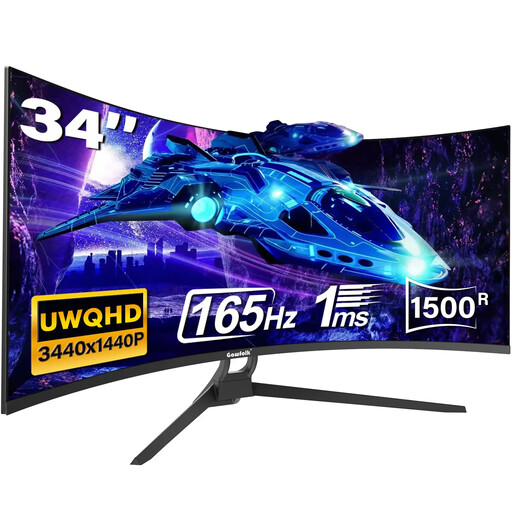 No image available
Consider the 34-inch ultrawide screen if your priority is arranging form-layout windows across one display.
The title lists a 21:9 format and VESA mounting. Its port descriptions conflict, so confirm the exact HDMI, DisplayPort and USB-C connections before deciding whether it suits your computer. Check stand positioning and desk fit separately.
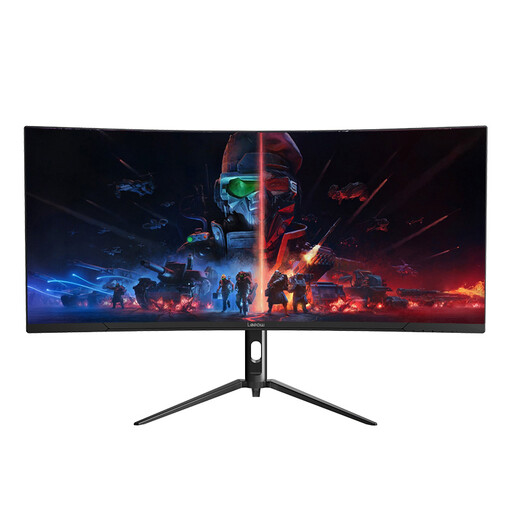 No image available
Its stated 34-inch, 3440 × 1440 resolution is relevant to viewing a form editor and preview together.
Before choosing it for a study desk, check the stand’s adjustment and footprint, and confirm that its connections meet your computer’s display and charging needs.
A 34-inch, 3440 × 1440 ultrawide is a sensible starting point if you want a form editor beside a preview or reference material. Samsung’s UK home-office guide describes 32- to 34-inch screens as a balanced size for multitasking; measure your desk before moving to a larger display.
No: HDMI or DisplayPort may meet your display needs. Choose a USB-C monitor for a one-cable arrangement only after checking that your laptop supports video over that connection and that the monitor’s stated power delivery meets its charging requirements.
A built-in KVM is worth considering when you regularly switch between two connected computers and want them to share a keyboard and mouse. Samsung Business UK lists this function for the S65UC; check the connections each of your computers will need.
Place the display directly in front of you at a comfortable distance. The Health and Safety Executive advises having the top of the screen around eye level and the display about an arm’s length away; check stand adjustment or compatible mounting if you cannot achieve a suitable position.