What to check before buying
Start with the space available for the complete workstation, then decide which screen and connection features help you format content.
| Concern |
What to check |
Who this matters to |
| Desk fit and screen position |
Compare the full width and with-stand depth with your desk space. If considering an arm, check its mounting pattern, load rating and desk fixing. |
I need room for my keyboard and mouse without bringing the screen too close. Around 36% of consumers would put desk fit and screen position first. |
| Editor-and-preview workspace |
Check the 34-inch monitor’s resolution and how your computer arranges adjacent windows; 3440 × 1440 is available on the cited models. |
Keeping the article editor and rendered preview visible together matters more to me than switching between them. Roughly 29% of consumers would prioritise that workspace. |
| Laptop connections |
Check USB-C video support and compare the monitor’s power delivery with your laptop’s charging requirement. Consider Ethernet only if you use a wired connection. |
If my laptop needs a charger and adapters beside the monitor, I want to simplify those connections. Around 21% of consumers would make laptop docking their primary concern. |
| Visual-documentation work |
For screenshots or visual assets, check the exact model’s stated colour coverage and available colour modes. |
When preparing illustrated help articles, I care about the screen’s colour options as well as its editing space. Approximately 14% of consumers would put visual-documentation needs first. |
Joybuy ultrawide monitors
These 34-inch ultrawide models offer options to consider for arranging help-centre windows side by side. Their gaming-oriented features do not replace a check of desk fit, viewing position or laptop connections.
 No image available
LG UltraGear 34GX900A-B 34-inch OLED WQHD monitor
Consider its wide format if you want adjacent editing and preview windows.
The product name specifies a 240 Hz refresh rate. For prolonged work with static editor elements, weigh the listed OLED burn-in warning; also check the complete stand footprint and whether its USB-C connection meets your laptop’s needs.
View on Joybuy
 No image available
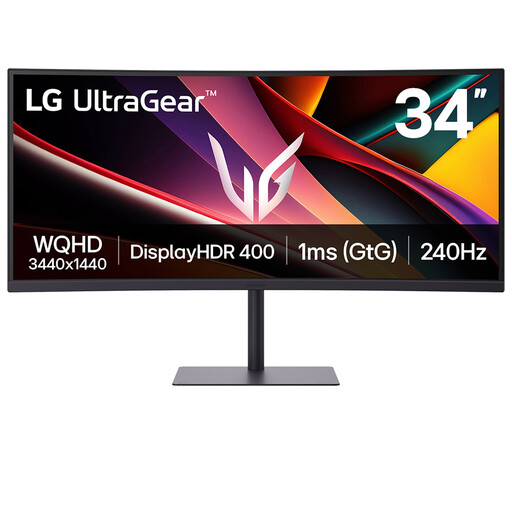
LG UltraGear 34G630A-B 34-inch VA WQHD monitor
Its wide screen is an option for keeping an editor and preview open together.
The product name specifies 240 Hz. Check the stand footprint against your desk; if laptop charging through the monitor matters, compare its listed 15 W power delivery with your laptop’s requirements.
View on Joybuy
 No image available
Philips Evnia 6000 34M2C6500 34-inch WQHD monitor
The 3440 × 1440 format is relevant if your main aim is to place help-centre work windows alongside one another.
The product name lists HDMI and DisplayPort inputs and height, swivel and tilt adjustment. Confirm the full with-stand footprint for your desk, and check connection requirements separately if you intend to dock a laptop.
View on Joybuy
 No image available
Dahua 34-inch 200 Hz curved VA ultrawide monitor
Consider this 3440 × 1440 screen for arranging editing and reference windows across one display.
The product name lists two HDMI and two DisplayPort connections. Its stated dimensions exclude the base, so confirm the complete with-stand footprint before choosing it for a small desk; check laptop connection needs separately.
View on Joybuy
 No image available
Lenovo R34w-30 34-inch UWQHD monitor
Its 34-inch wide format may suit an editor-and-preview layout if the complete setup fits your desk.
Check the monitor and stand dimensions before buying. If you need laptop docking, confirm the required video and charging connections for this exact model.
View on Joybuy
Common questions
Is a 34-inch ultrawide sensible for help-centre work on a small desk?
It can be a sensible starting point for an editor-and-preview layout if the monitor, stand and input devices leave a workable viewing distance. Measure the complete setup rather than relying on the diagonal size; the Health and Safety Executive advises placing the screen about an arm’s length away.
When is USB-C power delivery worth choosing?
Choose it when a compatible monitor connection can replace connections your laptop desk otherwise needs. Check both video support and charging wattage: BenQ specifies 65 W for the PD3420Q, while Dell lists up to 90 W for the P3425WE.
Do I need KVM or Picture-by-Picture for formatting articles?
You need those features only if your work regularly involves two computers or input sources. A KVM switch shares a keyboard and mouse between systems; Picture-by-Picture displays both sources at once.
What workstation assessment applies to regular screen work in the UK?
The Health and Safety Executive says employers must carry out a workstation assessment when workers use display screen equipment daily as part of their normal work, continuously for an hour or more. The assessment considers the workstation and the work being done, not just the monitor size.
How should I position an ultrawide after installing it?
Centre the screen and keyboard, set the screen top around eye level and place the screen about an arm’s length away, following Health and Safety Executive guidance. Adjust the desk setup and lighting to reduce reflections and glare.


