Who needs which features?
The same wide screen can serve different priorities. Decide whether your main constraint is reviewing visual work, fitting the desk or connecting a laptop before comparing extra features.
Landing-page visual designers
If you build layouts, image treatments and branded components, compare the colour spaces and modes stated for the exact monitor. A calibration report may matter more to your workflow than a high refresh rate, but neither replaces checking how you prepare and review assets.
Students with small desks
Measure the space needed for the monitor stand, keyboard and mouse, not just the screen diagonal. The Health and Safety Executive’s central, arm’s-length positioning advice is a useful check before committing desk space to an ultrawide.
Laptop-first designers
If you want fewer cables around your work area, check whether your laptop sends video over USB-C and how much power it needs. A monitor’s USB-C port alone does not establish that it can handle your whole setup.
What should you check first?
Start with a desk layout you can sit at comfortably, then compare colour provisions and laptop connections against the work you actually do. The concerns below separate consumers by the need they would put first when choosing for a student-room landing-page workspace.
| Concern |
What to check |
Who this matters to |
| Colour and layout work |
Compare resolution, stated colour-space coverage, available colour modes and any calibration documentation for the exact model. Treat manufacturer figures as specifications, not a guarantee of how a page will look on another device. |
If I review branded assets beside a page layout, I need room for both and a colour mode suited to the work I deliver. Around 42% of consumers would put colour and layout confidence first. |
| Desk fit and positioning |
Measure usable desk width and depth against the with-stand dimensions, leaving space for input devices. Check the adjustment range and whether you can sit centrally at a comfortable distance. |
On a shallow desk, I cannot use the extra width comfortably if the stand pushes the screen too close. Roughly 33% of consumers would prioritise physical fit and positioning. |
| Laptop connection |
Check the laptop’s USB-C video capability and charging requirement against the monitor’s ports and power delivery; confirm the cable needed for the connection. |
When my laptop is the centre of the setup, I want to connect it without relying on an unsuitable charging arrangement. About 25% of consumers would make laptop connectivity their primary concern. |
Relevant brands to consider
These examples illustrate different monitor specifications, not a judgement about every display each brand makes. Compare the exact model and its connection requirements before choosing.
BenQ
The PD3420Q is a 34-inch, 3440 × 1440 IPS option for designers who want documented colour provisions.
- BenQ lists 100% sRGB, 100% Rec.709 and 98% P3 coverage, colour modes, a calibration report and an average Delta E of no more than 3. These are manufacturer specifications, not independent test results.
- Its listed 60 Hz refresh rate and 825.8 mm width make desk fit and intended use important checks; the stated colour provisions alone do not establish how your finished page will appear to others.
LG
The 34WQ75C-B represents a 34-inch, 3440 × 1440 IPS route with USB-C and RJ45 connectivity.
- LG states 99% sRGB coverage for this model, giving web-colour-focused consumers a specification to compare alongside its connections.
- Confirm the exact display’s dimensions and whether your laptop supports the USB-C video and other functions you intend to use.
Dell
The P3425WE is a 34.1-inch curved, 3440 × 1440 IPS option centred on a USB-C hub setup.
- Dell lists RJ45, USB-C power delivery up to 90 W and a maximum height adjustment of 150 mm for this model.
- Check the laptop’s video and charging requirements, and confirm that the stand’s adjustment and footprint suit your desk.
Ultrawide monitors on Joybuy
These 34-inch monitors offer ultrawide formats to consider for a landing-page workspace. Several have gaming-focused specifications, so compare desk fit, colour controls and laptop connections separately rather than treating refresh rate as a measure of design suitability.
 No image available
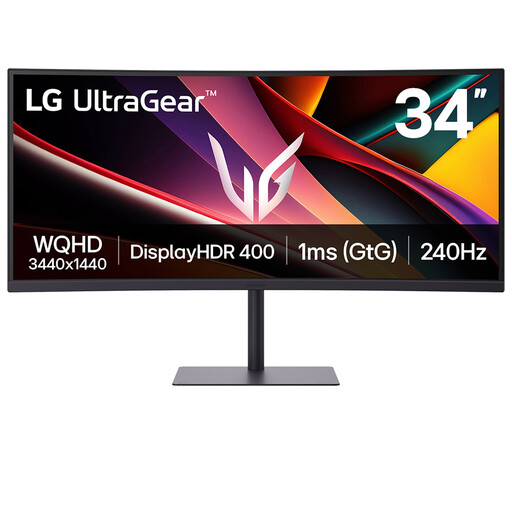
LG UltraGear 34G630A-B 34-inch VA WQHD 240 Hz monitor
Consider its ultrawide format if you want room for a landing-page layout alongside other work. The product name identifies a VA panel, WQHD format and 240 Hz refresh rate; check the exact stand footprint, colour modes and laptop connection requirements before choosing it for a small design desk.
View on Joybuy
 No image available
LG UltraGear 34GX900A-B 34-inch OLED WQHD 240 Hz monitor
Its ultrawide format may suit a desk used for side-by-side design and browser work. The product name specifies an OLED display and 240 Hz refresh rate; if your design interface stays on screen for long periods, review the model’s screen-care guidance as well as its desk footprint and colour controls.
View on Joybuy
 No image available
Lenovo R34w-30 34-inch UWQHD monitor
The 34-inch UWQHD format is relevant if you want an ultrawide layout workspace. Check the exact resolution, stand dimensions and adjustment range for your desk, and assess colour settings against the assets you produce.
View on Joybuy
 No image available
Dahua 34-inch curved 3440 × 1440 VA 200 Hz monitor
The 3440 × 1440 ultrawide format is a consideration for arranging a design canvas beside browser tools. Its product name specifies a VA panel, 200 Hz refresh rate, two HDMI ports and two DisplayPort 1.4 ports; check the full stand footprint and the colour modes needed for your work.
View on Joybuy
 No image available
Philips Evnia 6000 34M2C6500 34-inch WQHD monitor
The stated 3440 × 1440 format gives you an ultrawide option for arranging landing-page work. The product name lists height, swivel and tilt adjustment, with refresh rates of 175 Hz via DisplayPort and 100 Hz via HDMI; check the stand’s dimensions and the colour provisions relevant to your workflow.
View on Joybuy
Common questions
How much desk space does a 34-inch ultrawide need?
Allow for the exact monitor’s width and with-stand depth, plus your keyboard, mouse and viewing distance. As one example, BenQ lists the PD3420Q at 825.8 mm wide and 244.3 mm deep with its stand; the Health and Safety Executive advises sitting about an arm’s length from the screen.
Will one USB-C cable connect and charge my laptop?
Only if the laptop supports the required video connection and the monitor’s power delivery meets its charging needs. Check the laptop’s USB-C or Thunderbolt specifications and the cable you will use; Dell lists up to 90 W for the P3425WE, while BenQ lists 65 W for the PD3420Q.
Do I need a monitor with a calibration report for landing-page design?
Not necessarily: the value of a calibration report depends on how closely you need to control colour in your asset workflow. Compare the monitor’s stated colour spaces and modes with your delivery requirements, and do not treat manufacturer coverage figures as a guarantee of appearance across browsers and devices.
Does workplace screen guidance apply to a private student-room setup?
The Health and Safety Executive’s display-screen rules address work use, including home working; using a monitor privately does not itself establish an employer duty or a purchase requirement. Its advice on screen height, distance and breaks can still help you arrange a more workable study desk.


