Choose a 34-inch-class, 3440 × 1440 ultrawide if you want accounts software and invoices visible side by side on one screen. Beside a bright window, prioritise a position that avoids reflections, then check the screen finish and how far the stand can be adjusted; the Health and Safety Executive advises arranging the desk and screen to avoid glare rather than relying on the display alone. Add USB-C charging or two-computer controls only if your devices and workflow need them.
Who this setup suits
Accounts workers beside daylight
If you regularly move between spreadsheets, accounting software and invoice documents near a bright window, you need room for both work areas and a screen position that avoids reflections. The Health and Safety Executive advises arranging the workstation to avoid glare and bright reflections.
Laptop-led home-office users
If a laptop is your main computer, an ultrawide can provide a larger document workspace. Some business models also offer USB-C charging and wired-network connections, but those features need to match your laptop.
Two-computer desk users
If you switch between two computers or want both sources visible, look at keyboard, video and mouse (KVM) switching and picture-by-picture. LG, BenQ and Samsung describe these features on particular ultrawide models; check the inputs each setup requires.
What matters when choosing
For accounts and invoice work beside a window, settle the screen position before comparing display and connection features. A wide desktop is useful only if you can read it comfortably where the monitor will sit.
| Concern |
What to check |
Who this matters to |
| Window reflections |
Check the stated anti-glare or matte finish and whether you can angle the screen away from the window. Treat quoted brightness as a specification, not a cure for direct reflections. |
If daylight falls across my documents, I need to see figures without a bright reflection obscuring them. Around 34% of consumers put glare control first. |
| Side-by-side space |
Check for 3440 × 1440 resolution on a 34-inch-class ultrawide, and measure desk space for the screen and stand. |
I want the accounts package open beside an invoice without constantly switching windows. Keeping both documents visible is the primary need for around 33% of consumers. |
| Screen positioning |
Check the exact height, tilt and swivel adjustments. If you plan to use an arm, confirm its mounting and desk-clamp compatibility. |
My desk position makes it difficult to angle a fixed screen away from daylight. Around 20% of consumers prioritise positioning flexibility. |
| Computer connections |
Match USB-C video support and charging output to your laptop; for two computers, check KVM inputs and picture-by-picture combinations. |
I want fewer laptop cables or one keyboard and mouse for two computers. Connectivity is the first concern for around 13% of consumers. |
Buying pitfalls
-
Expecting brightness to fix direct glare
A brighter screen can still have a distracting reflection. The Health and Safety Executive advises arranging the desk and screen to avoid glare, often by keeping the screen from directly facing a window.
Check the proposed position when daylight is strongest. Consider the window covering and whether the stand will let you change the screen angle.
-
Choosing by diagonal size alone
A 34-inch screen needs a workable position on the desk, with space for its stand, documents and a useful angle away from the window.
Measure usable desk width and depth, including clearance for the stand and cables, before choosing a model.
-
Assuming USB-C replaces a charger and dock
USB-C connections differ by monitor and laptop. Dell lists up to 90 W power delivery for the P3425WE, while BenQ lists 65 W for the PD3420Q; neither figure establishes compatibility with every laptop.
Check your laptop's USB-C video capability and charging requirement against the monitor's specified output and ports.
-
Adding features the workflow will not use
KVM and picture-by-picture matter most when two computer sources share a desk. Colour-management features serve a different need from routine accounts and invoice work.
Decide whether you will actually connect two computers or do colour-sensitive work before making those features part of your shortlist.
Brands to consider
LG
LG's home-office ultrawides include the curved 34WR50QK-B for a single wide desktop.
- LG lists 3440 × 1440 resolution and picture-by-picture for the 34WR50QK-B.
- Its listed stand adjustment is tilt-only; check whether that allows a suitable position beside your window.
Dell
Dell's business ultrawides include the P3425WE for laptop-led desks and the U3425WE with additional hub features.
- Dell specifies anti-glare treatment, up to 90 W USB-C power delivery, Ethernet and height, tilt and swivel adjustment for the P3425WE.
- Check whether your laptop needs those connections before choosing a feature-led business model.
BenQ
BenQ's PD3420Q combines an ultrawide office workspace with features aimed at colour-sensitive work.
- BenQ lists a matte 3440 × 1440 panel, 65 W USB-C power delivery, KVM, picture-by-picture and height adjustment.
- Its colour-work features need not drive the choice if accounts and invoices are your only tasks.
Samsung
Samsung's ViewFinity S65UC is a business ultrawide aimed in part at desks using two sources.
- Samsung describes a built-in KVM, USB-C, LAN and picture-by-picture options for the S65UC.
- Confirm the inputs, cables and charging capability needed by your particular computers.
Joybuy product choices
These ultrawide models offer screen space to consider for accounts and invoices side by side. For a desk beside a bright window, check each model's screen finish and positioning options separately; gaming-focused specifications do not answer those questions.
 No image available
Dahua 34-inch UWQHD 200Hz Curved Gaming Monitor
Consider its wide screen for accounts beside invoices if your computer can output 3440 × 1440.
The title specifies a VA panel, 200 Hz refresh rate, two HDMI inputs and two DisplayPort 1.4 inputs. For a window-side desk, confirm the screen finish and stand adjustments before ordering.
View on Joybuy
 No image available
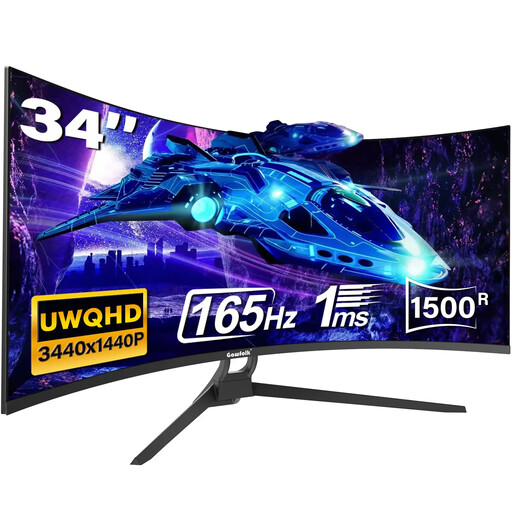
Gawfolk 34-inch 165Hz 1500R Curved Gaming Monitor
Its stated 21:9 ultrawide format is worth considering if you want accounts and invoice windows on one display.
The title lists HDMI 2.1, DisplayPort 1.4, Type-C and VESA mounting. Check the Type-C functions you need, the screen finish and the stand's adjustment range rather than assuming the port or mount settles those requirements.
View on Joybuy
 No image available
Lenovo R34w-30 34-inch UWQHD Gaming Monitor
The stated 34-inch UWQHD format makes this a model to assess for side-by-side accounts and invoice work.
Before placing it beside a window, confirm the screen finish, typical brightness and available stand adjustments for the position you have in mind.
View on Joybuy
 No image available
Philips Evnia 6000 34M2C6500 34-inch WQHD Monitor
Its stated 3440 × 1440 resolution provides a wide layout to consider for accounts beside invoice documents.
The title lists height, swivel and tilt adjustment, with HDMI and DisplayPort inputs. Its 1000 cd/m² figure is a peak-brightness specification, not a typical-brightness measure or a guarantee against window reflections; check the screen finish for your desk position.
View on Joybuy
 No image available
Lepow HC-SJ34MZ5 34-inch Curved Ultrawide Monitor
Its stated 3440 × 1440 resolution gives you a wide screen to consider for keeping accounts and invoices in view together.
The title also specifies a 165 Hz refresh rate. Check the screen finish, brightness and positioning options for a bright-window desk before deciding whether it fits your setup.
View on Joybuy
Common questions
Will an anti-glare ultrawide solve reflections from a bright window?
Not on its own. The Health and Safety Executive advises arranging the desk and screen to avoid glare or bright reflections, often by keeping the screen from directly facing a window. Check the screen position and consider blinds or curtains where intrusive daylight remains.
Is 3440 × 1440 a useful resolution for accounts and invoices?
It is a practical starting point for two sizeable windows side by side on a 34-inch-class ultrawide. LG, Dell and BenQ list that resolution on the models discussed here; confirm that your computer supports it through the connection you intend to use.
Do I need USB-C charging on an accounts monitor?
Only if you want a compatible laptop to receive video and power through the monitor connection. Check the laptop's video mode and charging needs against the monitor's specifications: Dell lists up to 90 W for the P3425WE, while BenQ lists 65 W for the PD3420Q.
When must a UK employer assess a display-screen workstation?
The Health and Safety Executive states that employers must carry out a workstation assessment for workers who use display screen equipment daily as part of their normal work, continuously for an hour or more. If that describes your accounts work, raise the window-side screen arrangement as part of the assessment.


