Calendar-and-email multitaskers
If you want both windows in view rather than switching between them, a 34-inch, 21:9 display is a starting point. Check that calendar entries and messages remain legible at the text size you prefer.


A 34-inch, 3440 × 1440 ultrawide is a sensible starting point if the main task is keeping a calendar beside email. Consider a 3840 × 1600 screen when you also need more vertical room for documents, or a 5120 × 2160 screen for detailed work, provided your desk and computer can accommodate it. At a standing desk, check the final screen position as carefully as the screen size: the Health and Safety Executive advises placing the top of the display at eye level, about an arm’s length away.
If you want both windows in view rather than switching between them, a 34-inch, 21:9 display is a starting point. Check that calendar entries and messages remain legible at the text size you prefer.
The monitor’s stand or arm needs to work at your standing height. The Health and Safety Executive advises positioning the top of the screen at eye level and the display about an arm’s length away.
USB-C connections, Ethernet and keyboard-video-mouse switching, known as KVM, may simplify a shared desk. Check the functions your laptop and other computer actually support before choosing a monitor for them.
Start with the space your two windows need, then check screen positioning at standing height and the connections required by your computer.
| Concern | What to check | Who this matters to |
|---|---|---|
| Side-by-side workspace | Compare native resolution and physical dimensions, then check whether calendar and email remain usable at your preferred text scaling. | I want to read appointments while replying to messages without repeatedly changing windows. Around 46% of consumers put that shared workspace first. |
| Standing screen position | Compare your standing eye height with the stand’s adjustment range; if using an arm, check its mount pattern and load rating. | If the screen sits too low when I raise the desk, extra width will not solve my setup problem. For roughly 36% of consumers, positioning is the primary concern. |
| Laptop and device connections | Check video output, USB-C charging requirements and, for two computers, the available KVM and peripheral connections. | I need to connect a laptop or switch between two computers without disrupting my workspace. That connection workflow comes first for around 18% of consumers. |
A 34-inch 3440 × 1440 screen, a 38-inch 3840 × 1600 screen and a 40-inch 5120 × 2160 screen offer different amounts of horizontal and vertical workspace. A larger diagonal does not tell you whether your preferred window sizes and text scaling will fit.
Compare the screen’s dimensions and native resolution, then try the calendar-and-email layout at a comfortable text size.
The Health and Safety Executive advises placing the top of the screen at eye level, about an arm’s length away. A height-adjustable stand still needs enough range for your desk and standing position.
Measure your standing eye height. If you plan to use an arm, check the monitor’s VESA pattern and weight against the arm’s rating, as well as the desk clamp and desk stability.
A compatible arm or different desk support may be needed if the supplied stand cannot reach the required position.
A USB-C port on a monitor does not by itself establish that your laptop can send video through it or receive enough power for your needs. Ethernet and KVM arrangements also depend on the connected devices and any workplace IT restrictions.
Check your laptop’s port and charging specifications. For two computers, confirm how the monitor switches inputs and shares your keyboard and mouse.
Separate displays can be positioned independently, but they introduce a centre bezel and need space for both screens and their supports.
Measure usable desk width, including space for a laptop and monitor arms, before choosing between one ultrawide and two displays.
A two-monitor arrangement may also need additional cables, adapters or an arm for each screen.
Dell’s U3425WE and U3824DW illustrate two work-focused ultrawide sizes. Their published specifications are useful for comparing workspace and positioning, but apply to those models rather than every Dell monitor.
LG’s 40U990A-W is a larger-format option for work that calls for more pixels alongside calendar and email.
Samsung’s 34-inch S65UC is relevant if managing connections between computers is part of your desk setup.
These 34-inch ultrawide options address the calendar-beside-email layout. For a standing desk, compare each monitor’s positioning options with your own eye height before deciding.
 No image available
The 34-inch 3440 × 1440 format is relevant when calendar and email need to stay side by side.
The product name lists DisplayPort and HDMI inputs, plus height, swivel and tilt adjustment. Check that the stand reaches your standing eye height.
 No image available
Its stated 3440 × 1440 resolution makes it a candidate for keeping two work windows visible.
The product name lists two HDMI and two DisplayPort 1.4 inputs. Check whether the stand’s stated 100 mm height adjustment reaches your standing eye height.
 No image available
This 34-inch ultrawide is relevant to a calendar-and-email layout; confirm that your preferred text size leaves enough room for both windows.
The product name specifies a VA panel and 240Hz refresh rate. Check whether the stated 110 mm stand adjustment reaches your standing eye height. If you intend to charge a laptop through the monitor, check whether its stated 15W USB-C power delivery meets that laptop’s requirement.
 No image available
This 34-inch ultrawide is an option for placing a calendar beside email in one screen.
Check the stand’s lift range against your standing eye height, and confirm the required computer connections if you want a one-cable laptop setup.
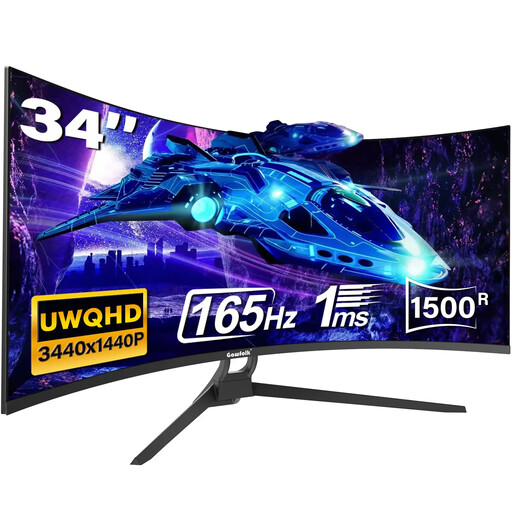 No image available
The stated 21:9 format is relevant to keeping calendar and email visible together.
The product name lists HDMI 2.1, DisplayPort 1.4 and VESA mounting. Check the supplied stand’s positioning options or the suitability of a compatible arm. Confirm Type-C connectivity before relying on it for a laptop setup.
A 34-inch 3440 × 1440 ultrawide is a starting point for keeping the two windows beside one another. Check legibility at your preferred text scaling; consider 3840 × 1600 if longer messages and documents make vertical room important, or 5120 × 2160 if detailed applications also need space.
The Health and Safety Executive advises placing the top of the screen at eye level, about an arm’s length away. Check that you can maintain that position when the desk is raised, with the screen directly in front of you and the keyboard comfortably placed.
Not if the supplied stand can place the screen at the right height and viewing distance. If you need an arm, confirm its load rating, the monitor’s VESA pattern and weight, and the compatibility of its clamp with your desk. Dell, for example, lists the U3824DW with 100 × 100 VESA support and an approximate weight of 13.27 kg.
No. The Health and Safety Executive says employers must assess workstations for workers who use display screen equipment daily as a normal part of work for continuous periods of an hour or more. The assessment considers the wider workstation and working conditions, not just the monitor.