What to check before buying
Start with the space needed for your two windows, then decide whether one-laptop docking or two-computer switching matters to you. Check physical placement before settling on either connection setup.
| Concern |
What to check |
Who this matters to |
| Side-by-side workspace |
Look for a 21:9, 3440 × 1440 display and check how your computer arranges the calendar and email windows. |
If I keep both windows open, I want room to read one without covering the other; around 36% of consumers put side-by-side workspace first. |
| One-laptop connection |
Confirm USB-C video support, the laptop’s charging requirement and the cable needed for the monitor’s hub functions. |
When I connect my laptop at the desk, I would rather manage fewer separate connections; roughly 29% of consumers make one-cable use their primary concern. |
| Two-computer use |
Check both computers’ video connections and whether the monitor switches your keyboard and mouse or displays both sources. |
If I work across two systems, changing peripherals interrupts the way I use the screen; about 21% of consumers prioritise managing two computers. |
| Desk placement |
Check the monitor’s width and stand depth, height adjustment and glare at its intended position. |
For longer sessions, I need the screen to sit properly with my chair and desk; around 14% of consumers put workstation placement first. |
Joybuy ultrawide monitor choices
These 34-inch ultrawide monitors offer screen space to consider for a calendar-and-email desk. Several are gaming models: compare their connections and physical fit for work use, and take particular care with static windows on the OLED model.
 No image available
LG UltraGear 34GX900A-B 34-inch OLED monitor
Consider this WQHD model if its ultrawide screen and gaming features also suit your desk use. The product name specifies a 240 Hz refresh rate; because calendar and email windows can remain static, check the OLED care guidance and whether that usage suits you.
If you plan to connect a laptop by USB-C, confirm its video and charging compatibility before buying.
Joybuy
 No image available
Philips Evnia 6000 34M2C6500 34-inch WQHD monitor
Consider this model if you want a 3440 × 1440 workspace with a stand offering height, swivel and tilt adjustment. Its name lists DisplayPort and two HDMI inputs, with refresh rates of up to 175 Hz over DisplayPort and 100 Hz over HDMI.
Check the exact curvature and dimensions with the stand if either affects its place on your desk.
Joybuy
 No image available
Dahua 34-inch UWQHD curved monitor
Consider this 3440 × 1440 monitor if you want an ultrawide screen and will use its stated HDMI or DisplayPort connections. Its name specifies a VA panel, 200 Hz refresh rate, two HDMI inputs and two DisplayPort 1.4 inputs.
Check the full dimensions with the base before deciding where it will sit.
Joybuy
 No image available
Lenovo R34w-30 34-inch UWQHD gaming monitor
Consider this ultrawide model if you want a single large screen for your work windows. Check that your computer and chosen connection support the intended display resolution, and measure the monitor with its stand for your desk.
Joybuy
 No image available
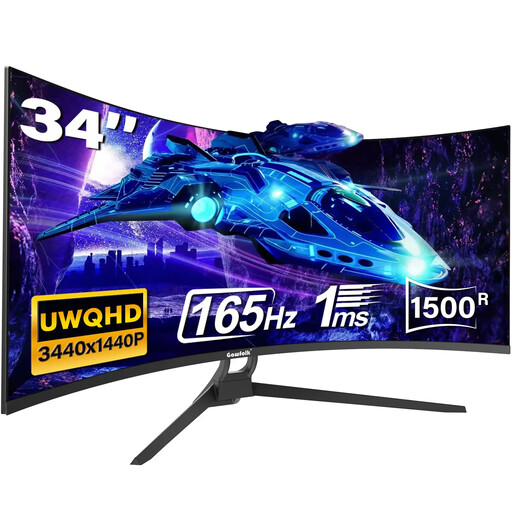
Gawfolk 34-inch UWQHD curved monitor
Consider this 21:9 monitor if its wide screen and intended mounting arrangement suit your desk. Its name specifies a 165 Hz refresh rate, 1500R curvature and VESA mounting.
Confirm the exact ports before planning a USB-C connection, and check the supplied stand’s adjustment and dimensions if you will not use a compatible mount.
Joybuy
Frequently asked questions
Is 3440 × 1440 sensible for a calendar beside email?
Yes, it is a practical starting point for this use on a 34-inch, 21:9 monitor. LG UK describes its display in this format as suitable for showing several programs at once; check your computer’s window-arrangement tools to see how your own calendar and email applications will fit.
Do I need USB-C on an ultrawide monitor?
USB-C is worth considering if you use a compatible laptop and want the monitor to handle display connection, charging or hub functions. Dell UK and LG UK list up to 90W power delivery on the work-focused models discussed here, but you still need to check your laptop’s video output, power needs and cable.
When does a built-in KVM matter?
A built-in KVM matters when you regularly use two computers and want to control them with one keyboard and mouse. Samsung Business UK lists this function and two-source display modes for the ViewFinity S6 S65UC; if you use only one computer, focus instead on workspace and the connections you need.
What should I check for long work sessions?
Check that the monitor can be positioned appropriately within your whole workstation, not just that it has a large screen. The UK Health and Safety Executive advises placing the screen top around eye level at about an arm’s length away; for workers using display screen equipment daily and continuously for an hour or more, it also says employers must carry out a workstation assessment.


