What matters when choosing
For checkout testing on a small desk, establish what would prevent the setup from working for you: physical fit, space for test windows, device connections or features you would seldom use.
| Concern | What to check | Who this matters to |
|---|
| Desk fit and screen position |
Compare usable desk width and depth with the exact model and stand; allow space for the keyboard and an arm’s-length viewing position. |
If the screen crowds my shallow desk, extra features will not fix the setup. Around 34% of consumers put physical fit and positioning first. |
| Checkout-testing workspace |
Check for 3440 × 1440 resolution and confirm that your computer can drive it through the connection you plan to use. |
I want the checkout page, developer tools and reference material visible without constantly rearranging windows. For around 33% of consumers, that working space is the primary need. |
| Laptop and two-device connections |
Match USB-C video support and charging wattage to your laptop; consider KVM and picture-by-picture if you use two computers. |
When I move between test machines, I want fewer cable and peripheral changes. Connectivity and control come first for around 20% of consumers. |
| Features you will use |
Identify which inputs and built-in functions replace equipment in your actual setup before choosing extras. |
For a one-computer workflow, I would rather prioritise a workable display setup than functions I rarely use. Around 13% of consumers make that simpler feature set their primary concern. |
Joybuy monitor choices
These 34-inch ultrawide monitors are choices to examine for checkout-page testing. Their display terms and connection features differ, so compare each exact model’s assembled footprint and laptop compatibility before deciding what belongs on a small desk.
 Image unavailable
LG UltraGear 34GX900A-B 34-inch OLED monitor
Consider this model if you want an ultrawide display for testing alongside other work and will check its assembled footprint against your desk.
The product name specifies a 34-inch OLED display and 240 Hz refresh rate. If laptop charging through the monitor matters, confirm its video connection and power delivery against your laptop before buying.
View on Joybuy
 Image unavailable
Lenovo R34w-30 34-inch UWQHD monitor
This is a route to consider when your checkout-testing setup needs an ultrawide screen and you can accommodate its stand.
The product name identifies a 34-inch UWQHD monitor. Check its assembled width and stand depth, along with the connection and charging arrangement your laptop will need.
View on Joybuy
 Image unavailable
Dahua 34-inch UWQHD curved monitor, 200 Hz
Its stated ultrawide resolution is relevant when you want checkout content beside testing tools, provided the complete monitor fits your workspace.
The product name specifies 3440 × 1440 resolution, a VA panel, 200 Hz refresh rate, two HDMI inputs and two DisplayPort 1.4 inputs. Check the assembled stand footprint rather than relying on dimensions measured without the base.
View on Joybuy
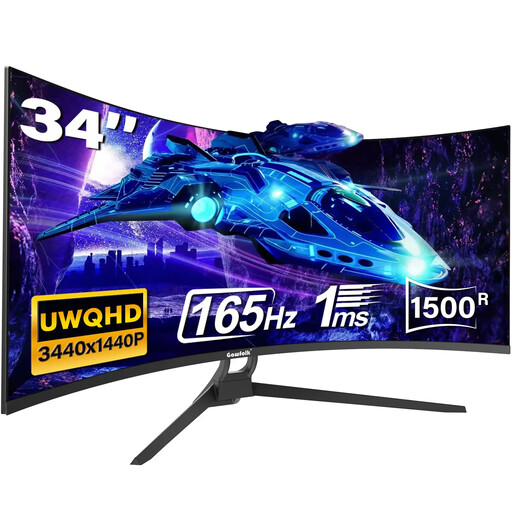 Image unavailable
Gawfolk 34-inch UWQHD curved monitor, 165 Hz
The stated 3440 × 1440 workspace is worth considering for adjacent checkout and developer-tool windows if the monitor can be positioned on your desk.
The product name lists HDMI, DisplayPort and VESA mounting. Confirm the assembled dimensions and mounting requirements; check the exact Type-C port and its capabilities if that connection matters to your laptop setup.
View on Joybuy
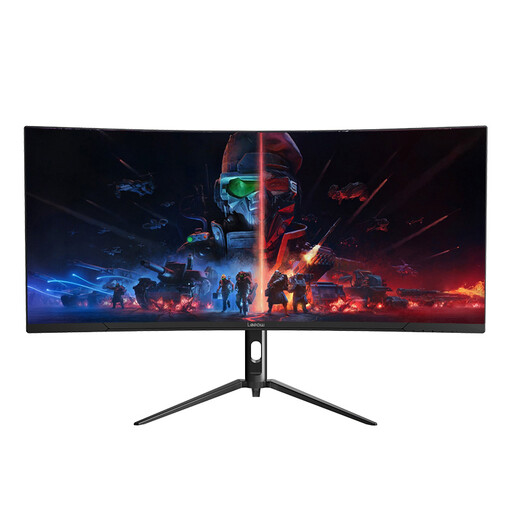 Image unavailable
Lepow HC-SJ34MZ5 34-inch ultrawide monitor
This model’s stated resolution could provide room for a checkout page and accompanying tools, subject to your desk and computer connections.
The product name specifies 3440 × 1440 resolution and a 165 Hz refresh rate. Check the full monitor-and-stand dimensions and positioning options before choosing it for a shallow desk.
View on Joybuy
Frequently asked questions
Is 3440 × 1440 useful for checkout-page testing?
Yes, if you want a checkout page, developer tools and reference material visible together and your computer supports that resolution. A wide desktop view does not replace testing mobile checkout layouts with responsive-design tools or target devices.
How do I know whether a 34-inch ultrawide will fit my desk?
Measure usable width and depth, then compare them with the exact monitor’s dimensions including its stand. Dell, for example, lists the P3424WE at 81.57 cm wide and 23.74 cm deep with its stand; the Health and Safety Executive advises an approximately arm’s-length viewing position with the top of the screen around eye level.
Can one USB-C cable run the monitor and charge my laptop?
It can if the laptop supports video through that USB-C port and the monitor’s power delivery meets the laptop’s needs. Dell specifies up to 65 W for the S3425DW, while Samsung specifies 90 W for the S65TC; check your laptop’s port and charging requirements rather than assuming either figure is sufficient.
Do UK display-screen rules require an ultrawide monitor?
No particular ultrawide size or format is prescribed by the Health and Safety Executive guidance cited here. The HSE says display-screen equipment regulations apply to workers who use screens daily for continuous periods of an hour or more; workstation suitability, rather than a particular consumer monitor model, is the relevant question.


