For a window-side map workstation, tackle reflections and screen position before choosing a monitor by resolution. A 39.7-inch 5120 × 2160 display offers more native space for maps and supporting panels than a 34-inch 3440 × 1440 display, but needs more desk space and a computer connection capable of driving it. Neither resolution nor an HDR badge establishes whether a screen will remain readable in direct sunlight.
Who this setup suits
Bright-window map users
If daylight falls across your map workstation, screen placement and lighting control deserve attention alongside display specifications. The Health and Safety Executive advises arranging screens and lighting to avoid reflections and glare.
High-detail mapping multitaskers
If you keep a map, legend, search results and reference material open together, consider how much native pixel space your layout needs. Dell and LG list 5120 × 2160 panels on the U4025QW and 40WP95CP-W respectively.
Laptop-led desk users
If you want video and charging through one connection, compare the monitor’s port and power delivery with your laptop’s requirements. Also check that the screen and its stand fit the position you need beside the window.
What matters when choosing
Start with the window and viewing position, then choose the map workspace you need and check whether your desk and computer can support it.
| Concern | What to check | Who this matters to |
|---|
| Daylight and glare |
Check screen position, daylight control, stated typical SDR brightness and coating for the exact model. Do not use an HDR badge as a glare rating. |
If window reflections obscure map labels, I need to control the light before adding more pixels. Around 42% of consumers would put daylight visibility first. |
| Map detail and workspace |
Compare native resolution with the map and supporting panels you need visible; check that your computer can drive the chosen resolution. |
Keeping layers, a legend and references in view makes native pixel space my priority. For around 33% of consumers, map detail would come first. |
| Desk and laptop fit |
Measure the available space and check stand or mount adjustment, video input and laptop charging requirements. |
If the screen must fit an existing desk and connect to my laptop, the physical setup matters as much as its width. Desk and connection fit would lead the choice for around 25% of consumers. |
Buying pitfalls
-
Choosing by screen width alone
Two ultrawides can offer different amounts of map workspace. Dell and LG list 5120 × 2160 for their 39.7-inch models, while BenQ and ASUS list 3440 × 1440 for the 34-inch models discussed here.
Compare native resolution and size against the map panels you actually keep open; an ultrawide aspect ratio does not tell you the pixel count.
-
Treating HDR as a daylight-readability guarantee
VESA DisplayHDR criteria concern HDR performance, not the reflections produced by a particular window and screen position.
Check typical SDR brightness and coating where stated, then assess whether you can reposition the display or control daylight at the desk.
-
Assuming every USB-C connection provides a one-cable desk
Video output and laptop charging depend on the particular monitor port, laptop port and cable. The charging wattage also needs to meet the laptop’s requirements.
Confirm the supported video connection and power delivery for both devices, and check which cable is included.
-
Overlooking placement before choosing a large display
A 40-inch or 49-inch screen needs room for its stand or a suitable mount, as well as a viewing position that avoids troublesome reflections.
Measure desk width and depth, check any arm’s compatibility and capacity, and work out where the screen will sit relative to the window.
Depending on that position, you may also need a suitable monitor arm, a longer compatible cable or a way to control daylight.
Relevant brands to consider
Dell
Dell’s UltraSharp U4025QW is a 39.7-inch 5120 × 2160 option for a spacious map-and-panels layout.
- Dell lists height, tilt and swivel adjustment, a USB hub, 2.5GbE and USB-C video and data with up to 90 W Power Delivery for this model.
- Allow for its large desk footprint, and assess window reflections in the intended position rather than relying on resolution to overcome them.
LG
LG’s 39.7-inch 40WP95CP-W offers a 5120 × 2160 workspace with an ambient-light sensor.
- LG lists Thunderbolt 4, 5K daisy-chain capability and up to 96 W laptop charging for this model.
- LG states 300 nits typical brightness; the sensor and resolution do not establish readability against direct window glare.
BenQ
BenQ’s flat, 34-inch PD3420Q provides a 3440 × 1440 alternative when a smaller format suits the desk.
- BenQ lists a matte coating, 350 nits typical brightness, height, tilt and swivel adjustment, 65 W USB-C Power Delivery and VESA 100 × 100 mm mounting.
- Its native resolution provides fewer pixels for maps and supporting panels than the 5120 × 2160 models discussed above.
ASUS ProArt
The 34-inch PA348CGV is a 3440 × 1440 ProArt display with laptop-oriented connectivity.
- ASUS lists USB-C with 90 W Power Delivery and an adjustable stand for this model.
- Its 3440 × 1440 resolution offers fewer native pixels than the 5120 × 2160 route; assess daylight handling in the planned position.
Joybuy product choices
These ultrawides offer 34-inch and 49-inch layouts for map work. The 49-inch 5120 × 1440 screens provide a wider canvas, but their 1440 vertical pixels do not match a 5120 × 2160 display. For every option, assess window reflections and check desk and computer compatibility before choosing.
 No image available
Acer X Predator X49X 49-inch curved QD-OLED monitor
Consider its wide canvas if you want a map beside other panels and have space for a 49-inch screen.
The listing states 5120 × 1440 resolution, a 32:9 format, height, tilt and swivel adjustment, and USB-C with 90 W Power Delivery. Its anti-glare claim does not establish readability beside your window; confirm the USB-C video connection for your laptop.
View on Joybuy
 No image available
Dahua 34-inch curved UWQHD 200Hz monitor
This 34-inch option suits a desk where screen positioning matters more than the extra native pixels of a 5120 × 2160 display.
The listing states 3440 × 1440 resolution, 300 cd/m² typical brightness, height, tilt and swivel adjustment, and VESA 100 × 100 mm mounting. The brightness figure alone cannot establish how it will handle reflections at your desk.
View on Joybuy
 No image available
Philips Evnia 6000 34M2C6500 34-inch monitor
Its 34-inch format is an option for a map-and-panels layout when you can work with 3440 × 1440 native resolution.
The listing states height, swivel and tilt adjustment, HDMI and DisplayPort inputs, and VESA mounting. Its 1000 cd/m² figure is peak brightness, not a typical SDR figure for judging everyday map viewing beside a window.
View on Joybuy
 No image available
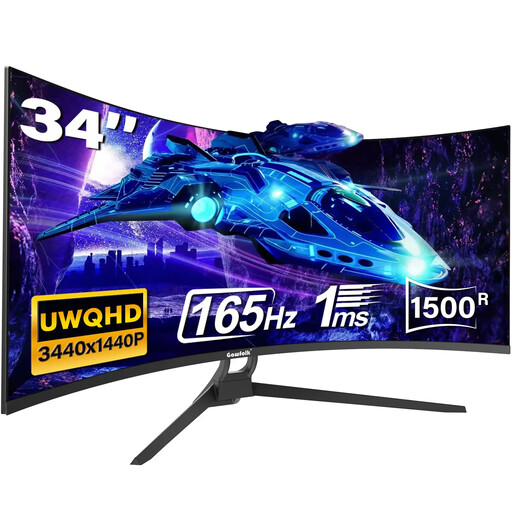
Gawfolk 34-inch curved UWQHD 165Hz monitor
Consider this 34-inch layout if a smaller screen footprint and a mounting option are priorities for your map desk.
The listing states 3440 × 1440 resolution, tilt adjustment and VESA 75 × 75 mm mounting. Check the screen finish and how the planned position handles reflections; its stated 300 cd/m² figure is not identified as typical SDR brightness.
View on Joybuy
 No image available
CRUA 49-inch curved DQHD 165Hz monitor
This wide format may suit a map with panels alongside it if your desk and mounting position can accommodate a 49-inch screen.
The listing states 5120 × 1440 resolution, a 32:9 format, height adjustment and VESA 75 × 75 mm mounting. Check whether 1440 vertical pixels suit your map layout, and assess reflections at the intended window-side position.
View on Joybuy
Frequently asked questions
Will an HDR ultrawide solve glare from a bright window?
No: HDR certification does not rate readability in your particular room. VESA’s DisplayHDR criteria address HDR performance, while the Health and Safety Executive advises arranging screens and lighting to avoid reflections and glare.
Is 5120 × 2160 or 3440 × 1440 more useful for detailed maps?
Choose 5120 × 2160 when native space for the map and supporting panels is the priority and your desk and computer can support the larger display. A 34-inch 3440 × 1440 model takes a smaller format but gives you fewer pixels; confirm that your computer can output the chosen native resolution and refresh rate.
Can one cable connect and charge my laptop?
It can if the laptop and monitor support video over the relevant USB-C or Thunderbolt connection and the monitor supplies enough power for that laptop. Compare the exact ports, charging wattage and cable requirements before relying on a one-cable setup.
What should I do with an old monitor in the UK?
Use an appropriate electrical-equipment recycling route rather than treating the monitor as ordinary household waste. GOV.UK describes waste electrical and electronic equipment rules; check your local collection options or the retailer’s applicable take-back arrangements.


