What matters when choosing?
Decide whether “two screens” means two windows on one computer or inputs from two devices. If you need to position each display independently or keep a portrait reference screen, two separate monitors are another option; check that your computer or dock supports the intended arrangement.
| Concern |
What to check |
Who this matters to |
| Editor and preview panes |
Check the computer’s support for 3440 × 1440 output and how you will tile and scale windows. |
When I format an article, I want the editor and preview readable together without switching between them; around 31% of consumers put this two-pane need first. |
| Laptop docking |
Check USB-C video support, the laptop’s power requirement and whether you need RJ45 Ethernet. |
If I plug in a laptop each day, I want charging and desk connections to work through the monitor; for around 25% of consumers, docking is the primary concern. |
| Two-device switching |
Check built-in KVM, Picture-by-Picture and the video and USB connections required for both devices. |
When my work spans two computers, I need to see or control both without confusing them with two windows on one PC; around 19% of consumers prioritise device switching. |
| Desk fit and positioning |
Check the assembled stand footprint, adjustment or mounting options, and available desk depth. |
I need the screen to sit centrally at a comfortable distance during long editing sessions; desk fit and positioning come first for around 25% of consumers. |
Joybuy monitor choices
These monitors offer options for putting help-centre work on one wide desktop; the Acer X Predator X49X also warrants a look if separate devices are part of your setup. Match the screen and connections to your computer, and check desk fit before ordering.
 Image unavailable
LG UltraGear 34GX900A-B 34-inch OLED monitor
Consider this for an editor and preview on one computer, provided its connection and resolution suit your setup.
The listed variant is a 34-inch OLED WQHD monitor with a 240Hz refresh rate. For long sessions with static editing elements, consider the OLED image-retention warning and check its display-care guidance.
If you plan to connect a laptop by USB-C, check its video-output and charging requirements against this model. Confirm the assembled stand fits your desk.
View on Joybuy
 Image unavailable
Dahua 34-inch curved UWQHD monitor, 200Hz
For one computer running a help-centre editor and reference window, check that its output can drive the listed 3440 × 1440 resolution.
The product name specifies a VA panel, 200Hz refresh rate, two HDMI inputs and two DisplayPort 1.4 inputs. Check the assembled stand footprint; if laptop docking matters, confirm the required charging and connectivity functions separately.
View on Joybuy
 Image unavailable
Philips Evnia 6000 34M2C6500, 34-inch monitor
Consider this for side-by-side applications on one computer after checking your chosen output connection.
The product name specifies 3440 × 1440 resolution, DisplayPort at 175Hz, HDMI at 100Hz, and height, swivel and tilt adjustment. Check the exact curvature and assembled dimensions if they affect your desk layout; confirm docking functions separately if you need them.
View on Joybuy
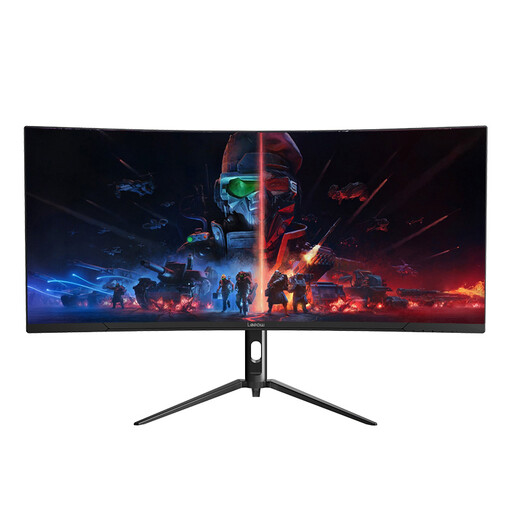 Image unavailable
Lepow HC-SJ34MZ5 34-inch curved ultrawide monitor
This is another option for keeping an editor and preview on one wide desktop, subject to your computer’s display output.
The product name specifies 3440 × 1440 resolution and a 165Hz refresh rate. Check the stand’s adjustment range and assembled footprint, and verify the connections you need for any laptop-docking setup.
View on Joybuy
 Image unavailable
Acer X Predator X49X 49-inch QD-OLED monitor
Consider this larger format if your desk and workflow call for it; two windows on one computer do not by themselves require two-device switching.
The product name specifies a 49-inch, 32:9 QD-OLED display, an 1800R curve and a 240Hz refresh rate. If you intend to use two source devices, check the exact KVM, input and peripheral connections. Verify the assembled dimensions and mounting requirements before ordering.
View on Joybuy
Frequently asked questions
Can one ultrawide show my help-centre editor and preview together?
Yes, if both are windows on the same computer and it supports the monitor’s intended resolution. Windows Snap or macOS window tiling can arrange them side by side; check that text remains comfortable to read at the chosen scaling.
Do I need KVM for two help-centre windows?
No. KVM is for sharing controls between separate source devices, not for arranging two windows from one computer. Look for it when your workflow genuinely uses two computers, and check how their video and USB connections will be routed.
What should I check before using USB-C as my laptop’s desk connection?
Check that the laptop port supports display output, that the monitor’s power delivery suits the laptop, and that the required cable and other desk connections are accounted for. LG UK specifies use of its supplied USB-C cable for the described 34WQ75C-B connection, while Dell UK lists power delivery up to 90W for the P3425WE; neither specification establishes compatibility with every laptop.
How should I position an ultrawide for regular editing?
Use the desk space and stand adjustment to place the screen centrally at a comfortable viewing distance. Health and Safety Executive guidance places the top of the screen around eye level and the screen about an arm’s length away; check the assembled footprint before buying.
Does a larger monitor replace a workplace screen assessment?
No. For employees using display screen equipment daily as a normal part of work, continuously for an hour or more, the Health and Safety Executive says employers must assess the workstation. The assessment covers the wider setup and individual needs, not just the monitor chosen.


