Shared-desk web checker
If different computers use the same desk, you may want the display, keyboard and mouse to stay connected while you change machines. Check the monitor’s inputs and switching features against that workflow.


A 34-inch, 3440 × 1440 ultrawide is a useful starting point for keeping a responsive viewport and browser tools visible together. At a shared desk, choose connection and switching features around the computers that will actually use it, and check that the screen can be positioned for each user. Desktop mobile emulation helps with layout checks but does not replace testing release-critical menu behaviour on a real device.
If different computers use the same desk, you may want the display, keyboard and mouse to stay connected while you change machines. Check the monitor’s inputs and switching features against that workflow.
A wide workspace lets you keep a simulated mobile viewport beside browser developer tools. Chrome for Developers describes Device Mode as an approximation, so follow up important menu checks on the devices and browsers that matter for release.
If menu icons, typography and other visual assets are part of the review, colour-space specifications and a flat-panel option may matter alongside room for browser tools.
Start with the computers and desk that will use the monitor: connection needs, working space and physical fit can change which 34-inch ultrawide makes sense.
| Concern | Buying checks | Who this matters to |
|---|---|---|
| Changing computers | Check the required video inputs and USB switching paths. For a one-cable laptop setup, confirm USB-C video support and sufficient stated power delivery on both devices. | When two computers take turns at the desk, I want to keep the keyboard and mouse connected instead of moving cables. Around 40% of consumers put connection and switching first. |
| Responsive workspace | Compare the exact screen resolution and whether a narrow viewport can remain visible beside your browser tools. Plan real-device checks for important menu behaviour. | If I inspect breakpoints throughout the day, I need the mobile view and developer tools in sight at once; workspace is the primary concern for roughly 30% of consumers. |
| Desk fit and positioning | Measure the available desk width and depth, then check the stand footprint, height adjustment and any required monitor-arm compatibility. | At a desk used by people with different seating positions, I need to centre and adjust the screen without crowding the work area. Physical fit comes first for around 30% of consumers. |
Chrome for Developers describes Device Mode as an approximation of a mobile device; a wide monitor does not turn that simulation into a test on the actual phone.
Use the desktop view to inspect layouts and breakpoints, then check release-critical menu behaviour on the relevant mobile devices and browsers.
A monitor’s video and charging features are useful only when the laptop port, cable and stated power delivery meet the intended connection requirements.
Check the laptop for USB-C DisplayPort Alt Mode and its charging needs, then compare the exact monitor input and cable specifications.
An incompatible one-cable setup may require separate charging or additional video or Ethernet adapters.
A 34-inch screen still needs enough desk space and a position that works for the person currently using it.
Measure the desk and stand footprint, and check height adjustment or compatible mounting. The Health and Safety Executive advises positioning the screen centrally, with its top around eye level and the display about an arm’s length away.
Showing pictures from two computers and sharing one keyboard and mouse are different functions. Picture-by-Picture or several video sockets alone do not establish the switching arrangement you need.
For the exact model, check built-in KVM support, USB upstream connections, usable video inputs and included cables.
If the required switching arrangement is not built in, it may call for a separate KVM switch or additional cables.
Dell’s Pro 34 Plus P3425WE is a reference point for a USB-C hub workspace at a shared desk.
LG’s 34BA75QE-B is relevant when the desk may need both a wide browser workspace and computer switching.
BenQ’s flat PD3420Q offers a specification set to consider when mobile-menu work includes visual-design review.
These 34-inch models are options for keeping a mobile-menu viewport beside desktop tools. Before choosing one for a shared desk, check its exact switching, USB-C and stand specifications against the computers and space you have.
 Image unavailable
Consider its 34-inch WQHD format if your main need is room for a responsive viewport beside browser tools. The product title specifies an OLED panel and 240Hz refresh rate; confirm USB-C video and charging, KVM and physical fit if those determine the shared-desk setup.
 Image unavailable
The 34-inch UWQHD format is relevant if keeping browser tools beside a mobile viewport is the main aim. If computers will take turns using the desk, confirm the required inputs, peripheral switching and stand adjustment for this model.
 Image unavailable
Its stated 3440 × 1440 resolution is worth considering for viewing a narrow menu layout alongside desktop tools. The product title lists two HDMI inputs, DisplayPort, and height, swivel and tilt adjustment; check switching and USB-C requirements separately if the desk serves more than one computer.
 Image unavailable
The stated 3440 × 1440 resolution addresses the wide-workspace need. Its product title lists a VA panel, two HDMI inputs and two DisplayPort 1.4 inputs; check the curved screen’s desk fit and the exact USB-C or KVM functions needed for shared use. If colour review matters, confirm the exact model’s colour-space specification.
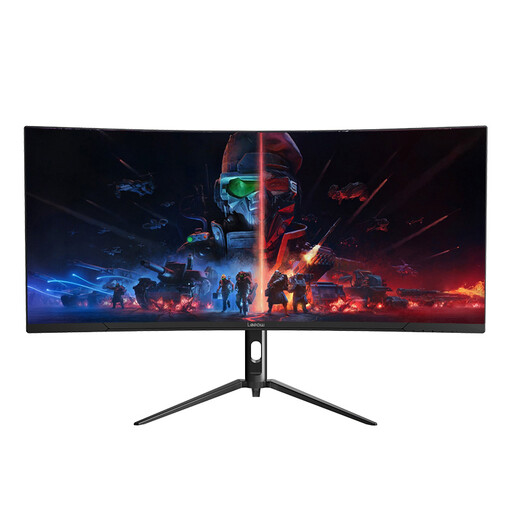 Image unavailable
Consider its stated 3440 × 1440 resolution for working with a mobile viewport beside other windows. The product title also specifies a 165Hz refresh rate; check stand adjustment, desk fit and the connections required by each computer before choosing it for shared use.
No. Chrome for Developers describes DevTools Device Mode as an approximation of a mobile device. Use it for responsive layout checks, then test release-critical menu behaviour on the relevant phones and browsers.
Check that the laptop supports USB-C video output, that the monitor’s power delivery meets its charging needs and that the cable supports the intended functions. For a model-specific reference, Dell UK lists a USB-C upstream connection with DisplayPort Alt Mode and up to 90W power delivery for the P3425WE.
Position it for the person currently using the desk rather than leaving it fixed for one user. The Health and Safety Executive advises a central screen position, with the top around eye level and the display about an arm’s length away; check that the stand or a compatible arm allows the needed adjustment.
Yes, regular changes of desk make the current setup worth checking each time. The Health and Safety Executive includes hot-desking in its display-screen-equipment guidance and advises a basic risk assessment for workers who change desks regularly.