For mobile-menu checks at a shared desk, consider a 34-inch WQHD ultrawide with an adjustable stand, then decide whether USB-C charging, Ethernet or keyboard-and-mouse switching fits the computers people use there. Use Chrome DevTools Device Mode for responsive viewport checks, but confirm important menu interactions on a real phone: Chrome for Developers describes device simulation as an approximation.
Who this setup suits
Mobile-menu QA workers
People checking responsive menu states who want the browser, Chrome DevTools and an implementation reference visible together. Chrome for Developers describes Device Mode as a way to approximate a page’s appearance on a mobile device, not a replacement for checking the device itself.
Shared-desk laptop users
People who regularly connect a laptop at a shared desk and would use charging, wired networking or peripheral switching if their equipment supports it. Dell UK and LG UK list monitors with hub and switching features relevant to this arrangement.
Design-review collaborators
People who inspect menu spacing, assets and colour as well as whether the menu works. BenQ positions its flat PD3420Q for colour-conscious design work; those features matter less when the task is limited to functional viewport checks.
What to check before buying
For consumers choosing an ultrawide to check mobile menus in a shared office, establish the testing workflow first, then check how the monitor connects and fits on the desk.
| Concern |
What to check |
Who this matters to |
| Responsive viewport workflow |
Check that the desktop workspace accommodates your browser, DevTools and reference material. Plan to validate important interactions on a phone as well. |
When I check a menu at mobile viewport widths, I want my tools in view without treating the desktop screen as a phone; around 33% of consumers put this testing workflow first. |
| Shared-desk connections |
Compare the monitor’s inputs, USB-C charging and Ethernet arrangements with your laptop. If two computers share peripherals, check how the KVM switches between them. |
Moving between desks makes repeated cable and peripheral changes a concern; around 25% of consumers prioritise a connection setup that fits their computers. |
| Positioning and glare |
Measure usable desk depth and check stand adjustment and screen placement. Ergotron advises a viewing distance of at least 51 cm. |
If colleagues of different heights use the same station, I need to reposition the display and manage reflections; about 25% of consumers make desk fit their primary concern. |
| Visual design review |
If colour sign-off is part of the work, compare documented colour-space coverage and calibration information with the files you review; decide whether a flat panel matters to you. |
Checking spacing and colour alongside menu behaviour calls for more than a functional breakpoint check; roughly 17% of consumers put visual review first. |
Buying pitfalls
-
Assuming a wide screen replaces phone testing
The extra desktop space helps keep QA tools visible, but Chrome for Developers describes Device Mode as an approximation of mobile use.
Set the intended viewport in DevTools for rapid checks, then test important menu interactions on a real phone before sign-off.
-
Choosing USB-C by connector shape alone
A one-cable desk setup depends on what both the monitor and laptop support for video, charging and any hub functions.
Compare the laptop documentation with the monitor’s USB-C power-delivery rating, input requirements and supplied cables before ordering.
If the intended connection does not cover every task, a compatible cable, charger or dock may also be needed.
-
Overlooking desk depth and adjustment
A fixed screen position may not suit everyone using a shared desk, and nearby lighting can create reflections.
Measure the available depth, check height, tilt and swivel adjustment, and work out where the screen can sit before buying.
If the supplied stand cannot provide a workable position, a monitor arm or a change to the desk arrangement may be necessary.
-
Prioritising creative-display features for functional QA
Documented colour coverage and a flat panel can matter for visual sign-off, but they do not themselves test a mobile menu’s behaviour.
Choose those features when design review is part of the job; otherwise, concentrate on the viewport workflow, connections and desk fit.
Brands to consider
These manufacturer examples show different feature priorities; check the exact model rather than assuming every monitor from a brand has the same connections or panel.
Dell
Dell UK’s P3425WE is a 34.1-inch WQHD USB-C hub monitor relevant to a shared laptop desk.
- Dell UK lists up to 90W USB-C power delivery and RJ45 Ethernet for the P3425WE; the model information also identifies KVM and stand adjustment.
- Dell’s camera-equipped P3426WEV is aimed at collaboration in open workspaces. An integrated camera need not drive a purchase made solely for mobile-menu checks.
LG
LG UK’s 34BA75QE is a productivity-oriented UltraWide example for a desk shared by computers or users.
- LG UK identifies a built-in KVM for controlling two computers with one keyboard and mouse; its model information also lists Picture-by-Picture.
- Check the intended laptop, video inputs and USB connections before relying on that switching arrangement.
BenQ
BenQ positions the flat PD3420Q as a designer monitor for work that includes visual review.
- BenQ states that the PD3420Q covers 100% sRGB, 100% Rec.709 and 98% P3; these are manufacturer specifications relevant to workflows using those colour spaces.
- Colour-focused features are not a substitute for responsive viewport checks or real-phone interaction testing.
Ultrawide monitors on Joybuy
These 34-inch ultrawides offer screen space for a browser and mobile-menu QA tools. They differ in the details stated for their inputs and adjustment, so check the exact laptop connection and shared-desk requirements before choosing.
 No image available
LG UltraGear 34GX900A-B 34-inch OLED WQHD monitor
Consider this 34-inch option if a wide desktop workspace suits your browser and QA tools, while checking that its connections fit the shared desk.
The product name specifies an OLED panel and 240 Hz refresh rate. For prolonged static work interfaces, check the model’s screen-care guidance.
View on Joybuy
 No image available
Philips Evnia 6000 34M2C6500 34-inch WQHD monitor
This model is worth considering where colleagues need to reposition a wide screen at a shared desk.
Its product name specifies 3440 × 1440 resolution, DisplayPort and two HDMI inputs, plus height, swivel and tilt adjustment. Check whether those inputs suit the computers that will use it.
View on Joybuy
 No image available
Lenovo R34w-30 34-inch UWQHD gaming monitor
This 34-inch ultrawide is an option for keeping a browser and QA tools on the desktop together.
The product name identifies an UWQHD gaming monitor. Check its connections, stand adjustment and the space available on the shared desk against your setup.
View on Joybuy
 No image available
Dahua 34-inch curved UWQHD gaming monitor
Consider this model if its curved, wide-screen format fits the desk and the way you arrange your QA windows.
The product name specifies 3440 × 1440 resolution, a VA panel, 200 Hz refresh rate, two HDMI inputs and two DisplayPort 1.4 inputs. Check how the intended laptop will connect.
View on Joybuy
 No image available
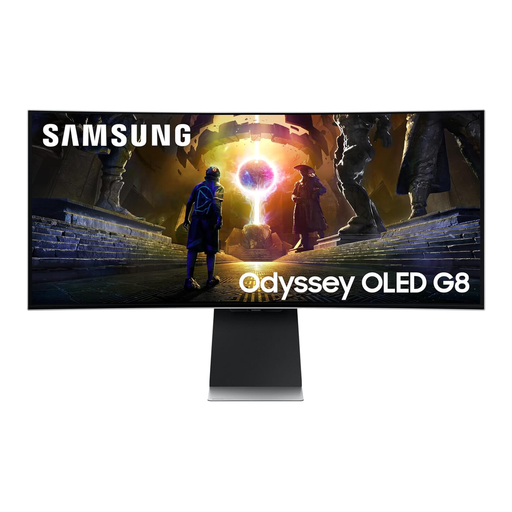
Samsung Odyssey G8 LS34DG850SUXXU 34-inch OLED monitor
This curved ultrawide offers another 34-inch screen format for arranging a browser and QA tools, provided it fits the shared workstation.
Its product name specifies WQHD resolution and a 175 Hz refresh rate. Check the stand’s positioning range and the required computer connections before choosing it for a desk used by several people.
View on Joybuy
Common questions
Can an ultrawide show me exactly how a mobile menu works on a phone?
No. Chrome for Developers describes DevTools Device Mode as an approximation: use it to check responsive viewports and breakpoints efficiently, then validate important menu interactions on a real phone.
What matters most if several people share the monitor?
Start with usable desk depth and a stand that can be repositioned, then check connections against each person’s laptop. Ergotron advises placing a monitor at least 51 cm from the eyes; plan screen placement to manage glare as well.
Do I need a built-in KVM to check a mobile menu?
A built-in KVM is useful when two computers need to share a keyboard and mouse, not for mobile-menu checking itself. If you use one computer, focus instead on the display connection, desk fit and your responsive-testing workflow; if you use two, confirm how the monitor switches both video and peripherals.


