Script-led video-call workers
If a long script or briefing must stay visible beside a live call, prioritise usable document height and text clarity as well as room for the call window. Compare the layout at the scaling you would actually use.


A 34-inch ultrawide is a starting point when you need a script and call side by side but have limited desk space. Consider a 40-inch 5K2K screen when vertical room for the script matters more, or a 49-inch Dual QHD screen when two-source working space is the priority. At a shared desk, check switching and laptop connections as carefully as screen size, and make sure each user can position the display comfortably.
If a long script or briefing must stay visible beside a live call, prioritise usable document height and text clarity as well as room for the call window. Compare the layout at the scaling you would actually use.
When two computers use the same display, keyboard and mouse, the exact KVM connections and laptop docking requirements may matter more than another increase in screen size.
An integrated camera, microphone and docking connection can reduce separate equipment on the desk, provided those features meet the organisation’s conferencing and privacy requirements.
Start with the space your script needs, then check how computers and peripherals will connect. Before settling on a size, measure the shared workstation and consider how different users will adjust it.
| Concern | What to check | Who this matters to |
|---|---|---|
| Readable script space | Compare native resolution and the script-and-call layout at your laptop’s intended display scaling. | If I need to read a long script without hiding the call, vertical document space takes priority over sheer width. Around 38% of consumers put readable script space first. |
| Switching computers | Check KVM support for both computers and their keyboard, mouse and video connections. | Changing laptops mid-use is awkward if I must reconnect every peripheral. For roughly 31% of consumers, straightforward switching is the primary need. |
| Desk fit and adjustment | Measure desk width and depth against the screen and stand; check its adjustment range or a compatible monitor arm. | On a shared workstation, I need a screen that fits and can be positioned for different users. About 23% of consumers place desk fit and adjustment first. |
| Built-in call equipment | Check camera privacy controls, microphone and speaker requirements, and conferencing-software compatibility. | If calls dominate my day, fewer separate devices may be worth more to me than extra screen width. Built-in call equipment comes first for around 8% of consumers. |
Samsung Business UK’s 49-inch S95UC uses a 5120 × 1440 Dual QHD format, while LG UK specifies 5120 × 2160 for its 40U990A-W. The wider screen and the taller document workspace address different priorities.
Compare both dimensions of the resolution and try arranging a script, call and notes at your intended scaling before choosing a format.
USB-C on a laptop or monitor does not, by itself, establish which video and charging functions the connection provides.
Check the laptop’s video-output and charging specifications against the exact monitor input, power-delivery rating and cable requirements.
Depending on those connections, you may need a compatible cable, separate charger or dock.
A screen still needs a suitable viewing position and space for the keyboard and other equipment. The Health and Safety Executive says employers must assess the whole workstation for workers who use display screen equipment daily for continuous periods of an hour or more.
Measure the desk, check the stand or monitor-arm requirements, and adjust the setup for each regular user.
Built-in conferencing equipment may simplify the desk, but camera framing, microphone suitability and privacy requirements depend on how calls are conducted.
Check the organisation’s requirements and the conferencing software before relying on the monitor’s built-in hardware.
A separate headset, webcam or microphone may still be needed for the intended call setup.
Dell’s cited business models span 34-inch ultrawides and larger document-focused displays.
Samsung Business UK’s S95UC is a 49-inch option for a desk that needs wide, two-source working space.
Philips’ 40B1U6903CH/00 combines a 5K2K display with integrated conferencing hardware.
LG’s 40U990A-W is a 40-inch option for users comparing document space and laptop connections.
BenQ’s PD3420Q is a 34-inch alternative with connections relevant to a shared workspace.
These ultrawide choices include a 49-inch format and several 34-inch models for placing a script beside a call. Compare their listed variants with your desk dimensions, laptop connections and switching needs before choosing.
 No image available
Consider this 32:9 format if wide side-by-side windows are your priority and the shared desk can accommodate a 49-inch screen.
The product name specifies a 240 Hz panel, an 1800R curve, HDMI, DisplayPort and USB-C. Check the USB-C functions and laptop requirements before planning a one-cable setup.
 No image available
This 34-inch format is worth considering when a script and call need separate windows but a 49-inch screen would be difficult to place.
The product name specifies 3440 × 1440 resolution, a VA panel, two HDMI inputs and two DisplayPort 1.4 inputs. Check the stand footprint and whether your shared-computer setup needs a separate KVM.
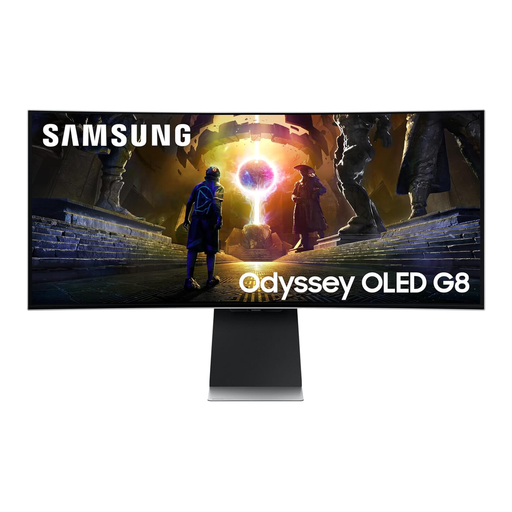 No image available
The 34-inch ultrawide format may suit a script-and-call layout where desk space limits screen size.
The product name specifies WQHD and 175 Hz. Check the exact resolution, stand dimensions and connections needed for each laptop before relying on it at a shared desk.
 No image available
Consider this 34-inch ultrawide for a script beside a call if its screen and stand fit the shared workstation.
The product name identifies the R34w-30 UWQHD variant. Check its exact dimensions, adjustment range and computer-switching connections against the intended setup.
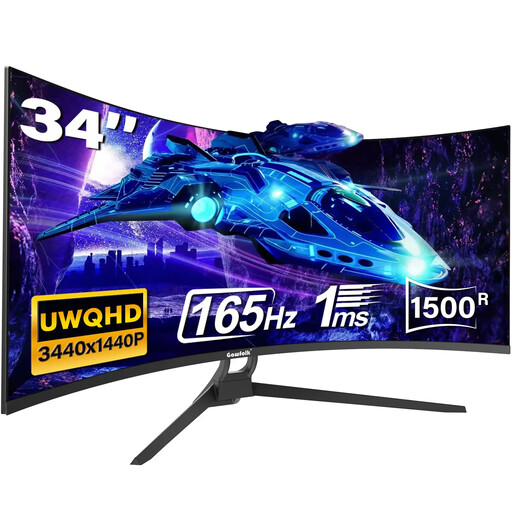 No image available
This 21:9 model offers a 34-inch format to consider for keeping a script alongside a call window.
The product name specifies a 1500R curve, HDMI 2.1, DisplayPort 1.4 and Type-C. Confirm what the Type-C port does, whether the stand adjusts in height and how much desk space the assembled monitor needs.
Not necessarily: choose according to whether width or document height matters more. Samsung Business UK specifies 5120 × 1440 for its 49-inch S95UC, while LG UK specifies 5120 × 2160 for its 40U990A-W. Check both formats at your intended display scaling and allow for the wider screen’s desk footprint.
Confirm that the laptop port supports the required video output and charging, then check the monitor’s exact input and power-delivery rating. A USB-C connector alone does not establish that one cable will provide video, data and sufficient charging for your laptop.
Yes, if the exact monitor has a KVM and both computers and peripherals are connected as that model requires. Samsung Business UK specifies this function for the S95UC; check the connection arrangement of any other model before buying it for a shared desk.
The relevant workstation decision is not settled by choosing a particular diagonal size. The Health and Safety Executive says employers must assess workstations for workers who use display screen equipment daily for continuous periods of an hour or more, taking account of the workstation, the work and individual needs.
Reassess it when the workstation or its use changes, a new user starts, or a user reports discomfort, in line with Health and Safety Executive guidance. For people who change desks regularly, the HSE also advises a basic risk assessment when they move.